
What 24/7 IPTV Channels Actually Are
Most IPTV content is either live TV (sports, news, scheduled programming) or on-demand (pick what you want, watch when you want). 24/7 channels sit in a third category that gets less attention: continuous loop channels that play movies, TV series episodes, or themed content on an automated schedule.
Think of channels like Pluto TV’s movie channels, or the niche streaming channels that play nothing but 80s action films or classic sitcoms on continuous rotation. That’s the model. The content plays whether you’re watching or not, creating a passive viewing experience that a lot of people actually prefer, you tune in, something’s already playing, and you don’t have to make a decision.
For IPTV reseller UK, these channels are a useful addition to a package because they increase perceived value without adding complexity for the end user. A client who’s not sure what to watch has something to put on immediately without navigating through a library.
How 24/7 Channels Differ Technically From Live TV
From the delivery infrastructure perspective, 24/7 loop channels and live TV channels are handled identically. Both are HTTP-based streams that the client app receives as a continuous data feed. The distinction is entirely on the content side: live TV is a real-time broadcast, while a 24/7 loop is a scheduled playlist playing pre-recorded content on repeat.
Your reseller dashboard doesn’t distinguish between them, they appear as standard channels in your package configuration. When a client connects to a 24/7 movie channel, it counts as one active connection the same as connecting to a live sports channel.
Bandwidth requirements are comparable to other HD streams, roughly 8 to 15 Mbps for 1080p content, similar to standard live TV. There’s no additional overhead for the loop mechanism since that happens at the content provider’s infrastructure level, not on the viewer’s connection.
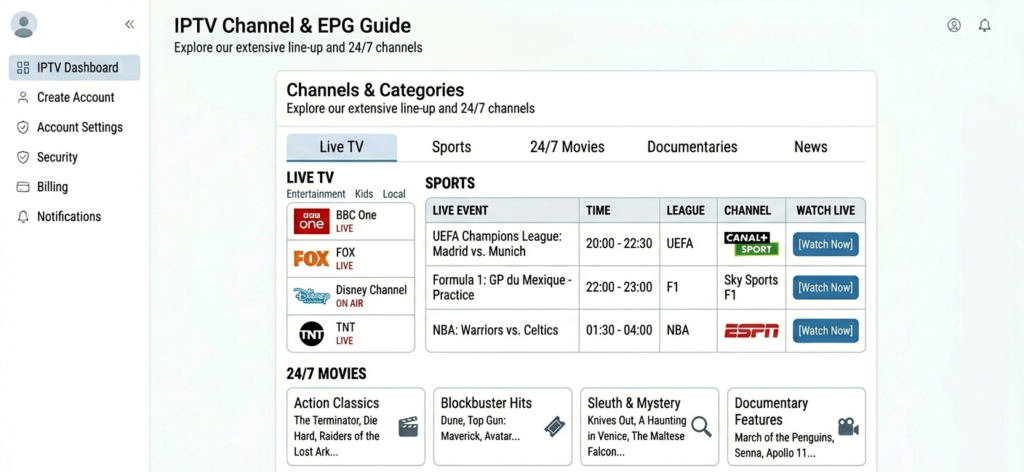
IPTV channel list showing categorised channels including a 24/7 Movies section alongside Live TV and Sports categories
What’s Worth Adding to a Package
Not all 24/7 channels are equal. Some providers offer genuinely curated loops with decent content libraries. Others fill the category with low-bitrate streams of public domain content or poorly encoded repeating playlists that viewers abandon after 5 minutes.
Categories that tend to perform well with subscribers include classic film loops (noir, westerns, 80s/90s cinema), genre-specific channels (horror, sci-fi, thriller), episodic TV loops playing specific series seasons on repeat, documentary and factual channels, kids’ entertainment loops (these are particularly popular with parents), and music video channels.
Categories that underwhelm despite sounding appealing include “best of” compilations that repeat too frequently, low-bitrate channels where picture quality is noticeably worse than the rest of the package, channels with poor audio sync on looped content, and excessively short loops (under 4 hours of content means you’ll see the same thing multiple times per day).
When evaluating an upstream provider’s 24/7 channel offering, ask about loop duration and content refresh frequency. A provider that updates their loop channels monthly with new content is meaningfully better than one that set them up years ago and hasn’t touched them since.
Managing 24/7 Channels in the Dashboard
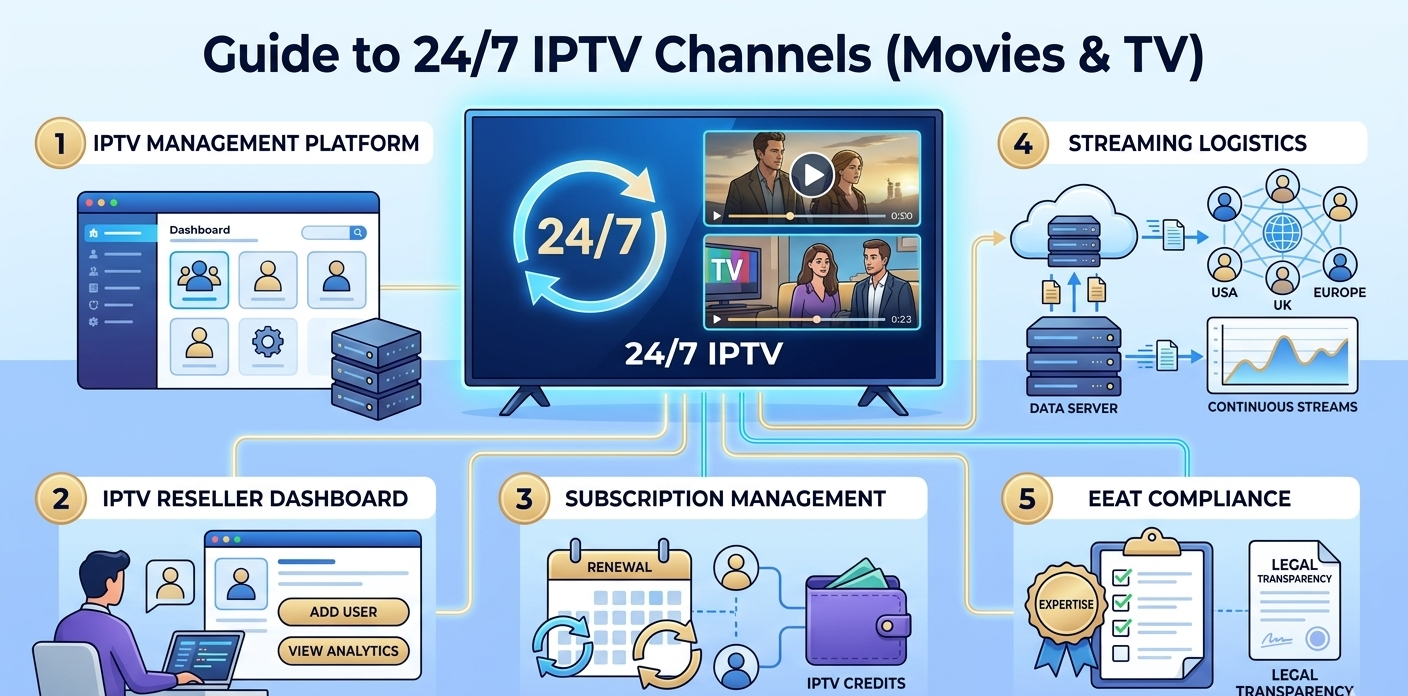
From the reseller panel, configuring which clients have access to 24/7 channels works identically to any other channel category management.
To check available 24/7 channels, log into the dashboard and navigate to the Channel Management or Package Configuration section. Your upstream provider’s channel list will show categories, look for labels like “24/7 Movies,” “VOD Loops,” “Always-On,” or similar. The naming varies by provider.
If you don’t see a dedicated 24/7 category, check whether these channels are bundled into a broader entertainment package or whether they need to be enabled separately per account.
To enable 24/7 access for a specific client, open the User Management tab, find the client’s account, click into their account detail view. In the Bouquet Settings or Package Assignment section, ensure the 24/7 channel category is toggled on for their plan. Some panels make this a per-account toggle; others tie it to the plan tier.
This took about 45 seconds to configure on an account set up recently, finding the toggle was the only friction, as the label was “Continuous Channels” rather than “24/7” on the panel in use.
To verify the channels load correctly, after enabling, test by loading the M3U URL in a media player and navigating to the 24/7 category. Confirm the stream loads within 5 seconds and plays cleanly. Check whether the category appears in your client’s EPG, 24/7 channels sometimes have incomplete EPG data since there’s no meaningful “schedule” to pull.
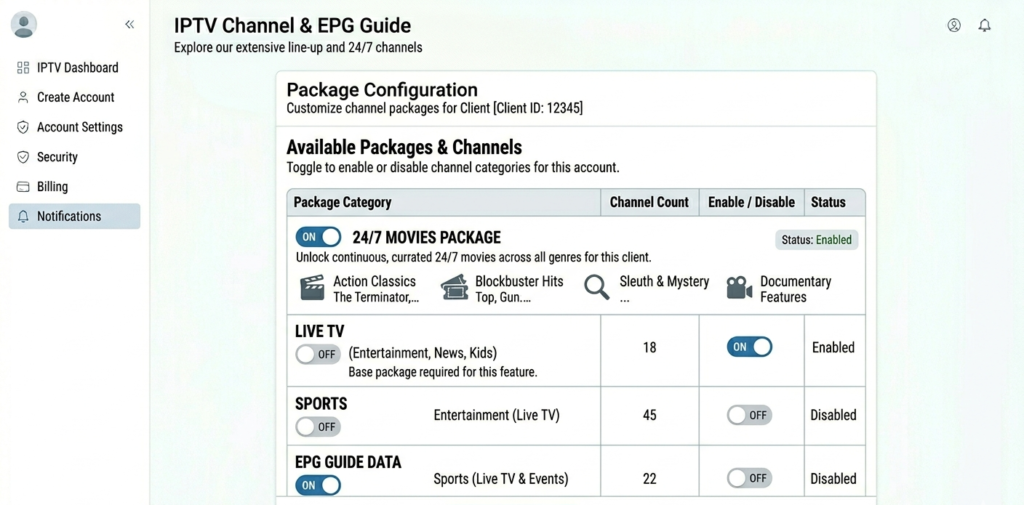
Dashboard Package Configuration section showing 24/7 Movies category toggle enabled for a client account
Here’s the full account creation workflow for 24/7-enabled accounts:
| Step | Action | Where | Result |
|---|---|---|---|
| 1 | Log into dashboard | Main login | Full panel access |
| 2 | Open User Manager | User Management tab | Client list visible |
| 3 | Create new account | Add New User button | Setup form opens |
| 4 | Select plan with 24/7 included | Plan dropdown | Package assigned |
| 5 | Enable 24/7 category | Bouquet Settings | Loop channels activated |
| 6 | Deduct credits | Credit system | Account activated |
| 7 | Generate credentials | Cloud system | M3U URL created |
| 8 | Deliver to client | Encrypted message | Client sets up device |
Custom IPTV Movie Loops: What’s Actually Possible
Some advanced reseller setups allow creating custom continuous channels, essentially building your own 24/7 loop from content you host separately. This is a more complex setup than simply including a provider’s pre-built loop channels.
The general workflow for custom loops starts with hosting the content separately. You need a media server (like Jellyfin or Emby) or cloud storage hosting the video files you want in the loop. This is entirely your infrastructure responsibility, your reseller dashboard handles access permissions but not content hosting.
Next comes creating a playlist schedule. Tools like Ersatz TV or open-source alternatives generate a continuous stream from a library of files, essentially creating a fake live channel that plays files in order or randomly on a schedule.
Then you expose it as a stream URL. The output from your playlist scheduler becomes an HTTP stream URL that you can add to your package configuration as if it were any other channel.
Finally, you manage access through the dashboard. Client access to the custom channel goes through your normal subscription management workflow.
This is a significantly more complex operation than reselling pre-built loops, and it comes with content licensing responsibility that you don’t carry when using an upstream provider’s licensed content. Only worth pursuing if you have a specific use case and are comfortable with the technical and legal requirements.
For most IPTV resellers, using quality pre-built 24/7 channels from a reliable upstream provider is the practical approach.
Real Setup Mistakes Made With 24/7 Channels
One mistake was not checking loop duration before including it in packages. A 24/7 classic films channel was added to a package without checking how much content was in the loop. Turned out to be a 6-hour loop repeating 4 times daily. A client who watched it regularly for 3 days noticed they were seeing the same films repeatedly and complained about poor content variety. It was removed and replaced with a channel that had a larger rotating library. Always check loop duration during provider evaluation.
Another mistake was including channels with noticeably inferior picture quality. Some 24/7 channels in the provider’s package were encoded at significantly lower bitrates than the live TV channels. Clients who switched between a live HD sports channel and a 24/7 movie channel noticed the quality drop immediately. The lower-quality loop channels were removed from the standard package, better to offer fewer 24/7 channels at consistent quality than many at inconsistent quality.
A third mistake was not explaining what 24/7 channels are to clients. A client contacted asking why a certain “channel” was always showing films and didn’t have a schedule. They thought it was broken. There hadn’t been an explanation of what continuous loop channels are or why they work differently from scheduled TV. A brief explanation was added to onboarding materials. Sounds obvious in retrospect but it’s a genuine source of support calls when clients don’t have the context.
A fourth mistake was assuming EPG would populate for 24/7 channels. A client’s 24/7 channels were enabled and they asked why those channels showed no programme guide while everything else did. 24/7 loop channels often don’t have EPG data, the guide shows the current playing content (sometimes), but no future schedule. The assumption had been that the EPG would work similarly to live channels. Expectations are set correctly now during setup: “these channels won’t have a guide, they just play continuously.”
What Most Guides About 24/7 IPTV Don’t Cover
Content refresh matters more than channel count. A package with 10 well-curated, regularly updated loop channels is more valuable than one with 50 channels that all have the same 8-hour loop running since 2022. Ask your provider how frequently their 24/7 content is refreshed and what the average loop duration is.
These channels suit specific viewing contexts. 24/7 loops work well for background viewing, falling asleep to something, or having TV on during household activities. They’re not well-suited for “I want to watch something specific.” Understanding this helps you position them correctly to clients, as a complement to live TV and on-demand, not a replacement.
Server load on 24/7 channels can be surprisingly high. Because these channels run continuously regardless of active viewing, clients who leave them playing in the background contribute to sustained connection counts even when nobody is actively watching. If you’re monitoring per-account usage, a client with 24/7 channels enabled often shows higher connection hours than you’d expect.
Seasonal content rotation is an opportunity. Some providers update their 24/7 channels seasonally, Halloween horror films in October, Christmas classics in December. These seasonal channels are worth highlighting to clients as they create genuine value and give IPTV resellers a reason to communicate proactively.
Who 24/7 Channels Are NOT Right For
Clients on single-connection plans who watch multiple things simultaneously aren’t a great fit. If a household has 24/7 channels playing in one room and live TV in another, they’ll hit their connection limit. Worth considering when recommending plans to households where this is likely.
Clients with data-capped internet connections should be cautious too. 24/7 channels running continuously consume data constantly, roughly 3 to 6 GB per hour at HD quality. A client who forgets to turn them off could consume significant data. Worth mentioning during setup for anyone on a data-limited plan.
Clients who primarily use IPTV for specific scheduled content won’t get much value either. If someone subscribes specifically for Premier League matches or a particular drama series, 24/7 loop channels don’t add meaningful value for them. Including them unnecessarily adds to the package without benefiting the client.
Performance Snapshot: What to Expect
Testing 24/7 channels on three different upstream providers with a 100 Mbps connection showed channel load times of 3 to 8 seconds across providers, comparable to live TV. Stream stability over 4 hours held up well, all three providers maintained stable streams without interruption. Picture quality consistency varied significantly, one provider had noticeably lower bitrate on loop channels versus their live TV. And EPG population was weak across the board, none of the three providers showed complete EPG data for 24/7 channels; one showed current playing content only.
The main performance variable is content encoding quality, which is entirely the upstream provider’s decision. Test streaming quality specifically on the 24/7 channels during provider evaluation, don’t just test live TV and assume loops will match.
Here’s how a basic panel compares to an advanced one for 24/7 management:
| Feature | Basic panel | Advanced panel |
|---|---|---|
| 24/7 channel category management | Basic toggle | Per-account configuration |
| Channel usage analytics | No | Yes |
| Connection duration monitoring | No | Yes (identifies always-on connections) |
| Custom channel package creation | No | Yes |
| Real-time stream health for loops | No | Yes |
| Sub-reseller package configuration | No | Yes |
FAQ
Do 24/7 channels count against a client’s connection limit?
Yes. Each active stream, including a 24/7 loop channel playing in the background, uses one connection from the account’s concurrent connection allowance. A client with a 2-connection account watching live sports while a 24/7 channel plays in another room is using both connections simultaneously.
How do I find out which 24/7 channels my provider offers?
Check the Channel Management or Package Configuration section in your dashboard for a category listing. If it’s not immediately obvious, ask your upstream provider directly, specifically ask how many dedicated loop channels they offer, what categories are covered, how long their loops run, and how frequently content is refreshed.
Can clients skip around in 24/7 channels like on-demand?
No. 24/7 loop channels are live streams, they deliver content at whatever point the server’s current playback position is. Clients can’t rewind or skip forward within the loop itself. Some providers pair loop channels with catch-up functionality (so you can access earlier content from the loop), but this is provider-dependent. Most don’t.
Why do 24/7 channels sometimes show no EPG data?
Because there’s no fixed schedule to pull EPG data from. EPG data is generated from broadcaster schedule information, which 24/7 loop channels don’t have in the traditional sense. Some providers generate synthetic EPG showing the current title playing; others leave it blank. This is normal behaviour, not a configuration error.
Is there a way to see which clients are leaving 24/7 channels running continuously?
On advanced panels, the connection monitoring section shows active connection duration per account. Clients with 24/7 channels running show sustained connection times, sometimes 8 to 12+ hours per session. This isn’t necessarily a problem, but it’s useful data for understanding your connection load and for identifying clients who might benefit from a higher-connection plan if they frequently hit limits.
Do 24/7 channels require special configuration in TiviMate or other apps?
No. They appear in the channel list like any other channel and play normally. The only difference clients notice is that there’s no programme guide, and content is already in progress when they tune in (since it runs continuously). No special app settings are needed.
How do I position 24/7 channels when selling to new clients?
Frame them as a complement to the main package rather than a core feature. Something like: “The package also includes continuous loop channels, movie channels and themed content that play 24/7, so there’s always something on if you just want background TV or can’t decide what to watch.” Setting the right expectation upfront prevents the confusion that comes when clients encounter these channels without context.
24/7 loop channels are a genuinely useful addition to an IPTV package when the underlying content quality is there. They reduce the decision fatigue of on-demand viewing and provide something different from the live TV experience.
The management overhead is minimal, they work through the same account and connection infrastructure as everything else. The evaluation effort should go into choosing a UK IPTV Reseller Panel provider whose loop channels are actually worth watching, not into the technical configuration, which handles itself.