
Why App Updates Actually Matter for IPTV
Most people update apps because their device nags them to. For IPTV specifically, there are more concrete reasons, and a few situations where updating at the wrong time or in the wrong way causes more problems than it solves.
IPTV apps on Firestick (TiviMate, IPTV Smarters Pro, Perfect Player, and others) receive updates that affect stream compatibility, EPG handling, and the way the app authenticates with your provider’s server. An outdated app can reject valid credentials, fail to parse updated M3U formats, or crash on specific stream types, problems that look like provider issues but are actually app-side.
Understanding how to update these apps correctly on Firestick, including when to update, how to preserve your settings, and what to do when an update breaks something, is worth 20 minutes of your time.
How Firestick App Updates Actually Work
Firestick runs Fire OS, which is Amazon’s customised version of Android. Apps installed from the Amazon App Store update through the standard Amazon system. Apps installed via sideloading (which includes most IPTV apps, since they’re not in Amazon’s store) require manual updating, the device won’t notify you automatically.
This distinction matters because:
TiviMate is not in the Amazon App Store. It’s sideloaded via its own APK. Updates require you to download and install the new APK manually.
IPTV Smarters Pro is available in the Amazon App Store and will update automatically if auto-updates are enabled.
Perfect Player and GSE Smart IPTV are sideloaded and require manual APK updates.
Knowing which update method applies to your app saves time and prevents the confusion of looking for an update that doesn’t exist through the wrong channel.
Checking Your Current App Version Before Updating
Before downloading anything, check what version you’re running. This matters because some updates introduce changes that require reconfiguration, and knowing your starting version helps if you need to troubleshoot or roll back.
For TiviMate: open TiviMate → Settings → About. The current version number is displayed here. TiviMate’s official website (tivimate.com) shows the latest release version. Compare the two, if they match, you’re current.
For IPTV Smarters Pro: open the app → tap the menu icon → About. Version number shown. Alternatively, check the app in the Amazon App Store and compare the listed version to what’s installed.
For sideloaded apps generally: Settings on your Firestick → Applications → Manage Installed Applications → find the app → the version number is listed in the app details.
This takes about 2 minutes and is worth doing before any update process, particularly if you’re troubleshooting a stream issue that may have been introduced by a previous update.
Saving Your Settings Before You Update Is a Critical Step
This is the step most guides skip. Updating an IPTV app without first backing up your configuration can result in losing your playlist credentials, EPG settings, channel favourites, and custom bouquets. On TiviMate this would mean re-entering your M3U URL or Xtream codes and rebuilding your favourites list from scratch.
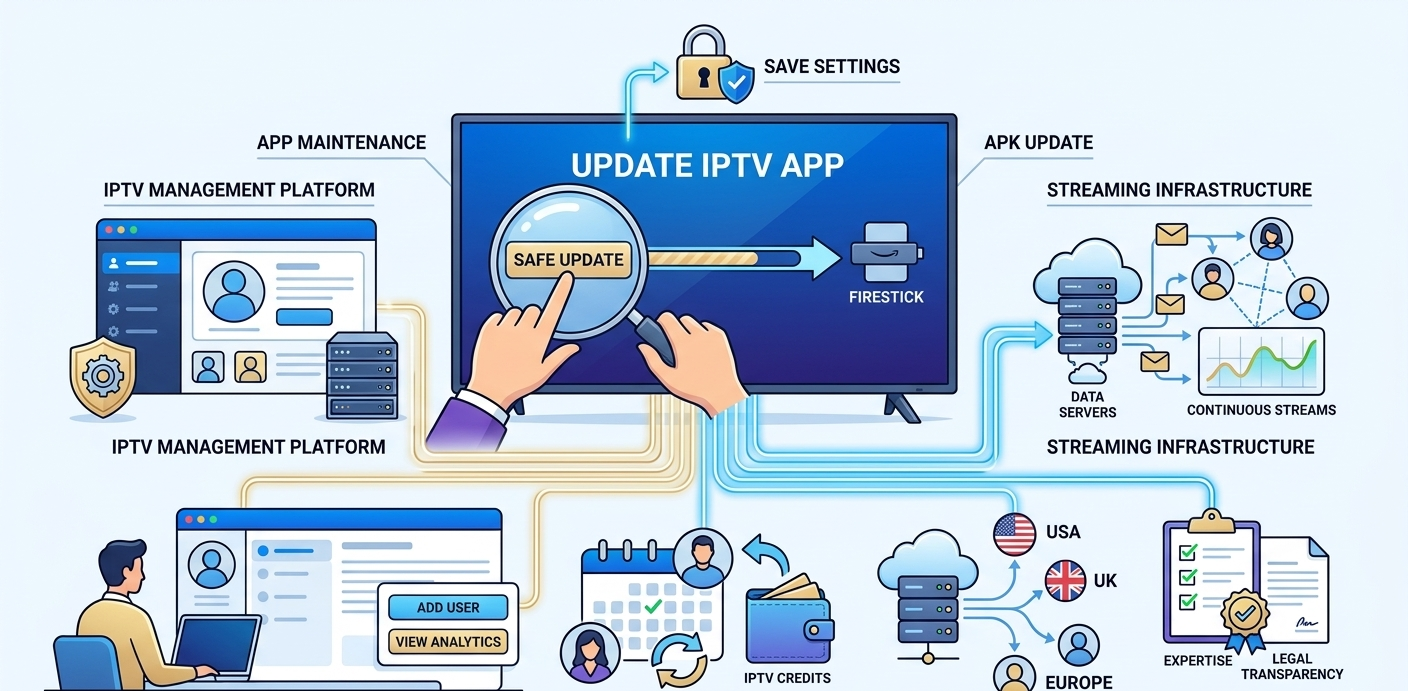
TiviMate backup (do this before every major update): open TiviMate → Settings → Backup & Restore → Create Backup. The app saves a backup file to your Firestick’s storage. Note where it saves, typically in a TiviMate folder in internal storage or on an inserted microSD card.
This backup took about 8 seconds on my setup. The file is small (a few KB) but contains all your configuration. Store a copy on a USB drive or cloud storage if you want extra protection.
IPTV Smarters Pro: your playlist and credentials are tied to your login. As long as you remember your provider credentials (M3U URL or Xtream codes), you can restore your setup after any update by re-entering them. Write these down somewhere accessible, losing them means contacting your UK IPTV reseller for a reset.
General principle: know your credentials before updating. Username, password, server URL or M3U link, these should be stored somewhere you can access them without the app working. This sounds obvious but people regularly update apps and then can’t remember their login details.
How to Update TiviMate via APK on Firestick
This is the most common IPTV app update scenario since TiviMate isn’t in Amazon’s store and is the app most experienced IPTV users end up on.
Step 1, enable apps from unknown sources (if not already done): Settings → My Fire TV → Developer Options → Apps from Unknown Sources → On. If you previously sideloaded TiviMate, this is already enabled. Takes 30 seconds if it isn’t.
Step 2, install the Downloader app: if you don’t have Downloader installed, search for it in the Amazon App Store and install it. This is the standard Firestick tool for downloading APK files from the web. Free and takes about 2 minutes to install.
Step 3, find the latest TiviMate APK URL: on a separate device (phone or computer), go to tivimate.com and locate the latest APK download link. Alternatively, the TiviMate subreddit (r/TiviMate) posts update announcements with direct APK links. Copy the URL exactly.
Step 4, download via Downloader: open Downloader on your Firestick. Enter the APK URL in the URL field. The download starts immediately, for TiviMate the file is about 15–20 MB, which downloads in under 30 seconds on a typical broadband connection.
Step 5, install the APK: once downloaded, Downloader prompts you to install. Tap Install. The process takes about 20 seconds. You’ll see a confirmation that the app is installed. Tap Open to launch TiviMate.
Step 6, restore your backup: if the update reset your settings (minor updates usually don’t, major version updates sometimes do), go to Settings → Backup & Restore → Restore Backup. Select your saved backup file. Everything restores in seconds.
Step 7, delete the APK file: Downloader usually prompts you to delete the APK after installation. Do this, it frees up storage. If it doesn’t prompt, go back to Downloader’s file manager and delete the APK manually.
Total process time: about 5–8 minutes from start to finish.
Updating IPTV Smarters Pro Through the Amazon App Store
Manual update check: from the Firestick home screen → Apps → find IPTV Smarters Pro → press and hold the remote select button → More Info → Update (if available). If Update is greyed out, you’re on the latest version.
Enabling automatic updates: Settings → Applications → Appstore → Automatic Updates → On. This applies to all Amazon App Store apps including IPTV Smarters. The downside is occasional updates happening at inconvenient times, some users prefer manual control to avoid an update mid-session breaking something.
Post-update check: after any IPTV Smarters update, open the app and verify your playlists are still loaded. Check that EPG is populating correctly. Load a channel and confirm streams are working. Takes 2–3 minutes and catches any update-related issues before a client notices them.
What to Do When an Update Breaks Your Stream
This happens occasionally. An app update changes something that affects how streams are authenticated or decoded, and what was working fine the day before suddenly fails.
Diagnostic steps in order:
- Check that your credentials still work, try loading the M3U URL directly in a browser (just the URL, not the stream) to verify it’s accessible
- Check if the issue is the app or the stream by trying a different IPTV app with the same credentials
- Check TiviMate’s official subreddit or release notes for known issues with the new version
- Try clearing the app’s cache: Settings → Applications → Manage Installed Applications → TiviMate → Clear Cache
- If the issue persists and started immediately after the update, consider rolling back
Rolling back to a previous TiviMate version: APKMirror hosts historical versions of Android apps. Search for TiviMate on APKMirror, find the previous version, download it via Downloader, and install it over the current version. Your settings should be preserved. This has resolved update-related issues in my experience within about 10 minutes.
The key diagnostic question: did everything work before the update and fail immediately after? If yes, the update is almost certainly the cause. If things were working intermittently before, the update may be coincidental and the actual issue is elsewhere.
Real Update Mistakes I’ve Made
Mistake 1: updating without a backup during a live event. Updated TiviMate the evening before a big match. The update reset some configuration settings including my EPG source. Spent 25 minutes reconfiguring the next day while a client was trying to watch. Now I never update within 48 hours of a major sports event, and I always back up first.
Mistake 2: downloading APK from an unofficial source. Searched for a TiviMate update APK and found it on a random file-sharing site rather than the official source. Installed it. The APK was modified, TiviMate loaded but behaved strangely, with some features broken. Had to uninstall completely and reinstall from the official source. Always use official APK sources: the developer’s website or well-established repositories like APKMirror.
Mistake 3: not telling clients before updating their app remotely. Early in managing a client base, I pushed an IPTV Smarters update recommendation to clients without warning. Two clients contacted me to say the app had changed appearance and they couldn’t find their playlists. The playlists were fine, the update had changed the interface layout. I had to walk them through the new navigation. Now I send a brief heads-up when a significant update is available.
Mistake 4: ignoring cache buildup between updates. Had a client complaining of slow channel loading times between updates. Assumed it was a provider issue. Eventually cleared the TiviMate cache as a diagnostic step, it had grown to over 200 MB. After clearing, channel loading was significantly faster. Now I include cache clearing as part of regular app maintenance, not just during updates.
What Most Update Guides Don’t Tell You
Not all updates are improvements. App developers occasionally push updates that introduce new bugs or change interface elements in ways users dislike. Checking user feedback in Reddit communities or app reviews before updating, especially for major version changes, can save you from a degraded experience.
Fire OS version affects app compatibility. Older Firestick models that can’t update to the latest Fire OS version can eventually lose compatibility with the latest app versions. If you’re running a Firestick that’s several generations old, check that your device’s Fire OS version is supported by the app version you’re installing.
Some IPTV apps update their streaming protocol requirements. An app update might add support for a new authentication method your provider uses, or drop support for an older one. If streams stop working after an update, the protocol change is worth investigating, contact your reseller to check if the server endpoint or authentication format has changed.
Sideloaded apps don’t benefit from Amazon’s app scanning. The apps in Amazon’s App Store go through a review process. Sideloaded APKs don’t. This isn’t a reason to avoid sideloading, most IPTV apps simply aren’t in Amazon’s store, but it does mean APK source matters. Stick to developer websites and established repositories.
Managing App Versions Across Client Devices: The Reseller View
If you’re managing IPTV subscriptions for multiple clients, app version issues create support calls that are solvable if you have the right information.
From your UK IPTV Panel reseller dashboard, the Device Analytics section (on advanced panels) shows which app types clients are connecting with. This doesn’t always show the specific version, but it does show the app category, allowing you to identify clients who might be using legacy setups.
When a client reports streaming issues, the app version question is always worth asking upfront. “Which app are you using and when did you last update it?” resolves a significant percentage of client support calls without any server-side investigation needed.
Building a simple device/app FAQ for your client base, covering how to update the two or three apps you recommend, dramatically reduces the support overhead from update-related issues.
Panel capability makes a real difference here too, particularly around visibility into what your clients are actually running.
| Feature | Basic panel | Advanced panel |
|---|---|---|
| Device type analytics | No | Yes |
| Client app version monitoring | No | Yes |
| Real-time connection status | No | Yes |
| Automated support alerts | No | Yes |
| Sub-reseller management | No | Yes |
| Custom branding | No | Yes |
| API access | No | Yes |
Performance Check: Before and After Updating
Running a quick performance check after any IPTV app update takes about 3 minutes and confirms the update didn’t introduce issues.
Check these things post-update:
- Channel list loads within 15–20 seconds on first open
- EPG populates correctly (check the guide view for a channel you know has EPG data)
- A live HD stream loads without buffering within 5 seconds
- Channel switching between categories is responsive (under 3 seconds)
- Favourites list is intact and accessible
If any of these fail post-update and were working before, the update is the likely cause. Clear cache first. If that doesn’t resolve it, check update notes or community reports for known issues.
FAQ
How often should I update IPTV apps on my Firestick?
For major version updates that fix known bugs or add compatibility improvements, update within a week or two of release. For minor incremental updates, less urgency, monthly maintenance is reasonable. Don’t feel compelled to update the day a new version drops; waiting a few days lets early adopters report any issues.
Will updating TiviMate delete my playlists and favourites?
Minor updates typically preserve all settings. Major version updates sometimes don’t. Creating a backup before any update takes under 10 seconds in TiviMate’s Settings → Backup & Restore and eliminates all risk of data loss.
How do I find out if a TiviMate update has been released?
The r/TiviMate subreddit posts update announcements. The TiviMate website (tivimate.com) lists the current version. Checking either takes about 30 seconds. Some users also check the APKMirror listing for TiviMate, which shows version history and release dates.
My streams stopped working after an update, what should I do first?
Clear the app cache (Settings → Applications → Manage Installed Applications → your app → Clear Cache). Restart the app. If that doesn’t resolve it, verify your credentials still work by checking with your reseller. If credentials are fine and cache clearing didn’t help, consider whether the update changed the app’s authentication method and contact your IPTV Panel reseller to confirm the server settings haven’t changed.
Can I update IPTV apps without losing my connection to my provider?
Yes, in most cases. Your subscription credentials are stored in the app’s configuration and persist through updates. The exception is major version updates that reset the app entirely, which is exactly why the backup step matters. With a backup saved, restoring your full configuration after any update takes under a minute.
Is it safe to download TiviMate APK from third-party sites?
Only from well-established sources: the official TiviMate website (tivimate.com) and APKMirror. Other sources carry the risk of modified APKs that may contain altered code. The difference between a clean and a tampered APK isn’t visible on the surface, it only shows in behaviour. Don’t take the risk for the convenience of a faster download.
Do I need to uninstall the old version before installing an update APK?
No. Installing a newer APK over an existing installation updates the app while preserving data. Uninstalling first and then installing fresh is only necessary if the app is misbehaving in a way that a clean install might fix. For routine updates, install over the existing version.
Keeping IPTV apps updated on Firestick is genuinely low-effort maintenance once you know the process. The backup step adds 10 seconds and prevents the most frustrating possible outcome. The APK source discipline prevents security issues. Everything else is straightforward once you’ve done it once.
The clients who have the best IPTV experience are the ones who do a quick monthly check, current app version, cache clear if it’s been a while, credentials confirmed working. That’s maybe 10 minutes a month and it eliminates the majority of app-related issues before they become problems.