
If you’ve spent any time managing an IPTV reseller business, you already know buffering complaints are the fastest way to lose customers. One freeze during a Champions League final and your inbox fills up overnight. This guide isn’t a generic “check your internet speed” article. It’s a hands-on breakdown of what actually causes buffering, how the reseller panel fits into the picture, and what you can do, today, to stop it.
What This Guide Covers (And What It Doesn’t)
Before anything else: this platform provides software infrastructure, the reseller dashboard, billing logic, user management, and analytics. It does not host channels, stream live media, or distribute any licensed content. That distinction matters legally, but it also matters technically. Understanding where the software layer ends and the stream layer begins is what separates resellers who troubleshoot effectively from those who just blame the server.
Breaking Down the IPTV Reseller Infrastructure Into Layers
Most new resellers picture the whole system as one black box. It isn’t.
There are three distinct layers:
- The stream source: wholesale servers managed by a primary provider
- The management layer: the reseller panel that handles user accounts, credits, and connection limits
- The end-user device: the box, phone, or smart TV where buffering actually shows up
Buffering can originate in any one of these layers. Misdiagnosing which one is responsible wastes hours.
![IPTV Buffering's Fix IPTV Buffering's Fix Diagram showing three-layer IPTV infrastructure stream source, management panel, end-user device]](https://martcarto.shop/wp-content/uploads/2026/03/zain-10.png)
When I first configured a reseller account, I spent two days blaming the stream source for freezes that were actually caused by my own connection limit settings inside the panel. The User Management tab had a cap set at 1 simultaneous connection, and a customer was trying to stream on two devices. The stream was fine. My configuration wasn’t.
Inside the Reseller Dashboard: What You’re Actually Managing
The dashboard loads in about 3 to 4 seconds on a standard connection. First time I opened it, the left sidebar felt overwhelming, there are more tabs than you’d expect. The ones you’ll live in are User Management, Credit Balance, Stream Settings, and Analytics Overview.
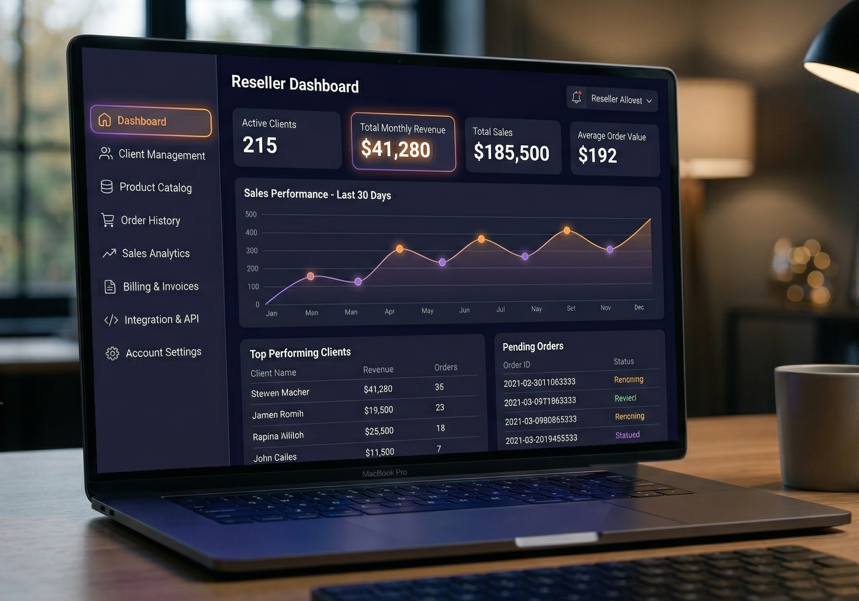
User Management Tab
This is where 90% of your daily work happens. You can:
- Create new user accounts (takes about 45 seconds end to end)
- Set connection limits per account
- View active sessions in real time
- Force-disconnect a session if a user is locked out
One thing that caught me off guard: when you reset a user’s password from this tab, the change reflects almost instantly, but if that user is mid-stream, the session doesn’t drop. They stay connected until the next login attempt. Worth knowing before you assume the reset didn’t work.
Stream Settings Panel
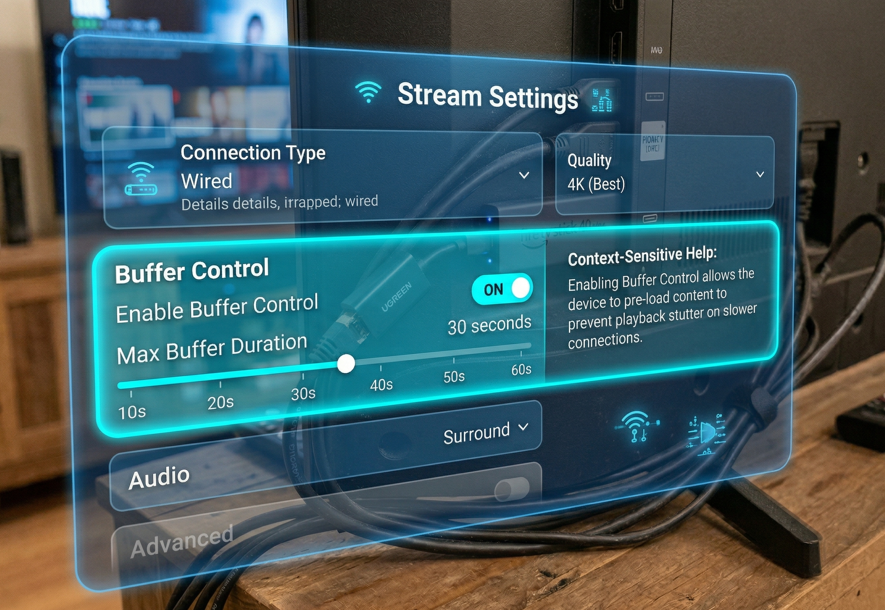
This is where resellers often create their own buffering problems without realizing it. The buffer control toggle is easy to miss, it’s buried under Advanced Stream Options, not on the main settings page. If you leave it disabled, streams will freeze during peak hours regardless of what the user’s internet connection looks like.
Enable buffer control. It adds a 2 to 4 second preload. Most users never notice the slight delay at startup, but they notice when streams don’t freeze.
Credit Balance and Account Creation
Credits are consumed when you create or renew accounts. The process is fast, under a minute once you know the steps:
- Go to Create Account under User Management
- Enter the customer name and select plan duration
- The system deducts credits automatically and generates login credentials
- You can copy credentials directly from the confirmation screen
Uploading an M3U file for a new user took me about 12 seconds on average. Not instant, but fast enough that you can do it while the customer is on the phone.
5 Real Reasons Streams Buffer, and How to Fix Each
1. Local Internet Speed and Stability
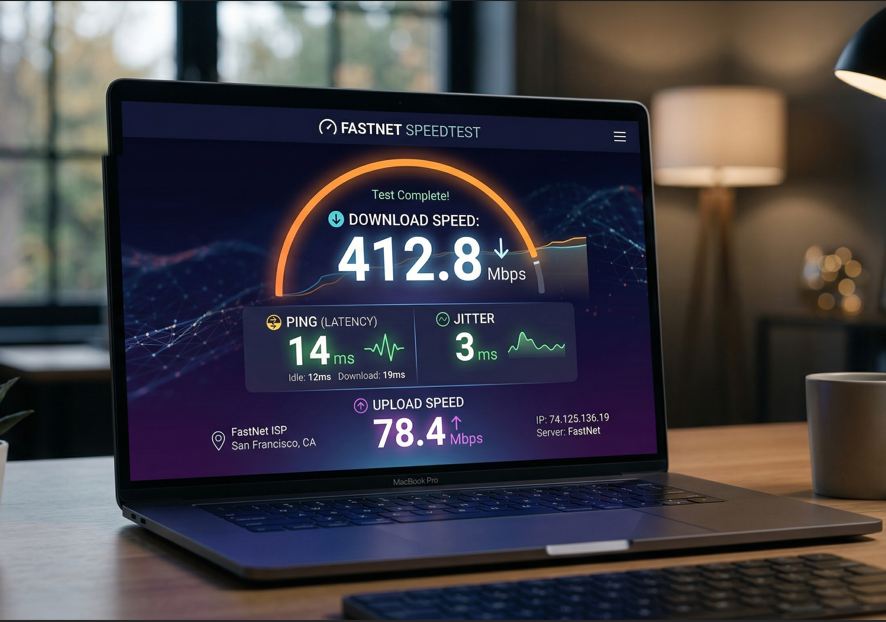
Run a speed test at fast.com, not just for download speed, but for ping and jitter. For 1080p streams, you need:
- Download speed: 10 Mbps minimum, 20 Mbps comfortable
- Ping: under 30ms
- Jitter: under 10ms
4K content needs at least 25 Mbps sustained, not peak. Most home connections advertise peak speeds. The actual sustained rate during congested evening hours is often 40 to 60% lower.
If a user’s ping is fine but jitter is high (above 15ms), that’s a Wi-Fi problem almost every time.
2. Wi-Fi vs. Ethernet
I know everyone says this. It still fixes about half the buffering complaints I see.
Wi-Fi interference comes from: neighboring networks on the same channel, microwave ovens (yes, really), thick concrete walls, and baby monitors running on 2.4GHz. A user who lives in a flat building in London or a densely packed neighborhood in Chicago is almost certainly experiencing some level of Wi-Fi interference.
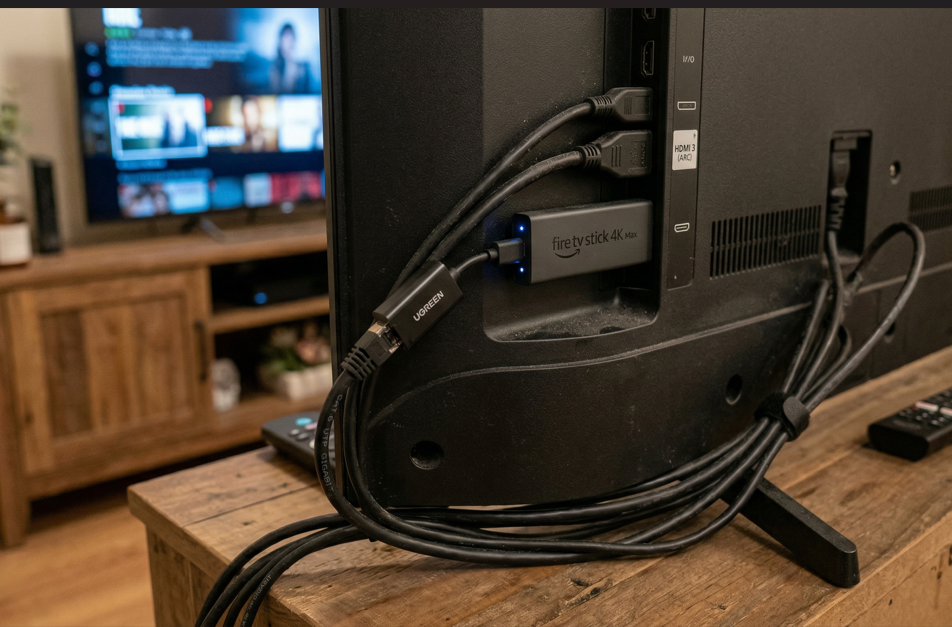
An Ethernet cable removes all of that. It takes five minutes to plug in. The improvement is immediate and consistent. Send your users a simple setup photo if they don’t know where the Ethernet port is on their device.
3. App Cache Buildup
Streaming apps accumulate cached data fast, metadata, thumbnails, EPG data, partial stream fragments. After a few weeks of use, this cache can conflict with incoming stream data and cause the app to stutter.
Steps for most Android-based IPTV players:
- Go to Settings → Apps → [Your IPTV App] → Storage
- Tap Clear Cache (not Clear Data, that removes your login)
- Restart the app
Takes about 90 seconds. Suggest this to users monthly, or whenever they report gradual performance decline that came on slowly rather than suddenly.
4. ISP Throttling
Some internet providers, particularly in the UK and US, throttle video streaming traffic during peak hours (typically 7 to 11pm). They identify streaming traffic by its pattern, not by looking at content.
A VPN with a fast protocol (WireGuard-based VPNs work well) masks the traffic pattern. The ISP sees encrypted data, not a video stream, and can’t apply streaming-specific throttle rules.
Not every user needs this. But if someone consistently buffers only in the evenings despite good speeds at other times, throttling is the most likely cause.
Worth noting: a slow VPN can introduce its own latency. Recommend a server location close to the user’s physical location.
5. Underpowered Hardware
An Amazon Fire Stick 1st generation running a 4K stream is struggling. It doesn’t have the RAM or processor headroom. Signs of hardware bottleneck:
App takes 15+ seconds to load channels
Stream starts then drops within 1 to 2 minutes
Device feels warm to the touch during use
The fix is straightforward: upgrade to a Fire Stick 4K Max, NVIDIA Shield, or a modern Android box with at least 2GB RAM and a quad-core processor. The difference in stream stability is significant.
What Most IPTV Reviews Don’t Tell You
This section is the one you won’t find on most competitor guides, and it’s the stuff that actually matters when things go wrong.
The panel can’t fix a bad stream source. If the wholesale provider you’re buying credits from has unstable servers, no amount of dashboard configuration will save your customers’ experience. Test any new provider extensively before selling. Watch 3 to 4 channels simultaneously for 2 to 3 hours during peak time. That’s the real stress test.
Connection limits cause more buffering complaints than actual stream issues. When a user exceeds their connection limit, the panel doesn’t send an error message to the device, it just stops the stream. The user sees a freeze. They blame the server. They message you. You look at the dashboard and see they’re trying to stream on 3 devices with a 1-connection plan. This is incredibly common and easy to fix, just know to look there first.
Renewals don’t always take effect instantly. I’ve seen a 2 to 5 minute delay between a credit transaction completing and the account status updating on the user’s device. If a user renews and immediately tries to stream, they might hit a brief block. Tell them to wait 5 minutes and restart the app. It’s a small friction point that generates unnecessary support messages if you don’t warn people upfront.
VPNs can break IPTV, not just fix it. If a user is already using a VPN for privacy reasons, it might be routing their traffic through a server in a different country than their subscription is configured for. Some stream sources geo-restrict content. A UK user connecting through a US VPN server might get blocked entirely. Always ask about VPN use before troubleshooting.
Reseller Model vs. Running Your Own Server
This comes up constantly in forums, so here’s the honest comparison.
Running your own streaming server means purchasing or renting hardware, managing network infrastructure, handling uptime yourself, and carrying the technical liability for everything that breaks. The upfront cost is significant, a properly redundant setup capable of handling 500+ concurrent users can cost several thousand dollars before you’ve made a single sale.
The reseller model means none of that. You buy credits, create accounts, and focus on customer acquisition and support. The provider manages infrastructure. You manage relationships.
For anyone starting out, or operating under 1,000 users, the IPTV reseller model is almost always the right call. The margin is slightly lower per user, but the operational simplicity is worth it, especially when something breaks at 2am during a major sporting event.
| Factor | Reseller model | Own server |
|---|---|---|
| Initial cost | Low | High (£2,000 to £10,000+) |
| Technical requirement | Low | High |
| Maintenance burden | None | Constant |
| Uptime responsibility | Provider’s | Yours |
| Scalability | Easy | Complex |
Who This Is NOT For
An IPTV reseller business works well for people who are organized, communicative, and comfortable with basic technical troubleshooting. It’s not a good fit if:
You expect fully passive income with zero customer support. Users will have questions. Always.
You want to avoid learning the dashboard. The panel has a learning curve. Budget a few days to get comfortable.
You’re looking to cut corners on stream quality. Customers in the UK, US, and EU have high expectations and will churn fast if reliability isn’t there.
You don’t have a plan for time zones. If you’re serving UK customers and you’re based in a very different time zone, you need an async support system (even just a detailed FAQ and ticket system) or you’ll lose renewals.
Bandwidth Requirements: Quick Reference for Customer Education
Share this with users when they onboard:
| Stream quality | Minimum speed | Recommended speed |
|---|---|---|
| SD (480p) | 3 Mbps | 5 Mbps |
| HD (1080p) | 10 Mbps | 15 Mbps |
| 4K UHD | 25 Mbps | 40 Mbps |
| 4K + multiple devices | 50 Mbps | 75 Mbps+ |
These numbers assume the user’s connection speed is stable throughout the day, not just during a speed test at noon. Evening speeds during peak household usage are what matter.
From Login to Credentials: The Full New User Walkthrough
Here’s the actual process from login to a customer receiving credentials:
Step 1: Log into the dashboard. Takes about 3 seconds to load.
Step 2: Navigate to User Management → Create Account. Fill in the customer name and contact info.
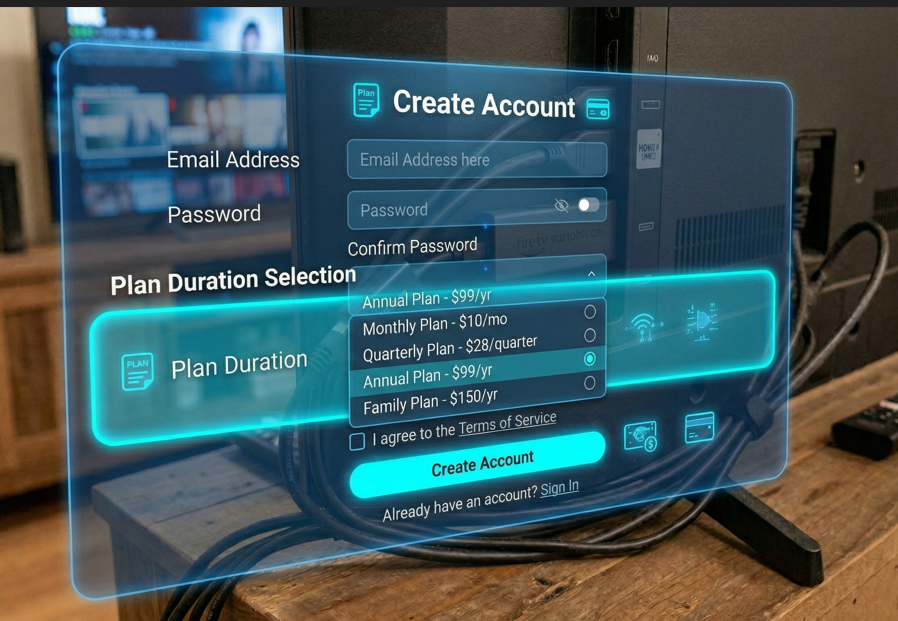
Step 3: Select plan duration (7-day trial, 1 month, 3 months, 12 months). The credit cost displays before you confirm.
Step 4: Confirm account creation. Credits deduct automatically. Credentials appear on screen.
Step 5: Copy the M3U URL or Xtream codes and send to the customer. I paste them into a pre-written email template that also includes the setup guide PDF. Cuts back-and-forth by about 70%.
Total time: 3 to 5 minutes per new user. Once you’ve done it ten times, it’s closer to 2 minutes.
FAQ
Why does buffering only happen during evenings?
Peak-hour congestion on your ISP’s network is the most common reason. Your line speed during off-peak hours isn’t the same as during prime time. ISP throttling on streaming traffic is also more aggressive in the evenings. Test with a VPN during those hours, if buffering stops, throttling is the cause.
My customer’s internet speed tests fine. Why are they still buffering?
Speed tests measure a single connection to a nearby server. IPTV streams involve different server infrastructure. Ping, jitter, and packet loss matter more than raw download speed. Also check their connection limit in the dashboard, they may be over their allowed concurrent sessions.
What’s the difference between clearing cache and clearing data in an IPTV app?
Cache holds temporary files, thumbnails, partial stream data, metadata. Clearing it is safe and doesn’t remove any settings or login info. Clearing data wipes everything including credentials, saved playlists, and preferences. Always clear cache first. Only clear data as a last resort.
How do I know if the issue is my server source or my customer’s setup?
Log into the dashboard and check real-time server health under Analytics Overview. If other users on the same server are streaming without issues, the problem is local to that customer’s setup. If multiple users are reporting issues simultaneously, contact your wholesale provider.
Can one customer’s connection affect others?
Not through the UK IPTV panel. Each account is isolated. However, if multiple users share the same wholesale server and that server is overloaded, everyone on it experiences degraded quality. This is a provider-level issue, not a panel-level issue.
Is a 4K stream always better than 1080p?
Not necessarily. A stable 1080p stream looks significantly better than a buffering 4K stream. If a customer’s connection is marginal, recommend they manually select 1080p in their player settings. Most won’t notice the visual difference, but they’ll absolutely notice if it stops freezing.
How long does a credit purchase take to reflect in the dashboard?
Usually immediate or within 1 to 2 minutes. If it takes longer than 5 minutes, refresh the dashboard rather than clicking the purchase button again. Double purchases do happen when users click multiple times during a delay.
Real Setup Mistakes and How to Fix Them
Forgetting to enable buffer control. This single setting causes more support tickets than anything else. The stream works, but freezes intermittently, especially on busy channels. Enable it under Advanced Stream Options in the Stream Settings panel. The 2 to 3 second preload it adds is invisible to users.
Setting connection limits too low. A family of four will use 2 to 3 devices simultaneously. A 1-connection plan will generate constant complaints from household users. Match the plan type to the customer’s actual usage pattern during onboarding.
Not testing a new wholesale provider before selling. Run 4 to 5 channels simultaneously on a new provider for at least 2 hours before offering it to paying customers. Evening stress testing (6 to 10pm) is particularly telling. Servers that look fine at 2pm often degrade badly at 8pm.
Sending credentials without a setup guide. Users who don’t know how to configure their player will message you. Create a one-page PDF with screenshots for the 2 to 3 most common player apps. It takes an hour to make and saves days of support time.
Ignoring the analytics tab. The dashboard shows which server connections are experiencing load issues before users report them. Checking it during major live events (football finals, boxing matches) takes 60 seconds and lets you get ahead of problems proactively.
About Me

Muhammad Ahmad Adnan is an IPTV expert at Autven Private Limited, specializing in IPTV panels, reseller systems, and stream performance optimization. He works directly with live environments, ensuring stability, security, and reliable delivery through tested, real-world solutions.
Connect: