
IPTV Not Working? A Reseller’s Step-by-Step Troubleshooting Guide
When a client messages saying “it’s not working,” the natural instinct is to assume a server problem. Nine times out of ten, it isn’t. It’s something on their end, their network, their device, their app cache, or their account status.
This guide covers every layer of the troubleshooting process in order of likelihood. Work through them systematically rather than jumping to complicated fixes. The most common problems have the simplest solutions, and starting with a router reset before checking account status wastes everyone’s time.
The Diagnostic Order That Actually Works
Before walking a client through any specific fix, gather this information first:
- What device are they using?
- What app are they using?
- Is the error on all channels or specific channels?
- Did it work before, or is this a first-time setup?
- What does the error message say exactly?
These five questions eliminate the majority of wasted troubleshooting time. A client who says “nothing works” and a client who says “it was working an hour ago but now specific channels are buffering” have entirely different problems that need entirely different approaches.
Step 1: Check Account Status in the Dashboard (Do This First)
I put this first because it saves the most time, yet it’s the step most guides list last.
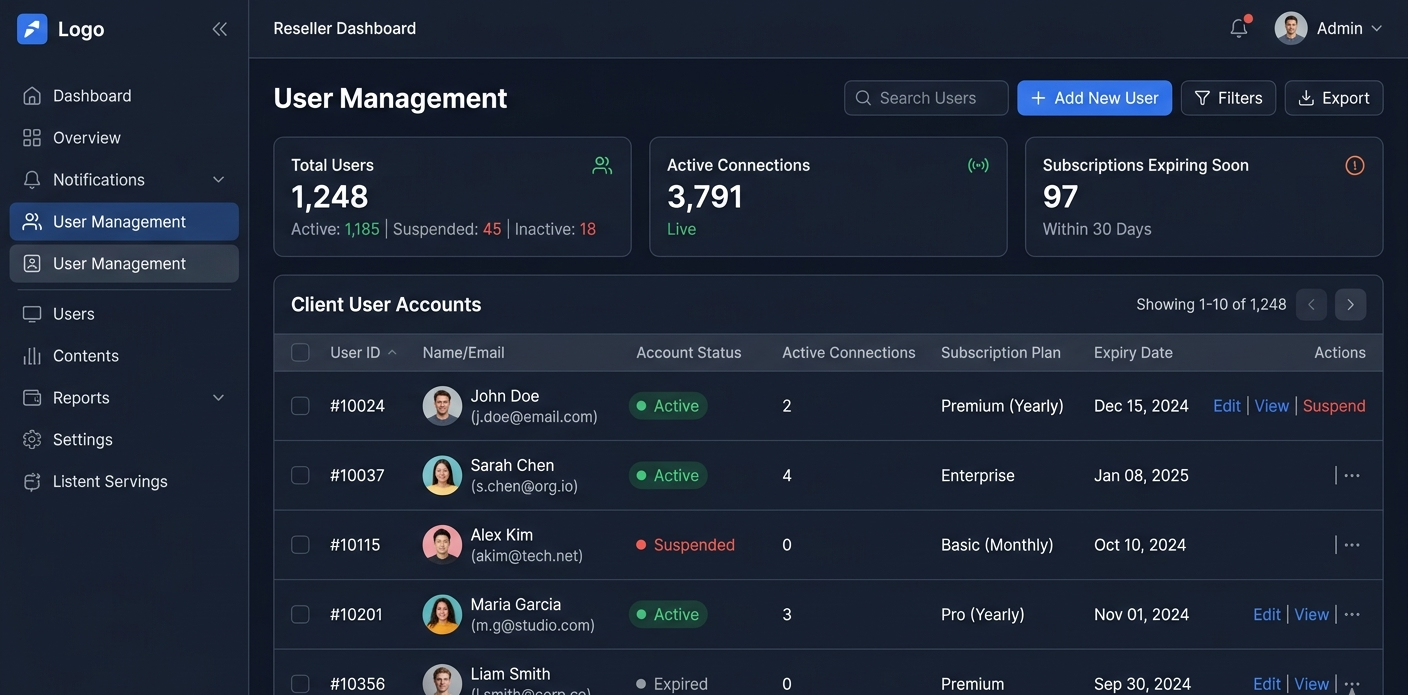
Log into the IPTV Panel reseller dashboard. Navigate to the User Management tab. Find the client’s account. Check three things:
- Is the account active or expired? Expired accounts produce connection failures that look identical to network errors from the client’s side. A client whose subscription lapsed yesterday won’t necessarily know that, they’ll just see “connection failed” or “authentication error” and assume the service is broken.
- Is the account showing active connections? If the account shows 2 active connections and it’s a 2-connection account, a third device trying to connect will be rejected. The client sees this as the service not working, but it’s actually working correctly, they’ve hit the connection limit.
- Are the credentials correct? Occasionally credentials get corrupted or a dashboard update changes something. Verify the username and password are exactly what was sent to the client. One wrong character in a copied password causes exactly this problem.
This dashboard check takes about 90 seconds and resolves roughly 30% of “nothing is working” support calls without any further troubleshooting.
Step 2: Run an Internet Speed Test
If the account is fine, the next most likely culprit is the client’s internet connection.
Ask the client to visit fast.com or speedtest.net on their phone (not the same device that’s having the IPTV issue, you want to isolate whether the internet connection is working). Record the download speed and note whether it’s consistent across multiple tests or fluctuating.
What you’re looking for:
- HD streaming: minimum 10 Mbps sustained
- Full HD (1080p): minimum 15 Mbps
- 4K content: minimum 25 Mbps
- Multiple simultaneous streams: multiply above by number of streams
A client showing 5 Mbps on a speed test isn’t going to get stable HD streaming regardless of any other fix you apply. That’s a conversation about their broadband, not their IPTV abonnement.
If the speed is adequate on the test but they’re still experiencing buffering, the issue is usually either WiFi instability (speed test passes but sustained streaming drops) or the specific server being under load.
Step 3: Move From WiFi to a Wired Connection
This fixes more IPTV problems than any other single intervention. WiFi speed tests can show 50 Mbps while the sustained throughput for a continuous stream is intermittent enough to cause buffering.
WiFi introduces:
- Momentary signal fluctuations that break sustained streams
- Interference from neighbouring networks
- Distance and wall attenuation that a speed test might mask
A wired ethernet connection eliminates all of these. For streaming devices without ethernet ports (most Fire Sticks, some Chromecast devices), a micro-USB or USB-C to ethernet adapter costs under £10 and solves a lot of problems.
If running a cable to the streaming device isn’t practical, ask the client to move the device closer to the router temporarily as a diagnostic test. If streaming improves when physically close to the router, you’ve confirmed WiFi signal quality is the issue.
Step 4: Restart the Router (The Right Way)
A lot of clients hear “restart the router” and toggle the power button quickly. That’s not a restart, it’s a power cycle that doesn’t clear the connection tables.
The correct process:
- Unplug the router’s power cable from the wall
- Wait 60 seconds, not 10, not 30, but a full 60 seconds
- Plug back in
- Wait 2–3 minutes for the router to fully reconnect before testing
The 60-second wait clears the router’s RAM and forces it to re-establish connections fresh. A 5-second power cycle usually doesn’t accomplish this.
Some clients also have a modem separate from their router (common with fibre installations). If that’s the case, restart both: modem first, router second.
Step 5: Clear the App Cache
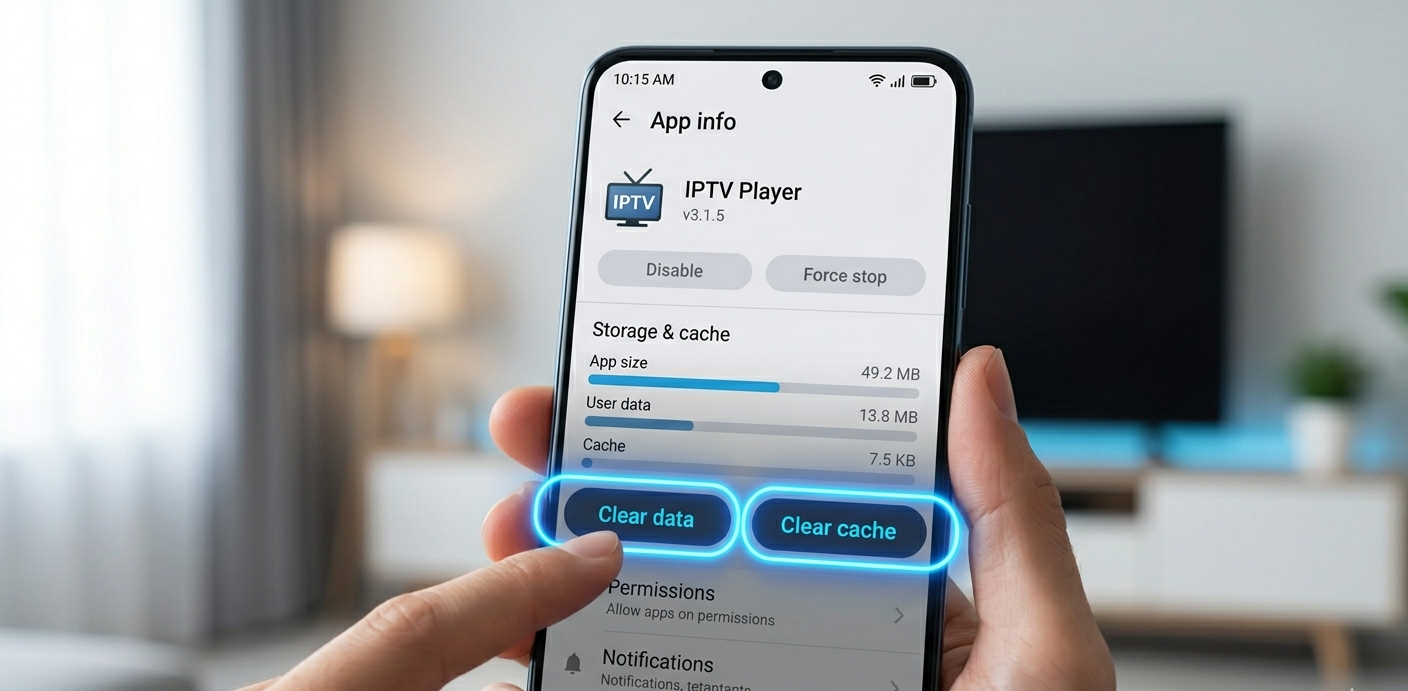
Every IPTV app accumulates cached data over time. On Android devices and Fire Sticks, this cache can grow to 200MB+ and contains outdated stream information that causes playback failures.
For Android TV / Fire Stick: Settings → Applications → Manage Installed Applications → [IPTV App] → Clear Cache → then Clear Data if the issue persists
For TiviMate specifically: The app itself has a cache management option in Settings → General. Using this is preferable to the system-level clear as it preserves your configuration settings while clearing stream cache.
After clearing cache, restart the app completely, don’t just navigate back. Close it fully, wait 10 seconds, then reopen.
I tell clients to do this every 30 days as preventive maintenance. It takes 2 minutes and eliminates a whole category of “it stopped working” issues before they become support calls.
Step 6: Make Sure the App Is Up to Date
An outdated IPTV app can lose compatibility with the server’s current authentication method or stream format without any obvious error message. The app appears to connect but streams don’t load, or specific channels fail while others work.
Ask the client which app they’re using and what version. For sideloaded apps (TiviMate, GSE Smart IPTV), check the developer’s website or the app’s own update notification. For Amazon App Store apps (IPTV Smarters Pro on Fire Stick), check for updates in the store.
If the app is significantly outdated (6+ months behind current release), update it before continuing any other troubleshooting.
One thing worth knowing: app updates occasionally reset configuration settings. If an app update is followed by “it stopped working,” the credentials may have been wiped. Walk the client through re-entering their M3U URL or Xtream codes.
Step 7: Change DNS Settings
Some ISPs throttle or block streaming traffic at the DNS level. Changing from the default ISP DNS to a public DNS server can improve stream reliability in these cases.
This is more commonly needed in the UK (where some ISPs have DNS-level filtering) and certain European countries than in others. In the US it’s less common but still worth trying if other fixes haven’t resolved the issue.
DNS servers to use:
Google DNS: 8.8.8.8 (primary), 8.8.4.4 (secondary)
Cloudflare DNS: 1.1.1.1 (primary), 1.0.0.1 (secondary)
How to change DNS on Fire Stick: Settings → Network → [Your WiFi network] → [Advanced] → DNS settings
How to change DNS on Android TV: Settings → Network & Internet → [Your WiFi network] → Modify Network → Show advanced options → DNS
How to change DNS on a router (affects all devices): Login to router admin panel (usually 192.168.1.1) → DNS settings → Enter Google or Cloudflare DNS
Changing at the router level is more effective since it applies to all devices. Changing per-device is useful for diagnosing whether DNS is the issue before making the router change.
Step 8: Verify the M3U URL or Xtream Codes Are Correct
This sounds too simple to be a real fix, but incorrect credentials are surprisingly common, especially after:
- A provider migration that changed server URLs
- A client who manually typed credentials instead of copying them
- A copy-paste that introduced a trailing space or missing character
Ask the client to share (via secure message) what credentials they entered in the app. Compare these exactly against what was in the dashboard when generated.
One way to verify credentials independently: enter the M3U URL in a web browser. You should receive a download prompt or see channel list data. If you get a 404 error or the browser says it can’t connect, the URL itself is wrong or the server is down.
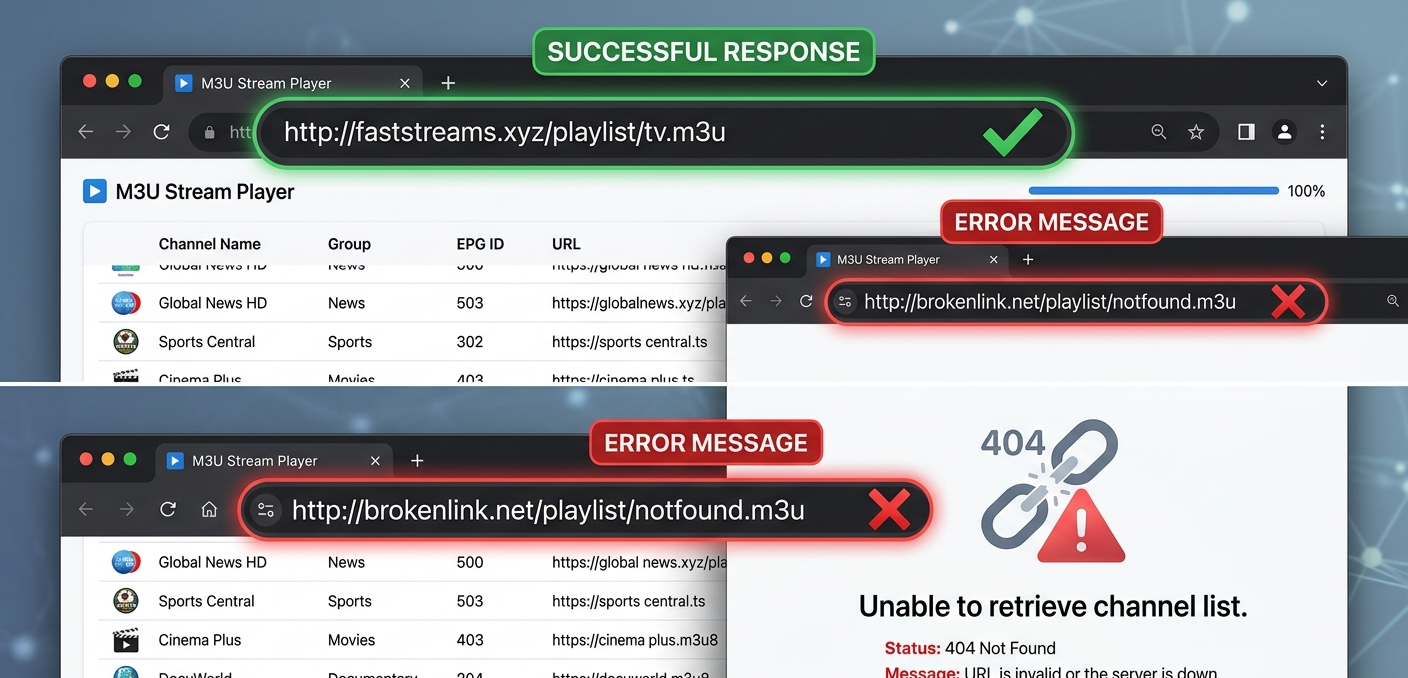
Browser address bar showing M3U URL test resulting in successful channel list response versus error message
Step 9: Rule Out a Server-Side Problem
If individual account troubleshooting hasn’t resolved the issue and multiple clients are reporting similar problems simultaneously, the issue is likely server-side.
Check your dashboard’s Server Status or Stream Monitor section if your panel has one. Some panels show real-time server health indicators: response times, error rates, uptime percentage.
If the dashboard doesn’t have this, contact your upstream provider directly. Ask specifically: “Is there currently a known issue with [specific server/channel category]?” Get a time estimate for resolution.
Communicate proactively to affected clients before they message you. “We’re aware of an issue with [specific channels], investigating now, will update within [timeframe]” is significantly better received than silence followed by a frustrated complaint.
Step 10: Test on a Different Network
If all other steps have failed, this is the definitive diagnostic test. Ask the client to try using the service on mobile data (4G/5G) rather than their home WiFi/broadband.
If the service works on mobile data but not on home broadband, the issue is specific to their ISP or home network configuration. Common causes:
- ISP-level throttling or filtering of streaming traffic
- Router firmware blocking certain traffic types
- MTU (Maximum Transmission Unit) size mismatch
If the service doesn’t work on mobile data either, the issue is account-side or server-side, not the home network.
From the Reseller Dashboard: What Each Error Type Usually Means
When clients describe their error, certain patterns map reliably to specific causes:
| What client reports | Most likely cause | Check first |
|---|---|---|
| “Authentication failed” | Expired account or wrong credentials | Dashboard → account status |
| “Connection refused” | Account at connection limit | Dashboard → active connections |
| “Buffering constantly” | Insufficient bandwidth or wifi issues | Speed test + ethernet |
| “Works for 5 minutes then stops” | Buffer cache issue or session timeout | App cache clear |
| “Some channels work, others don’t” | Server-side issue on specific channels | Provider status |
| “Worked yesterday, not today” | Expired subscription or server change | Dashboard → account status + server health |
| “Error on one device but not another” | App/device specific issue | Update app, clear cache |
This table covers about 80% of support tickets without any additional investigation needed.
Real Mistakes I’ve Made Troubleshooting Client Issues
Mistake 1: Assuming server-side without checking the account first
A client reported “service not working.” I immediately contacted my upstream provider to check server status. Everything was fine on their end. Spent 20 minutes on back-and-forth. Eventually checked the account status: it had expired 3 days earlier. Client hadn’t noticed until they tried to watch. Now the dashboard check is always my first step, not my last.
Mistake 2: Not asking which device before suggesting fixes
Walked a client through clearing cache on an Android box. Turns out they were using an LG Smart TV with the built-in IPTV app. The cache clearing process is completely different. Wasted 10 minutes before I asked the obvious question. Now device type is the first thing I ask.
Mistake 3: Recommending a DNS change without checking if it’s relevant
Told a client to change their DNS as the first troubleshooting step (following a template I’d seen online). Their issue was an expired subscription. The DNS change was irrelevant. They spent 15 minutes changing router settings for no reason and were understandably frustrated when I then told them it was a billing issue. Earn the right to suggest complex fixes by ruling out simple causes first.
Mistake 4: Not asking about recent changes
A client’s service stopped working. I went through the standard troubleshooting sequence. Nothing resolved it. Eventually asked: “Has anything changed recently?” They’d updated their router firmware 2 days earlier. The new firmware had a UPnP setting enabled that was interfering with the IPTV stream. Disabling UPnP fixed it immediately. “Has anything changed recently?” is now the second thing I ask after learning the device type.
Mistake 5: Logging into the wrong account in the dashboard
I had two clients with similar usernames. In a rush during a busy Saturday, I checked the wrong account in the dashboard, saw it was active, and told the client their account was fine. It wasn’t, I’d checked a different account with a similar name. The actual account had expired. Lost 25 minutes before I caught the error. Now I verify account details with the client before trusting what I see in the dashboard.
The 90-Second Support Response Template
When a client reports an issue, this response covers the immediate triage:
“Can you tell me:
- What device you’re using?
- What the error message says exactly?
- Is it all channels or specific ones?
I’m checking your account status now.”
While they’re responding, you’re in the dashboard checking their account. By the time they reply, you either have the answer (expired account, connection limit) or you have the information you need to triage the network issues.
This template sets a professional, responsive tone and gets the diagnostic information you need without a long back-and-forth.
FAQ
My client says “it was working fine, now it just stopped” where do I start?
Check the account in the dashboard first. “Suddenly stopped working” is the most common description of an expired subscription, and it’s also how clients describe server-side outages. Dashboard check takes 30 seconds and immediately tells you whether this is an account issue or something else. If the account is active and healthy, check whether other clients are reporting similar issues at the same time, simultaneous failures from multiple accounts point to server-side problems.
A client says streaming works on mobile data but not home WiFi: what’s wrong?
Their home network is the issue. The most common causes: ISP throttling of streaming traffic, router DNS filtering, or WiFi signal quality issues. Start with changing their DNS to Google (8.8.8.8) or Cloudflare (1.1.1.1), this fixes ISP-level filtering. If DNS change doesn’t help, try connecting via ethernet rather than WiFi. If ethernet also has issues, contact the ISP.
Client keeps getting kicked off after 30–60 minutes: what causes this?
Usually one of three things: a connection limit being hit by another device they’ve forgotten about, a session timeout setting in the player app, or periodic server-side authentication refreshes that aren’t reconnecting cleanly. Check the active connections in the dashboard first. If that’s fine, check the player app’s settings for any auto-timeout or reconnect options. TiviMate has specific settings for this under Settings → Player → reconnection.
The error says “maximum connections reached” how do I fix this?
This is an account configuration issue, not a technical error. The account has hit its concurrent connection limit. Find the client’s account in User Management, increase the connection limit in the Subscription Settings, or identify and deactivate a duplicate connection that the client has forgotten about. This takes about 2 minutes to resolve.
A specific channel stopped working but all others are fine: who do I contact?
This is almost certainly a server-side issue with that specific channel. Check your dashboard’s server health section if available. Contact your upstream provider with the specific channel name and approximate time the issue started. Don’t walk the client through device or network troubleshooting for a channel-specific failure, that’s not where the problem is.
How do I tell if the issue is my provider or the client’s network?
The definitive test: ask the client to try the service on mobile data (4G/5G). If it works on mobile data but not home broadband, the issue is their home network or ISP. If it doesn’t work on mobile data either, the issue is account-side or provider-side. This test takes 2 minutes and eliminates a significant amount of back-and-forth.
My client updated their app and now nothing works: how do I fix it?
App updates occasionally reset stored credentials. Walk the client through re-entering their M3U URL or Xtream codes in the app from scratch. Also check whether the update changed the app’s network permissions, some Android security updates require re-granting network access after an app update. Settings → Apps → [App name] → Permissions.
Effective IPTV troubleshooting is mostly about working in the right order and asking the right questions before suggesting fixes. The majority of issues resolve within the first three steps: account status check, speed test, and cache clear. Everything after that is for the minority of cases that need deeper investigation.
The dashboard check being first isn’t obvious but it’s the single most time-saving habit in support work. Thirty seconds in the dashboard before any other action prevents a lot of misdirected troubleshooting.