Quick note before we get into it: this platform provides IPTV reseller Panel management software and panel infrastructure only. We don’t host channels, stream content, or distribute media files. What follows is a practical guide to the conversion process itself, written from actual experience working with both formats across multiple client setups.
Why This Conversion Actually Matters
If you’ve ever tried to give a customer an M3U link and watched them struggle to type it on a TV remote, you already understand the problem. A full M3U URL looks something like this in practice: a long string with a server address, port number, username, password, and file extension all mashed together. One missed character and nothing works.
Xtream Codes login credentials, a portal URL, a username, and a password entered as three separate fields, solve that problem cleanly. Most modern player apps (TiviMate, IPTV Smarters Pro, GSE Smart IPTV) have a dedicated Xtream Codes login section precisely because it’s a better user experience than pasting a raw link.
This isn’t just a cosmetic difference. When I switched from sending M3U links to sending XC credentials to clients, my setup-related support messages dropped noticeably within the first two weeks. That alone made the technical understanding worth the effort.
What M3U and Xtream Codes Actually Are
M3U: What’s Inside the File
An M3U file is essentially a plain text file containing a list of stream URLs. Open one in a text editor and you’ll see lines like:
#EXTINF metadata followed by direct stream URLs, each one containing the server address, port, and authentication parameters embedded in the path.
The full URL typically contains everything: the server, the port number, the username, and the password, all in one string. That’s useful for automation but painful for manual entry, especially on TV interfaces.
Xtream Codes: The Smarter Login Method
The Xtream Codes API is a structured authentication system. Instead of one long URL, access is divided into three clean components:
- Portal URL: the server address with port (e.g., http://yourserver.com:8080)
- Username: the unique account identifier
- Password: the account password
The player app assembles these into the correct API call automatically. The user only needs to type three short things. On a TV remote or a phone keyboard, that’s a meaningful difference.
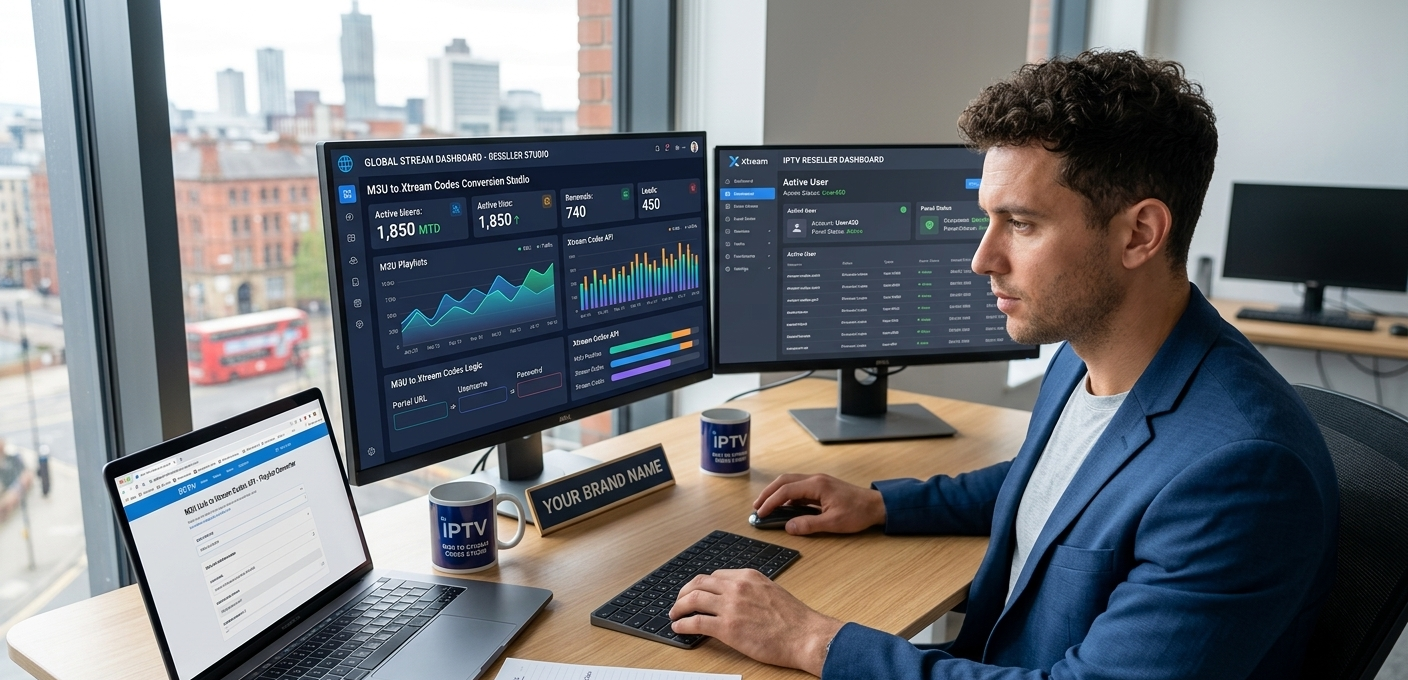
How to Extract Xtream Codes Details from an M3U Link
This is the actual technical process most guides skip over or describe vaguely. Here’s what it looks like in practice.
Take a typical M3U URL structure. It generally follows this pattern:
http://[server-address]:[port]/get.php?username=[user]&password=[pass]&type=m3u
Everything you need for an Xtream Codes login is already inside that link. You just need to know where to look.
Step 1: Identify the Portal URL. Everything before the “/get.php” portion is your Portal URL. That includes the “http://”, the server address, and the port number. This stays the same for every account on that server.
Step 2: Extract the Username. Look for “username=” in the URL. Whatever follows that parameter (up to the next “&”) is the username.
Step 3: Extract the Password. Same process: look for “password=” and take the value that follows.
Once you have those three elements, you can give them to a client separately. They enter them into the Xtream Codes login screen in their player app. Done.
The whole extraction process takes about two minutes once you’ve done it a few times. The first time, budget five minutes while you’re learning which parts of the URL to look for.
![IPTV app login screen showing server URL, username, and password fields on a smart TV]](https://martcarto.shop/wp-content/uploads/2026/03/Gemini_Generated_Image_q6wqclq6wqclq6wq.png)
Letting the Panel Handle This for You
If you’re using a proper reseller panel, you don’t need to do this extraction manually for every client. When you create a user account in the User Management tab, the system generates both formats automatically.
The account creation form asks for username, password, connection limit, and plan duration. When you submit, the panel immediately provides:
- The M3U URL (for clients who need it or use apps that require it)
- The Xtream Codes credentials (portal URL + username + password)
You can copy either set and send it directly to the client. The system handles the URL construction in the background, you never have to manually build or parse links.
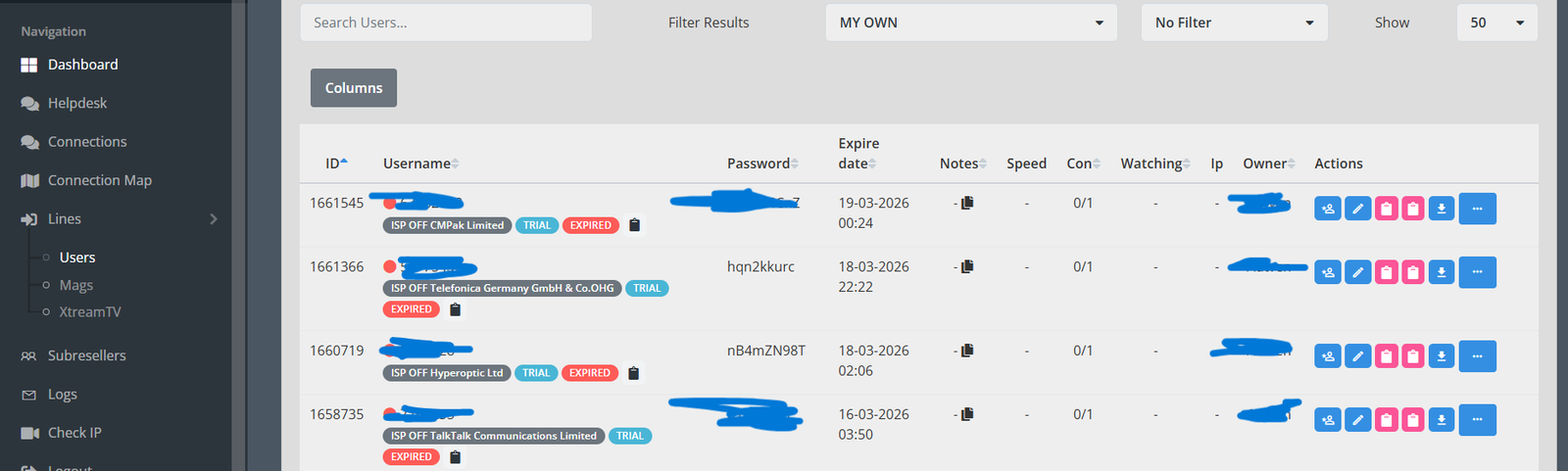
This is one of the features that genuinely saves time at scale. When you’re creating 10 accounts in a morning, having both output formats ready instantly means you’re not doing any manual work to prepare client onboarding details.
The Portal URL: What It Is and Why It Matters
The Portal URL is the fixed server endpoint for your source. It’s the same for every single account on that server, which means you can share it broadly without worrying about account-specific security.
It typically looks like: http://serverdomain.com:8080 or sometimes with a different port number depending on the provider’s configuration.
One thing worth noting: some apps call this the “Server URL” rather than “Portal URL,” TiviMate labels it differently than Smarters Pro. The field means the same thing. If a client is confused about where to enter it, the Xtream Codes login screen in their app will usually have three clearly labeled fields. Tell them to look for that specific login method, not the M3U/URL option.
Reseller Panel Infrastructure: What You’re Actually Managing
Understanding why the panel exists at this level makes you a better operator. Here’s what’s happening under the hood.
When a user logs into their player app using Xtream Codes credentials, the app sends an authentication request to the portal URL. The server checks those credentials against the database. If the account is active and within its connection limit, access is granted and the channel list loads. If the plan has expired or the connection cap is hit, the server returns an error.
Your reseller panel sits on top of this and gives you control over that database, specifically over the accounts you’ve created. You can:
- Change passwords
- Extend or shorten plan durations
- Increase or decrease connection limits
- Reset active connections (useful when a client changes devices)
- Disable accounts immediately if needed
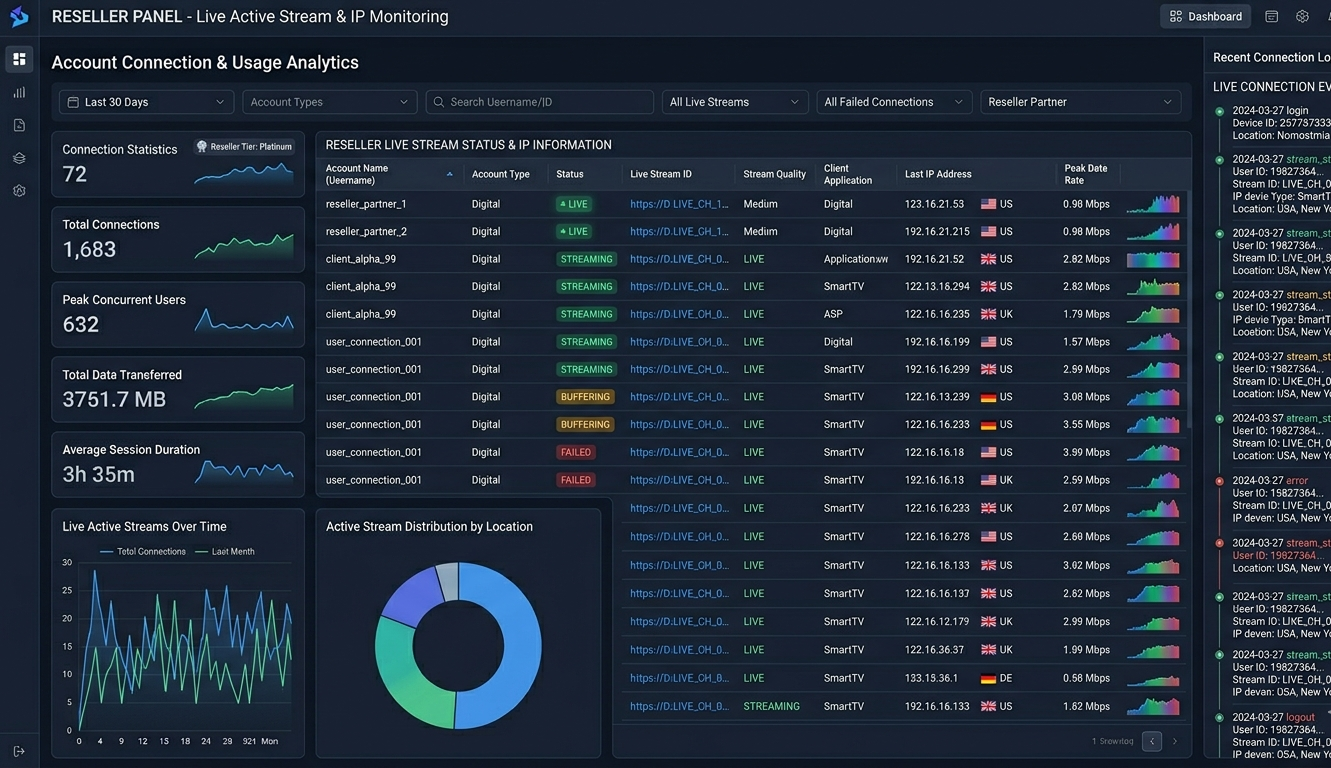
The Stream Settings panel in most professional dashboards also lets you view live connections, you can see which accounts are actively streaming at any given moment, from which IP addresses, and which streams they’re watching.
Mistakes I’ve Made With This Process (and the Fixes)
Mistake 1: Sending the wrong URL format for the wrong app. TiviMate uses the M3U URL for playlist import, but also supports Xtream Codes. IPTV Smarters’ Xtream Codes input has three separate fields. If you send a client a full M3U URL and tell them to paste it into the Xtream Codes section, it won’t work. Know which format goes where before you send.
Mistake 2: Not verifying the portal URL is accessible before onboarding a client. Once I created three accounts and sent out credentials before realizing the server endpoint the panel was pointing to had gone offline. All three clients messaged within an hour. Now I test a login myself before sending anything out. Takes 30 seconds.
Mistake 3: Forgetting to set connection limits before giving clients their credentials. If you don’t set a connection cap, some clients (not all, but some) will share the login with family and friends. You’ll notice it in the live connections monitor when one account is running four simultaneous streams. Go to User Management, open the account, and set the max connections field before generating credentials.
Mistake 4: Giving clients both formats when they only need one. Early on I’d send clients the M3U URL and the Xtream Codes credentials together “just in case.” This confused more people than it helped. Pick the right format for their device and app, send that only, and include a clear one-page setup guide. Less is more here.
Who Should Use Xtream Codes vs M3U
This isn’t a one-size-fits-all decision. Here’s when each format makes more sense:
Use Xtream Codes credentials when:
- The client is using TiviMate, IPTV Smarters, or GSE Smart IPTV
- They’re setting up on a TV with a remote (typing a long URL is painful)
- You want cleaner troubleshooting, three short fields are easier to verify than a 200-character URL
- You’re running a professional service and want the onboarding to feel polished
Stick with M3U when:
- The client’s app only supports URL/M3U import (some older or niche apps)
- You’re setting up automated playlist loading in certain media players like Kodi with specific addons
- The client is technically comfortable and explicitly requests the link format
The majority of IPTV clients in 2026 are better served by Xtream Codes. The apps that matter most all support it natively.
What Most Guides Don’t Tell You About This Conversion
Here’s the honest part.
Not every M3U link can be cleanly converted to Xtream Codes credentials. If your source provides M3U files that don’t follow the standard URL-parameter format, some providers use different URL structures or token-based authentication, you won’t find a clean username/password to extract. In those cases, the M3U format is the only option regardless of what your clients prefer.
Before assuming you can offer Xtream Codes login to your clients, test it yourself. Log into TiviMate or Smarters using the credentials you’ve extracted and verify that the channel list loads correctly, categories appear, and EPG data pulls through. I’ve had situations where the extracted credentials worked but the EPG didn’t populate because the server’s API wasn’t fully Xtream Codes compliant. That’s worth knowing before 20 clients ask why their guide shows no program information.
Also: some converter tools available online claim to automate the M3U-to-Xtream conversion. Most of them just do the same extraction process described above. They’re not converting anything, they’re parsing the URL and presenting the components separately. Useful if you want a quick UI for it, but there’s no magic happening.
Setting Up the Reseller Panel: Step-by-Step Workflow
| Step | Action | Notes |
|---|---|---|
| 1 | Log into reseller panel | Check credit balance first |
| 2 | Navigate to User Management tab | Main left sidebar |
| 3 | Click “Add User” | Opens account creation form |
| 4 | Enter username and password | Keep it clean and memorable |
| 5 | Set connection limit | Match what the client purchased |
| 6 | Set plan duration | 1, 3, 6, or 12 months |
| 7 | Submit form | Panel generates credentials instantly |
| 8 | Copy Xtream Codes details | Portal URL + username + password |
| 9 | Send to client with setup guide | Include which app and which login method |
The whole process from step 2 to step 8 takes about 90 seconds. The panel doesn’t require any waiting, account generation is immediate.
What Changes Once You’re Managing at Scale
Once you pass 30 to 40 active users, manual account tracking becomes genuinely difficult without good panel tools. The dashboard’s subscription management section shows every account with its expiry date, current status, and last connection time.
The renewal alert system flags accounts expiring within a configurable window, usually 3 or 7 days. That gives you time to reach out to clients before they lose service and have to re-setup their app from scratch. A client who expires and has to re-enter credentials is a friction point. A client who renews before expiry barely notices the process.
The analytics section shows connection patterns over time. It’s not glamorous data, but it’s useful: peak usage times, most active accounts, accounts that haven’t connected in weeks (potential churners). Checking this once a week takes maybe ten minutes and gives you a clear picture of your user base health.
Financial Model: Credits and Cost Control
Credits are how most reseller panels handle billing. One credit typically corresponds to one month of service for one user. When you create an account with a three-month plan, the panel deducts three credits.
The key habit is monitoring your credit balance against your renewal pipeline. If you have 50 active monthly users, you need at least 50 credits available before their renewal dates. Running out mid-month creates gaps in service if you don’t replenish quickly.
Most panels show your credit balance prominently on the main dashboard view. Make it the first thing you check when you log in.
| Factor | Reseller model | Own server infrastructure |
|---|---|---|
| Setup cost | Low | Very high |
| Technical skill required | Basic | Expert-level |
| Ongoing maintenance | Provider handles | Your responsibility |
| Scaling speed | Immediate | Requires hardware |
| Financial risk | Low | High |
Security and the Zero-Trust Model
Professional panels encrypt user credentials in storage. But there are things on your end that matter too.
Don’t reuse usernames across different clients. If a username is ever compromised or shared, you want to isolate the impact to one account. Unique usernames per client make that easy.
Use strong passwords when creating accounts. The panel generates these for you if you let it, most have a password generator built into the account creation form. Use it.
Keep your own panel login credentials secure. Your IPTV reseller Panel dashboard access is the key to every account you’ve created. Enable two-factor authentication if your panel supports it. If it doesn’t, use a strong unique password and don’t share access.
FAQ
How do I find the portal URL inside an M3U link?
Look at the beginning of the M3U URL. Everything before the “/get.php” portion, including the “http://”, the domain or IP address, and the port number, is your portal URL. That’s the only part you need for the server/portal field in the player app.
What if the Xtream Codes login doesn’t work after extraction?
First, double-check that you’ve copied the portal URL completely, including the port number. Second, verify the username and password have no extra spaces, this is a surprisingly common issue when copying from a message. Third, test the credentials yourself in the same app your client is using before concluding there’s a server issue.
Can every player app use Xtream Codes login?
Most major apps do: TiviMate, IPTV Smarters Pro, GSE Smart IPTV, Kodi with certain addons, and most smart TV apps. Some basic or older apps only support M3U URL input. Check the app’s login screen, if it has three separate fields for server, username, and password, it supports Xtream Codes.
Does the reseller panel generate both M3U and Xtream Codes formats automatically?
Yes. When you create an account in the User Management tab, the panel produces both output formats immediately. You choose which one to send based on the client’s app and device.
What happens to a client’s app when their account expires?
The server stops accepting their credentials. When they open their player app, it will either show an error on launch or fail to load channels. This is why proactive renewal reminders matter, catching it before expiry avoids the re-setup friction entirely.
How many connections should I allow per account?
Set it to match exactly what the client paid for. Single-connection plans get capped at 1. If you sell multi-screen packages, set the appropriate limit. Don’t leave it uncapped, you’ll see credit drain from account sharing if you do.
Is there any technical difference between M3U and Xtream Codes in terms of stream quality?
No. Both methods authenticate with the same server and receive the same stream data. The difference is purely in how the login is structured and how the channel list and EPG are retrieved. Quality depends entirely on the source server, not the connection format.
The M3U to Xtream Codes conversion isn’t complicated once you understand what you’re looking at inside a URL. The real value isn’t the technical knowledge itself, it’s what it does for your client experience. Shorter credentials, cleaner setup, fewer mistakes, less support work. That’s the actual return on understanding this properly.