
Why ISPs Throttle IPTV Specifically
Your internet connection might show 100 Mbps on a speed test, but IPTV streams buffer constantly. This is one of the more frustrating experiences a client can have, and it’s often blamed on the IPTV service when the actual cause is at the ISP level.
ISPs in the UK, US, and parts of Europe use a technique called Deep Packet Inspection (DPI) to analyse your traffic. DPI doesn’t just measure how much data you’re using, it identifies what type of data. When it detects sustained streaming traffic (large, continuous data packets heading from a streaming server to your device), some ISPs throttle that specific traffic type, regardless of your overall connection speed.
The effect: speed test shows 80 Mbps. Streaming buffers constantly. That’s ISP throttling. A VPN encrypts your traffic so DPI can’t classify it, the ISP sees encrypted data packets but can’t identify them as streaming. They can’t throttle what they can’t identify.
This is the primary practical reason IPTV users need VPN recommendations, not anonymity in the abstract, but specifically to prevent the ISP from degrading streaming performance.
How VPN Encryption Actually Stops Throttling
The mechanism is worth understanding properly so you can explain it clearly to clients who ask why their streams improved after enabling a VPN.
Without a VPN, your IPTV stream looks like this to your ISP: your device makes requests to a known streaming server IP address, receives large sustained data packets, the ISP’s DPI system classifies this as streaming traffic, and throttling applies.
With a VPN, the traffic path changes: your device connects to a VPN server using an encrypted tunnel. All IPTV traffic flows through that tunnel. The ISP sees your device communicating with a VPN server IP address, receiving encrypted data. DPI can’t read what’s inside the encryption. The ISP has no basis to classify it as streaming traffic. Throttling doesn’t apply.
The encryption isn’t bypassing anything illegitimate, it’s simply exercising the right to use a private, encrypted connection, which is entirely legal in the UK, US, and EU for personal use.
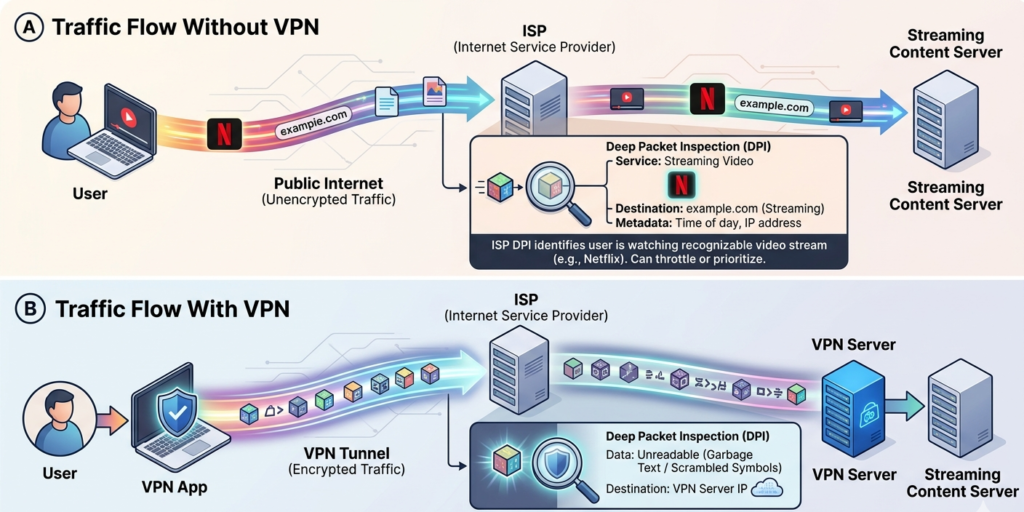
Diagram showing traffic flow with and without VPN, illustrating how ISP DPI sees encrypted traffic differently from identifiable streaming traffic
VPN Protocol Matters More Than Most Guides Admit
Most VPN articles focus entirely on brand names. The protocol the VPN uses is equally important for streaming performance.
- WireGuard: the current gold standard for streaming. Modern, lightweight, extremely fast. Latency is significantly lower than older protocols. Most reputable VPN services now support it. If your clients ask which protocol to select in their VPN app, WireGuard is the right answer for IPTV use.
- OpenVPN: reliable, well-tested, widely supported. Slightly slower than WireGuard due to older cryptographic methods. Still works well for streaming but you may notice slightly higher buffering on high-bitrate streams compared to WireGuard.
- IKEv2/IPSec: good mobile performance, reconnects quickly when switching networks. Useful for mobile IPTV viewing on the move. Not as fast as WireGuard for sustained HD streaming.
- PPTP: outdated, weak encryption, avoid. Some older router-based VPN setups use this. If a client is on PPTP, the performance issues might be the protocol, not the VPN service.
- The practical advice for clients: open VPN app settings, find Protocol, select WireGuard if available. This one change often improves streaming performance more than switching VPN services.
Top VPN Services for IPTV in 2026
NordVPN
NordVPN’s server infrastructure is one of the strongest available. Over 6,000 servers across 111 countries, with optimised streaming servers in the UK, US, and Europe specifically.
What’s relevant for IPTV use: NordLynx (their WireGuard implementation) is fast enough that the encryption overhead is essentially unnoticeable on HD streams. The app is available for Android TV, Fire TV, iOS, Android, and desktop, covering all the major IPTV platforms.
Practical observation: On a 60 Mbps broadband connection, NordVPN with NordLynx protocol reduced measured throughput by about 8%, completely imperceptible for streaming. The ISP throttling prevention more than compensates for this marginal overhead.
ExpressVPN
ExpressVPN’s Lightway protocol is their equivalent of WireGuard, purpose-built for speed. The infrastructure is particularly well-optimised for UK-to-US routing, which matters for British expats or anyone accessing US-based servers.
The key differentiator: ExpressVPN has a broader smart TV app availability than most competitors. Direct app support on LG webOS and Samsung Tizen smart TVs means clients can run the VPN directly on their smart TV without needing a separate streaming device.
Mullvad VPN
Less commonly recommended in IPTV guides but worth mentioning for privacy-focused clients. Mullvad doesn’t require an email address to sign up and accepts anonymous payment methods. No logs, strong WireGuard implementation, excellent speed.
The trade-off: no money-back guarantee and fewer server locations than NordVPN or ExpressVPN. Better for technically comfortable users than for clients who want hand-holding.
What to avoid: Free VPN services. Free VPNs are free because they monetise your data, the opposite of the privacy goal. They also typically have inadequate server capacity, producing worse buffering than no VPN at all. Never recommend a free VPN for IPTV use.
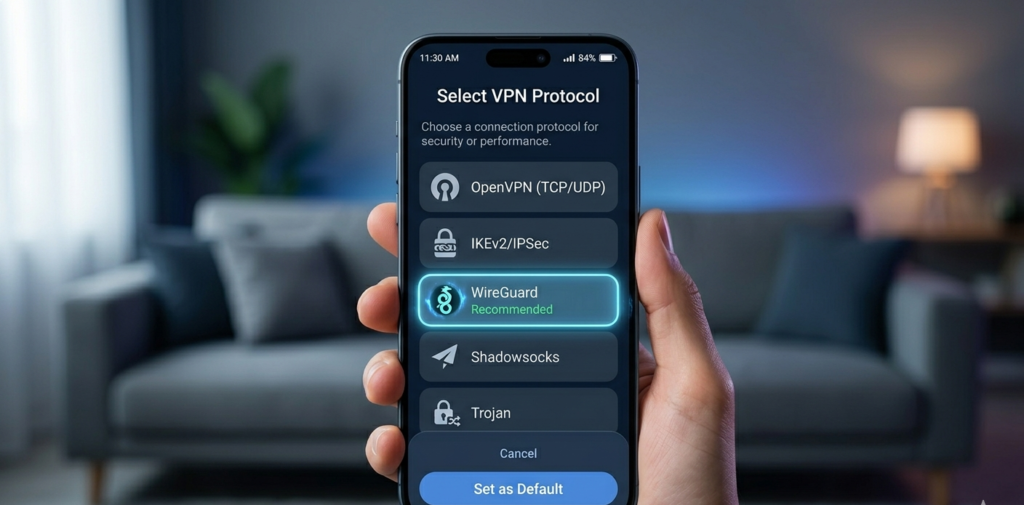
VPN app protocol selection screen showing Wire Guard option highlighted alongside other protocol options
How VPN Setup Differs Across IPTV Devices
The setup process varies by device. Here are the common scenarios:
Fire TV Stick: Install NordVPN or ExpressVPN directly from the Amazon App Store. Both have dedicated Fire TV apps. Open the app, sign in, connect to a UK or US server (depending on client’s content needs), then open the IPTV app. The VPN tunnel is active for all subsequent traffic.
This took about 4 minutes from finding the app in the store to having a VPN-protected IPTV stream running. The most common friction point: clients trying to use the phone app instead of the TV app. Make sure they install the Fire TV specific version.
Android TV / Android box: VPN apps install from Google Play Store. Same NordVPN/ExpressVPN process as Fire Stick. Android TV has slightly better VPN app support than Fire TV since it’s standard Android with full Play Store access.
Smart TV (LG/Samsung): ExpressVPN has native apps for both major smart TV platforms. NordVPN currently requires router-level configuration for smart TVs without the app. The router approach works but is more complex, worth doing for clients who want VPN protection on a smart TV without changing their streaming device.
Router-level VPN: Setting up VPN directly on the router protects every device on the home network automatically. This is the most comprehensive option. The trade-off is that router VPN is more complex to set up and requires a router that supports VPN client mode (not all consumer routers do). Recommended for technically comfortable clients who have multiple IPTV devices.
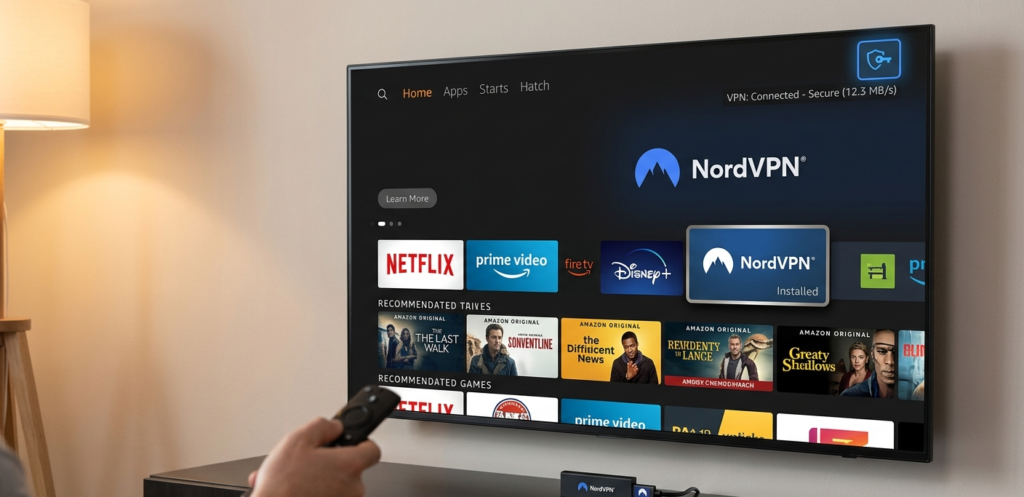
Fire TV Stick home screen with NordVPN app installed and connected, showing VPN status indicator
Split Tunneling: The IPTV-Specific VPN Feature That Matters
Most VPN guides don’t mention this, but for IPTV users it’s genuinely useful.
Split tunneling allows you to route specific apps through the VPN while other traffic goes directly to the internet. This means: your IPTV app goes through the VPN (preventing ISP throttling), while everything else, web browsing, email, other apps, goes through your normal connection.
Why this matters: Full VPN routing adds some overhead to all your traffic. On a fast connection it’s imperceptible. On a slower connection or with multiple household devices, full VPN routing can add enough overhead to affect other services. Split tunneling gives IPTV the VPN protection it needs without affecting anything else.
In NordVPN: Settings → Split Tunneling → enable, add your IPTV app to the VPN-routed list.
In ExpressVPN: Connection tab → Manage Split Tunneling → add IPTV app.
This feature takes about 2 minutes to configure and is worth mentioning to clients who report that “everything slows down when VPN is on.”
What to Tell Clients When You Set Up Their VPN
When introducing a VPN recommendation to clients, a few things worth communicating:
Always connect to a server in the same country as the content you’re watching. A UK client watching UK IPTV channels should connect to a UK VPN server. Connecting to a US server to watch UK content adds unnecessary latency and potentially triggers geo-restrictions.
If the VPN makes things worse, try a different server. Individual VPN servers have varying loads. If a London server is congested, trying Manchester or Edinburgh usually resolves it. All major VPN apps let you switch servers easily.
VPN and IPTV don’t always play perfectly together. Some IPTV providers flag VPN exit node IP addresses as suspicious and may block connections from known VPN ranges. If a client reports that their service worked fine without VPN but fails with it on, the IPTV provider may be blocking VPN traffic. In this case, check whether the VPN app has obfuscation or stealth mode, this makes VPN traffic look like regular HTTPS traffic to avoid detection.
VPN doesn’t fix slow broadband. If a client genuinely has 8 Mbps broadband, a VPN won’t make their streams more reliable. VPN fixes ISP throttling on adequate connections. It can’t compensate for genuinely insufficient bandwidth.
From the Reseller Dashboard: What VPN Use Looks Like
From your management panel perspective, clients using a VPN appear with a different IP address than their home network. This is worth knowing for troubleshooting.
If a client is having connection issues and you check their Active Connections in the dashboard, you might see their connection originating from a VPN exit server IP rather than their home IP. This is normal and doesn’t indicate a problem, just something to note when looking at connection logs.
Some advanced panels allow you to see geographic location of connections. A UK client showing as connecting from a Netherlands IP address is likely using a VPN, useful context when troubleshooting.
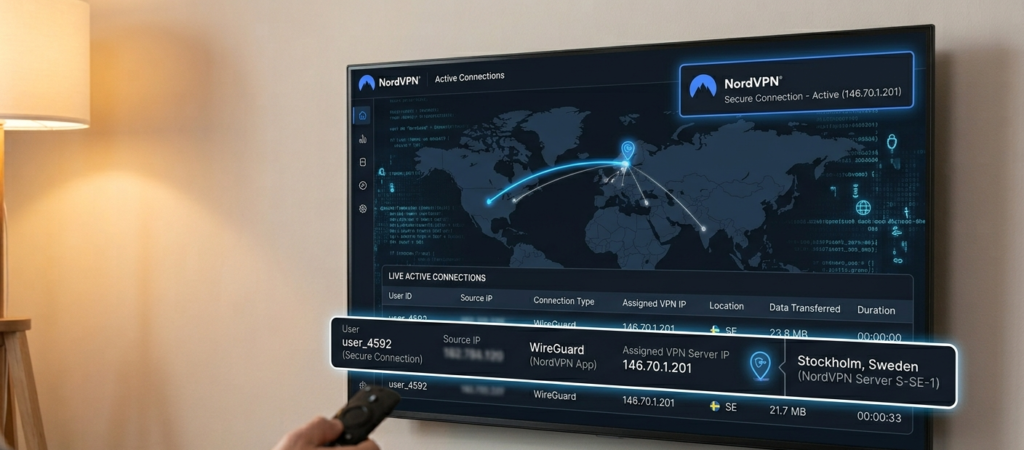
Dashboard active connections view showing connection from VPN server IP address with location indicator
The dashboard’s Account Status section remains the first diagnostic check regardless of whether a client uses a VPN or not. VPN status doesn’t affect whether an account is active, expired, or at connection limits.
The Parts Most VPN Guides Leave Out
VPN adds latency, which matters for live sports. IPTV streams already have inherent latency versus broadcast. Adding a VPN adds roughly 5 to 30ms more depending on the protocol and server distance. For most viewing this is imperceptible. For clients watching alongside neighbours with cable or satellite who want to experience matches simultaneously, even an extra few seconds matters.
Some IPTV providers actively block VPN traffic. This is increasing. Providers who are dealing with geo-restrictions or content licensing enforcement increasingly block known VPN IP ranges. If a client finds their service stops working after enabling VPN, this may be why.
ISP throttling isn’t universal. Not every ISP throttles streaming traffic. In markets where this is less common (some European countries, newer UK broadband products), a VPN may provide negligible practical benefit for streaming. Before recommending VPN to every client, check whether throttling is actually reported as a common issue with their specific ISP.
Free VPNs make everything worse. Worth repeating because clients sometimes try these first. Free VPNs typically have massively overloaded servers (everyone wants free), weak encryption that doesn’t effectively obscure traffic types, and often inject tracking into traffic. They reliably make IPTV performance worse, not better.
VPN Comparison for IPTV Use
| Feature | NordVPN | ExpressVPN | Mullvad |
|---|---|---|---|
| Best protocol for IPTV | NordLynx (WireGuard) | Lightway | WireGuard |
| Smart TV apps | Android TV, Fire TV | Android TV, Fire TV, LG, Samsung | Android TV, Fire TV |
| Split tunneling | Yes | Yes | Yes |
| UK server count | Excellent | Very good | Good |
| Obfuscation/stealth mode | Yes (obfuscated servers) | Yes | Yes |
| No-logs policy | Audited | Audited | Strict |
| Price (monthly) | ~£3 to 4 on annual | ~£6 to 7 on annual | €5/month flat |
FAQ
Will a VPN definitely fix my IPTV buffering?
It depends on the cause of the buffering. If your ISP is throttling streaming traffic, a VPN will likely fix it, encrypt the traffic and the ISP can’t identify it to throttle it. If you’re buffering because of slow broadband, a congested IPTV Panel server, or WiFi instability, a VPN won’t help those issues. The quickest way to test: enable VPN, connect to a local server, and try the streams. If buffering stops, it was ISP throttling.
Which VPN server location should I connect to for IPTV?
Connect to a server in the same country as the content you’re watching. UK IPTV channels, UK server. US sports channels, US server. This minimises the routing overhead and avoids potential geo-restrictions. Connecting to a distant country adds latency unnecessarily and can sometimes trigger content geo-blocks.
My IPTV stopped working after I enabled my VPN, why?
Your IPTV provider may be blocking known VPN IP ranges. This is increasingly common. Try three things: switch to a different VPN server (different IP, may not be blocked), enable your VPN’s obfuscation or stealth mode (makes VPN traffic look like regular HTTPS), or try connecting to a different server location. If none of these work, the provider is aggressively blocking VPN traffic.
Does VPN slow down internet enough to cause buffering?
A modern VPN using WireGuard protocol typically reduces throughput by 5 to 15%. On a 50 Mbps connection, you’d still have 42 to 47 Mbps available, more than enough for HD or even 4K streaming. On slower connections (under 25 Mbps), the overhead becomes more relevant. Using WireGuard rather than older protocols minimises this. Split tunneling, routing only the IPTV app through VPN, further reduces overhead on other traffic.
Can I use a VPN on my Smart TV for IPTV?
If you have an LG or Samsung smart TV, ExpressVPN has native apps for both platforms. For other smart TVs, you’ll need to either use an external streaming device that supports VPN apps (Fire Stick, Android box) or configure VPN at the router level to protect all home network devices. Router-level setup is the most comprehensive but requires a VPN-compatible router.
Do I need to tell my IPTV reseller if I’m using a VPN?
No. From a technical and account perspective, a VPN changes your visible IP address but doesn’t affect your account status or credentials. Your reseller’s dashboard manages subscription information, VPN use is transparent to that system. The only scenario where it matters is if your provider specifically blocks VPN IP ranges, which is a provider policy issue rather than an account issue.
Does using a VPN affect my IPTV app settings?
No. Your IPTV app configuration, credentials, M3U URL, Xtream codes, favourite channels, EPG settings, is all stored locally in the app and is unaffected by VPN use. You configure VPN separately, enable it, then open your IPTV app as normal. The app doesn’t know or care whether a VPN is active; it just sends traffic that now happens to be routed through an encrypted tunnel.
A VPN is a practical solution to a real problem, ISP throttling that degrades streaming performance, and it’s a recommendation worth having ready for clients who report buffering that doesn’t match their advertised broadband speed.
The setup is straightforward, the major services are reliable, and the performance difference for clients who genuinely are being throttled is immediate and noticeable. Just be honest about what it can and can’t fix, it solves throttling, not slow broadband.
Contact: IPTV Reseller Panel Providers