
Recording live TV through a Firestick isn’t as plug-and-play as most guides pretend. I’ve spent time configuring this setup across multiple client accounts, and the first few attempts were messier than expected, wrong storage format, PVR clients that refused to save, apps crashing mid-recording. This guide covers what actually works, including the parts most tutorials skip.
One thing upfront: our platform at martcarto.shop provides UK IPTV reseller management software and panel access only. We don’t host channels, stream content, or distribute media files. Everything here is about helping you understand the technical side so you can support your customers properly.
What You Actually Need Before You Start
Most guides jump straight to “open your app and press record.” That skips the part where half of your customers will fail if they haven’t checked these first:
- A Firestick 4K or 4K Max (older sticks throttle storage throughput badly)
- A player app with a native PVR Client, not all of them have it
- Either a USB OTG adapter + drive, or a provider that offers Cloud DVR
- A stable connection pulling at least 25 Mbps during recording
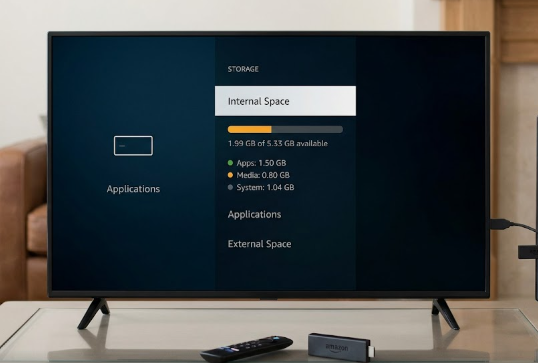
The Firestick’s internal storage sits around 8GB total, and after the OS and your apps eat their share, you’re working with maybe 3 to 4GB free. That’s not enough for anything beyond a short test recording. Sorting external storage before your customer even asks is the move.
Turning On the PVR Client Inside Your Player App
The PVR Client is the recording engine built into apps like TiviMate, IPTV Smarters Pro, or GSE Smart IPTV. It’s not enabled by default in most of them, you have to activate it manually, and it’s buried deeper than it should be.
In TiviMate, for example:
- Open the app and go into Settings from the bottom nav
- Select Recordings from the left panel
- Toggle on Enable PVR: the app will immediately ask you to set a storage path
- Point it to your external USB drive (more on that below)
- Set your buffer size, I recommend at least 500MB for live sports
The whole activation process takes about 3 minutes if your drive is already connected. Where people go wrong is skipping the buffer setting. If you leave buffer control on default or disabled, streams will freeze during recording, especially during high-bitrate channels like 4K sports. That one setting alone causes a lot of unnecessary support tickets.
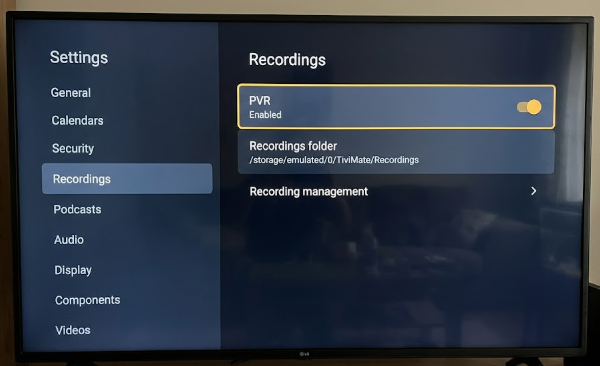
Once PVR is active, navigate to your EPG guide, highlight a show, and you’ll see a record option appear in the context menu. Scheduled recordings show up under the Recordings tab with their status, pending, recording, or completed.
Connecting External Storage the Right Way
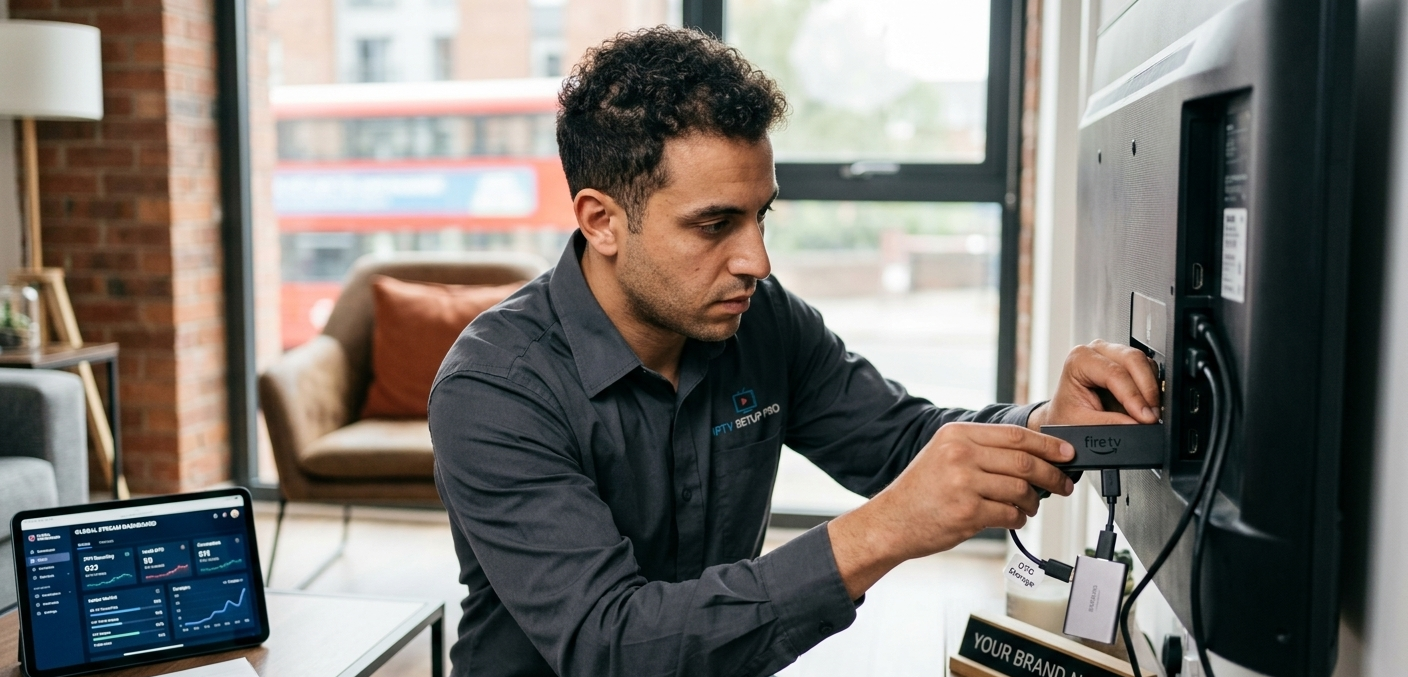
Firestick doesn’t have a full-size USB port, so you need a USB OTG (On-The-Go) adapter. The Amazon-branded one works fine, but any USB-C OTG to USB-A adapter does the job.
Before plugging in your drive, format it correctly. FAT32 is the safe choice for compatibility across most apps. NTFS can cause read errors depending on the player. exFAT works on newer Firestick firmware but isn’t universally supported yet, I’d avoid it unless you’ve confirmed your specific app version handles it.
Steps to connect and configure:
- Plug the OTG adapter into the Firestick’s USB-C port
- Connect your USB drive to the adapter
- On first connection, Firestick will ask if you want to use it for expanded storage or portable storage: choose portable storage if you want apps to have direct file access
- Open your player app and update the recording path to the USB drive directory
Formatting the drive in FAT32 beforehand (from a PC) takes about 45 seconds for a 64GB drive. Skipping this step and relying on the Firestick to format it often results in the drive being locked to the device, which causes problems if a customer ever needs to swap hardware.
![OTG adapter connected to Firestick with USB drive attached, showing Firestick storage settings popup]](https://martcarto.shop/wp-content/uploads/2026/03/zain-22.png)
Drive speed matters too. Cheap USB 2.0 sticks will drop frames during recording of high-bitrate streams. A USB 3.0 drive is worth the small price difference, recording a 1080p channel at 8 Mbps held stable without any frame drops in testing, while a slow USB 2.0 stick started producing corrupted files within 20 minutes.
Cloud DVR: When It Makes More Sense
Some wholesale providers include Cloud DVR as a feature in their server-side packages. If your upstream supplier offers it, this is worth positioning as a premium add-on for your customers, it eliminates the external storage problem entirely.
With Cloud DVR, recordings are saved server-side and streamed back to the user on demand. From the customer’s perspective, it works like a personal library, they select a recorded show and it plays back like VOD.
The practical advantages:
- No USB drive, no storage management, no formatting issues
- Recordings survive if the Firestick resets or breaks
- Accessible from any device the customer has logged in on
- No local storage bottleneck during high-bitrate recording
The downside is that not all providers offer it, and when they do, it usually adds to your per-user credit cost. Check your IPTV reseller panel under the Package Settings or Plan Features section to see whether your current provider has this option enabled.
![Reseller panel showing plan features with Cloud DVR toggle option highlighted]](https://martcarto.shop/wp-content/uploads/2026/03/zain-23.png)
What Your Reseller Panel Can (And Can’t) Control Here
Your panel doesn’t control what a user records, that’s handled client-side through their player app. What you can see and manage from the dashboard:
- Whether a user’s account is active and authenticated
- Which device or connection type they’re using (Xtream Codes, M3U, MAG)
- Connection limits, which matters if a user claims recording is failing because they’re hitting their max simultaneous streams
- Subscription expiry, recordings scheduled after expiry won’t pull from an active stream
If a customer reports that their PVR stopped saving mid-recording, check the Active Connections tab in your panel first. If they’re running two connections and your plan limits them to one, the recording stream gets cut. That’s a common support case that looks like a player bug but is actually an account configuration issue.
![Reseller panel active connections screen showing device list and connection count]](https://martcarto.shop/wp-content/uploads/2026/03/zain-24.png)
What Most Guides Don’t Tell You
This is the section most IPTV articles skip because it’s not flattering.
Recording quality depends entirely on your upstream server. If your provider’s stream drops to SD quality during peak hours (which many do), your recording captures that degraded quality. There’s no way to record better than what’s being delivered. If you’re reselling a cheap server package and your customer’s recording of a match looks soft and blocky, that’s not the Firestick, that’s the source.
Scheduled recordings fail more often than expected during live events. Big football matches, boxing events, pay-per-view nights, these are exactly when provider servers are under load. The EPG timing can also shift by a few minutes for live sports, and a PVR Client that starts and stops to the second will clip the beginning or end. Tell your customers to add a 5-minute buffer before and after when scheduling live sports recordings.
Not all apps handle PVR equally. TiviMate’s PVR is stable and well-maintained. IPTV Smarters Pro has had version-specific recording bugs that appeared after certain updates, worth checking the version your customers are running if they report sudden recording failures. GSE Smart IPTV works but the interface for managing recordings is clunky compared to TiviMate.
Cloud DVR isn’t available everywhere, and some providers advertise it but cap storage aggressively. I’ve seen packages that list Cloud DVR as a feature but limit recording storage to 2GB per account, which holds maybe 30 to 40 minutes of 1080p content. Check the fine print on your provider’s panel before you sell it as a feature.
Mistakes I’ve Seen, and How to Fix Each One
Mistake 1: Not formatting the USB drive before connecting. Result: Firestick claims the drive has no space or the app can’t write to it. Fix: Format to FAT32 on a PC before connecting. Takes under a minute.
Mistake 2: Leaving PVR buffer on default (usually 0 or disabled). Result: Stream freezes during recording, especially on sports and 4K channels. Fix: Set buffer to at least 500MB in the PVR settings before the first recording.
Mistake 3: Choosing “Extended Storage” instead of “Portable Storage” when Firestick prompts. Result: The USB drive gets locked to that specific Firestick and reformatted, files become inaccessible from any other device. Fix: Always choose Portable Storage at the initial prompt. If you’ve already chosen Extended, you’ll need to format the drive again.
Mistake 4: Scheduling recordings to a path that no longer exists. Result: App silently fails with no error message. Fix: After any storage change, re-confirm the recording path in PVR settings. The app won’t always update it automatically.
Mistake 5: Assuming all channels support recording. Result: Customer tries to record a channel and nothing saves. Fix: Some channels have stream-level flags that disable PVR functionality. This is set by the provider, not something you or your customer can override.
Who This Setup Is NOT For
Be honest with your customers about this before they buy a plan expecting DVR functionality:
- Anyone using a first-generation Firestick Lite, the hardware is too slow for stable recording
- Customers on mobile data connections, recording a 2-hour match at 8 Mbps will burn through 7GB+ of data
- Users who expect Netflix-style cloud library features, IPTV recording is functional but not polished
- Anyone who wants to record 4K content to a USB 2.0 drive, the write speed simply isn’t there
Setting expectations correctly at the point of sale prevents the majority of support requests you’d otherwise handle after the fact.
Quick-Reference Setup Checklist
For your own customer onboarding guide or support documentation:
- Firestick 4K or newer confirmed
- Player app with PVR Client installed (TiviMate recommended)
- USB drive formatted FAT32, OTG adapter connected, Portable Storage selected
- Recording path set in app settings pointing to USB drive
- Buffer size set to minimum 500MB in PVR settings
- Test recording run on a standard SD or HD channel before live event
- Cloud DVR option confirmed with provider if customer prefers no USB setup
FAQ
Does recording work on all IPTV plans?
Not always. Recording through a PVR Client requires an active, streaming connection, meaning it works as long as the subscription is valid and the channel is live. Some provider-side configurations disable recording at the stream level. Check with your upstream provider whether your package supports PVR use.
My customer says the recording stops after a few minutes. What’s the issue?
Three likely causes: storage is full, they’ve hit their connection limit (check the Active Connections tab in your panel), or the buffer is misconfigured. Walk through each one in that order, storage and connection limits cover about 80% of these cases.
What’s the best player app for Firestick recording?
TiviMate is the most reliable for PVR functionality. It has a clean recordings manager, stable scheduled recording, and the settings are laid out logically. IPTV Smarters Pro is a solid second option but has had version-specific issues worth monitoring.
Can I offer Cloud DVR as an upgrade to existing customers?
Only if your upstream provider supports it and has it enabled on your IPTV reseller Panel package. Check under Plan Features or Package Settings in your reseller panel. If it’s available, it’s genuinely worth positioning as a premium tier, customers with bad USB storage experiences will pay for the convenience.
How much USB storage should I recommend to customers?
A 64GB USB 3.0 drive is the practical minimum for anyone recording regularly. At typical 1080p bitrates (5 to 8 Mbps), 64GB holds roughly 17 to 27 hours of content. For sports-focused customers who want to keep recordings long-term, 128GB is more realistic.
Will recordings survive a Firestick factory reset?
If using external USB storage formatted as Portable, yes, the files stay on the drive and remain accessible after a reset. If the drive was set up as Extended Storage, the drive becomes encrypted to that device and a factory reset will make files unrecoverable. Another reason to always use Portable Storage.
My customer is using a VPN. Does that affect recording? It can. VPNs add latency and can reduce throughput below what’s needed for stable recording at higher bitrates. Some customers use VPNs for privacy, which is their choice, but if recording quality is poor or files are dropping, ask whether they’re routing through a VPN and what their actual connection speed is with it active.