
What IPTV Catch-Up Actually Is (and What It Isn’t)
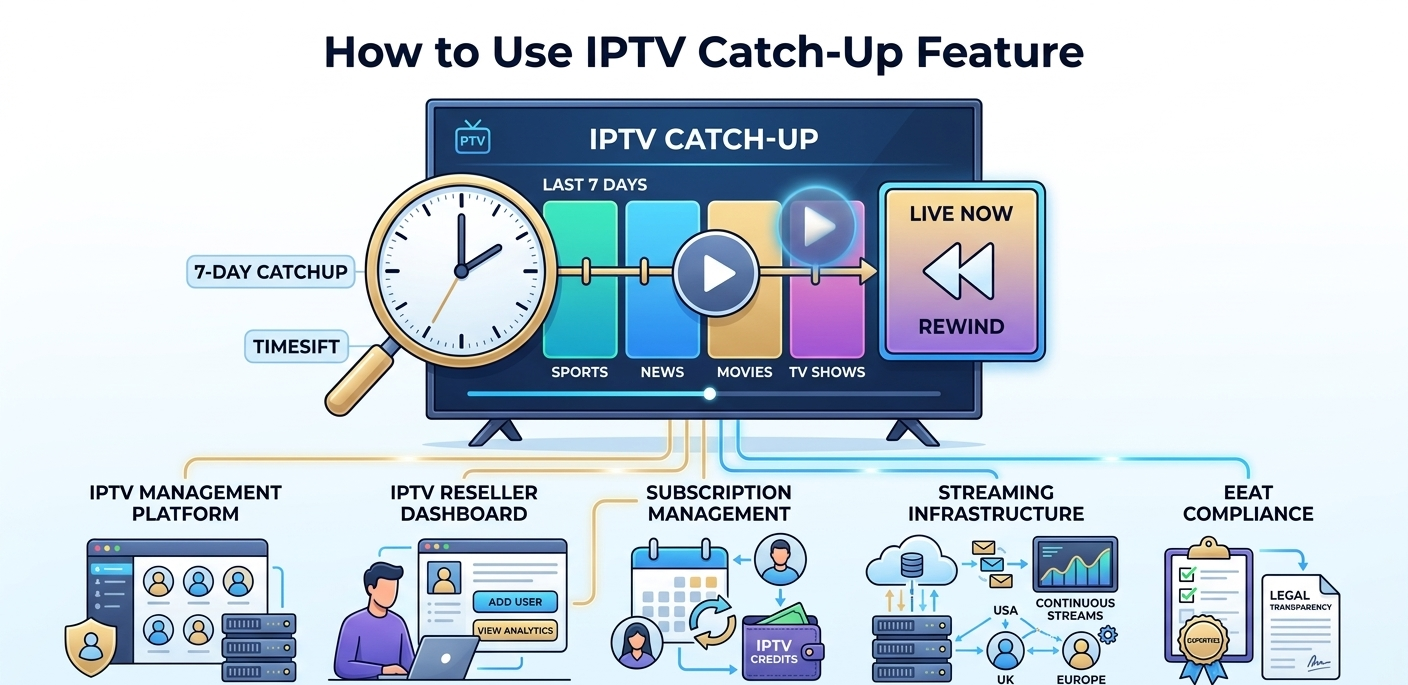
Catch-up on IPTV is server-side recording. When a channel with catch-up enabled broadcasts a programme, the provider’s infrastructure records it and stores it on a remote server. You access that recording through the same app you use for live TV, there’s no separate recording device, no local storage required, and no manual scheduling on your end.
This is different from a DVR, where you actively record content to local storage. With catch-up, the recording happens automatically on the provider’s side. You just navigate to a previous date in the channel’s guide, select what you missed, and watch it.
The practical result: if a match, film, or episode you wanted to watch started 3 hours ago, you can still watch it from the beginning right now, as if you’d recorded it. For households with variable schedules, this changes how you use live TV fundamentally.
Not Every Channel Offers It, and That’s Worth Knowing Upfront
This is the question most catch-up guides avoid answering honestly. Not all channels in an IPTV package have catch-up available, and the selection is often narrower than you’d expect.
Catch-up requires server storage. Storing 7 days of broadcast content for thousands of channels simultaneously is a significant infrastructure cost. Providers prioritise catch-up for the channels with the highest demand, major sports networks, mainstream entertainment channels, top news channels. Niche channels, international channels, and regional content often have no catch-up.
The only way to verify which channels have catch-up in your specific subscription is to check the guide. In TiviMate, channels with catch-up enabled typically show a clock or archive icon in the channel list. In IPTV Smarters Pro, the “Archive” or “Catch-Up” button appears in the channel info panel when catch-up is available.
If a channel doesn’t show the catch-up option, it either doesn’t support it or your plan doesn’t include it. Asking your IPTV Panel reseller to clarify which channels have archive access is worth doing before you rely on catch-up for something important.
How to Access Catch-Up in TiviMate
TiviMate has one of the best catch-up implementations of any IPTV app. Here’s how to use it.
Method 1, from the EPG guide: open TiviMate and navigate to the Guide view. Browse backwards through the timeline, you’ll see previously aired programmes listed with their scheduled times. Select a programme that has already aired. If catch-up is available, TiviMate will load it from the archive. If it’s not available, you’ll see an error or the option simply won’t appear.
Method 2, from the channel’s catch-up archive: while on a channel, press the appropriate button to open catch-up (this varies by remote setup, usually the red button or a long press on the OK/select button). This opens a date-based archive view showing available recordings by day.
Navigate to the date you want, select the programme, and it plays. Seek works normally, you can fast-forward, rewind, and pause exactly like any on-demand content.
The first time I used TiviMate’s catch-up properly, I wanted to rewatch the second half of a match I’d missed the end of. Navigating back to yesterday’s schedule, finding the programme, and loading it took about 40 seconds total. The playback loaded cleanly without buffering.
Using Catch-Up in IPTV Smarters Pro
IPTV Smarters handles catch-up slightly differently from TiviMate. The archive access is less integrated into the main EPG view and requires more deliberate navigation.
From the Live TV section: select a channel that has catch-up. In the channel info panel that appears, look for an “Archive” or “Catch-Up” button below the channel name. Tap it. This opens a date picker, select the date you want, then select the programme from the list that appears.
One issue I noticed: IPTV Smarters Pro sometimes shows the archive button for channels where catch-up is configured at the playlist level but not actually available from the provider. Tapping it opens the archive interface but returns no content. This isn’t a bug with the app, it’s a mismatch between what the M3U metadata says and what the provider actually has stored.
If you consistently see empty archives on channels where you expect content, verify with your reseller whether those channels have catch-up at the provider level, not just at the app level.
Rewind Live TV Is a Different Feature Entirely
Rewind Live TV (sometimes called “time-shift”) is a related but distinct feature. Instead of accessing recordings of past broadcasts, it lets you rewind the current live stream you’re watching in real-time.
Arrived 20 minutes into a match? Rewind and watch from the kick-off without leaving the live stream. Need to pause because someone knocked on the door? Pause the live stream and resume where you left off.
Rewind Live TV is handled differently technically, it requires a rolling buffer maintained by either the provider’s server or the app itself. In TiviMate, you can configure the time-shift buffer size in Settings → Player → Time Shift. Increasing the buffer allows longer rewind periods but uses more storage.
The key difference from catch-up: rewind only works for the session you’re currently in. If you leave the channel, the buffer resets. Catch-up persists for the full archive window (typically 7 days) and works even after you’ve closed the app.
Not all providers support time-shift, and not all UK IPTV apps implement it the same way. Test on your specific setup rather than assuming it works.
Configuring Catch-Up Settings in TiviMate
TiviMate has some catch-up configuration options worth knowing about.
Go to Settings → General → Catchup. Here you can set:
Catch-up source: whether to use the provider’s M3U catch-up configuration or a custom template. Most of the time “auto” works. If catch-up isn’t loading correctly despite the provider supporting it, checking whether the catch-up URL template matches your provider’s format sometimes resolves it.
Correct time: TiviMate can correct for time zone differences in catch-up content. If catch-up shows programmes at the wrong time relative to your local time, enabling this corrects it automatically.
Start from beginning: whether catch-up automatically starts from the beginning of a programme or from the current time position. “Start from beginning” is what most people want, it’s how catch-up behaves like on-demand content.
This configuration screen is one TiviMate users often don’t find because it’s not prominently featured in the main settings. It’s worth checking if catch-up behaviour seems off.
What the Reseller Dashboard Shows About Catch-Up Usage
From the reseller side, catch-up usage appears differently from live stream connections. In the dashboard’s Active Connections section, catch-up requests show as standard stream connections, they count against the client’s concurrent connection limit just like live TV.
This matters in one specific scenario: a client who has a 1-connection account and tries to watch catch-up content while live TV is already playing on another device will get a connection rejected error. The solution is a 2-connection plan, live TV and catch-up can then run simultaneously.
When a client reports that catch-up isn’t working, the first dashboard check is their account status. Then verify whether the stream credentials are active. Catch-up failures are almost never a dashboard-side issue unless the account has expired, they’re usually either provider-side (no catch-up for that channel) or app-side configuration.
Setting a client up correctly the first time avoids most of this back-and-forth. Here’s the account creation flow most UK IPTV reseller dashboards follow.
| Step | Action | Where | Result |
|---|---|---|---|
| 1 | Log into dashboard | Main login | Full access confirmed |
| 2 | Open User Manager | User Management tab | Client list visible |
| 3 | Create account | Add New User button | Form opens |
| 4 | Select plan with catch-up | Plan dropdown | Archive-enabled plan chosen |
| 5 | Set connection limit | Subscription Settings | Multi-connection if needed |
| 6 | Deduct credits | Credit system | Account activated |
| 7 | Generate credentials | Cloud system | M3U URL created |
| 8 | Deliver to client | Encrypted message | Client configures app |
Real Mistakes I’ve Made With Catch-Up
Mistake 1: assuming catch-up worked on all channels. Sold a client on a plan partly on the basis that they could watch anything they missed. A series they specifically wanted to catch up on was on a channel without archive access. I hadn’t verified which channels had catch-up before the conversation. Now I check the specific channels a client cares about before making catch-up promises.
Mistake 2: not explaining the connection limit issue. A client had a 1-connection account and tried to catch up on a programme on their tablet while their partner was watching live TV on the main screen. The catch-up connection was rejected because the account was at its connection limit. They thought catch-up was broken. Simple fix, upgraded to a 2-connection plan, but it generated an unnecessary support call because I hadn’t explained how connections work upfront.
Mistake 3: forgetting catch-up has an expiry window. A client wanted to watch something from 10 days ago. Most providers offer 7-day catch-up, content older than that is deleted from the archive. I hadn’t verified the archive window for their specific plan and told them it should be available. It wasn’t. Check the actual catch-up window duration for your plan before advising clients.
Mistake 4: not testing catch-up on the client’s specific app. Configured a client’s account with catch-up enabled at the provider level. Assumed the catch-up would work in their preferred app. Their app was an older version that didn’t support the catch-up URL format the provider used. The catch-up loaded an empty archive. Updated their app, catch-up worked immediately. Always verify app compatibility as well as provider availability.
What Most Catch-Up Guides Don’t Tell You
The 7-day window starts from broadcast, not from when you subscribed. If you activate a new subscription today and want to watch something that aired 5 days ago, it may or may not be available depending on when the channel started archiving for your account. Some providers archive retroactively; others only archive from account activation. Ask your reseller how this works for their service.
Catch-up quality is sometimes lower than live stream quality. Some providers store catch-up content at a slightly lower bitrate than the live stream to reduce storage costs. The difference is usually minor but it’s there. If you’re specifically watching sport in 4K, live is often higher quality than the archived version.
The EPG needs to be accurate for catch-up to work properly. Catch-up is mapped to the EPG schedule. If the EPG shows incorrect programme times, selecting a programme for catch-up loads the wrong segment of the archive. EPG accuracy problems show up in catch-up use before they show up anywhere else.
Not all IPTV apps implement catch-up the same way. TiviMate’s catch-up integration is significantly better than most alternatives. Some apps have catch-up working in name but the navigation is so clunky it’s barely usable. If catch-up is important to your usage, TiviMate is the app to use on Android devices.
The gap between a basic panel and a properly built one shows up most clearly here, in how much visibility a reseller actually has over catch-up usage.
| Feature | Basic panel | Advanced panel |
|---|---|---|
| Catch-up access per account | Standard | Configurable |
| Connection count control | Limited | Full |
| Archive window visibility | No | Yes |
| Stream type analytics | No | Yes (live vs. catch-up) |
| Real-time usage monitoring | No | Yes |
| Sub-reseller catch-up management | No | Yes |
Who Catch-Up Is Not For
Catch-up is a valuable feature, but not for every user or every use case.
Clients on single-connection plans who watch TV with family simultaneously. One person using catch-up and another watching live TV on the same single-connection account creates conflicts. If this is a household’s typical usage pattern, a 2-connection plan is the right solution, not a workaround.
Clients who primarily watch on-demand content. If someone mainly watches Netflix, Disney+, or other on-demand platforms alongside their IPTV, catch-up adds little, they’re already watching content on their own schedule. Don’t oversell catch-up to users whose viewing habits don’t include live TV.
Users with slow internet connections. Catch-up streams from remote servers just like live TV. If a client struggles with live stream buffering due to slow broadband, catch-up will have the same problems. Fix the underlying connection issue first.
FAQ
How far back can I use catch-up?
Most providers offer a 7-day catch-up window, though some offer 3 days and premium IPTV plans occasionally offer longer. Content older than the archive window is deleted permanently. Verify the specific window for your plan, it’s usually listed in the plan details or your reseller can confirm.
Does catch-up use the same connection as live TV?
Yes. From the provider’s infrastructure perspective, a catch-up stream is a connection like any other. It counts against your account’s concurrent connection limit. If you have a 1-connection account, you cannot watch catch-up and live TV simultaneously on different devices.
Why does catch-up show an empty archive on some channels?
Three common causes: the channel genuinely doesn’t support catch-up (most common), your plan doesn’t include archive access for that channel, or there’s an app-side configuration issue. Check the channel in a different IPTV app using the same credentials, if the archive is also empty there, the issue is provider-side. If catch-up works in the second app, the issue is app configuration.
Can I download catch-up content to watch offline?
No. IPTV catch-up is streaming from the provider’s server, it’s not a downloadable file. You need an active internet connection to watch catch-up content, just as you do for live TV.
Why does catch-up start at the wrong time in the programme?
This is usually an EPG timing mismatch. The catch-up archive is mapped to EPG schedule times. If the EPG shows a programme starting at 8:00pm but it actually started at 7:55pm, catch-up will load from 8:00pm, missing the first 5 minutes. You can manually rewind to the actual start in most apps. If the problem is consistent on a specific channel, report it to your IPTV reseller, it’s an EPG accuracy issue at the provider level.
Does catch-up work on all IPTV apps?
No. Catch-up support requires the app to correctly parse catch-up URL templates from the M3U metadata and handle the archive API. TiviMate handles this best on Android. IPTV Smarters Pro supports it with some limitations. Some older or simpler apps don’t support catch-up at all. If catch-up is important to you, verify your app supports it before committing to a setup.
Is catch-up the same as pause live TV?
No. Pause/rewind live TV (time-shift) works on the current session’s buffer, it only goes back as far as the buffer allows and resets when you change channel or close the app. Catch-up accesses a server-stored recording that persists for the full archive window regardless of when or whether you were watching at the time of broadcast.
Catch-up changes the way live TV works, from “you have to watch it when it airs” to “watch it whenever you want within the week.” For families, shift workers, or anyone with an inconsistent schedule, it’s genuinely one of the most useful features in an IPTV subscription.
The setup required on your end is minimal, it’s mostly about knowing which app to use (TiviMate if you’re on Android), which channels actually have archive access on your specific plan, and how connection limits interact with simultaneous catch-up and live TV use. Get those three things right and catch-up just works.
Contact: IPTV Panels