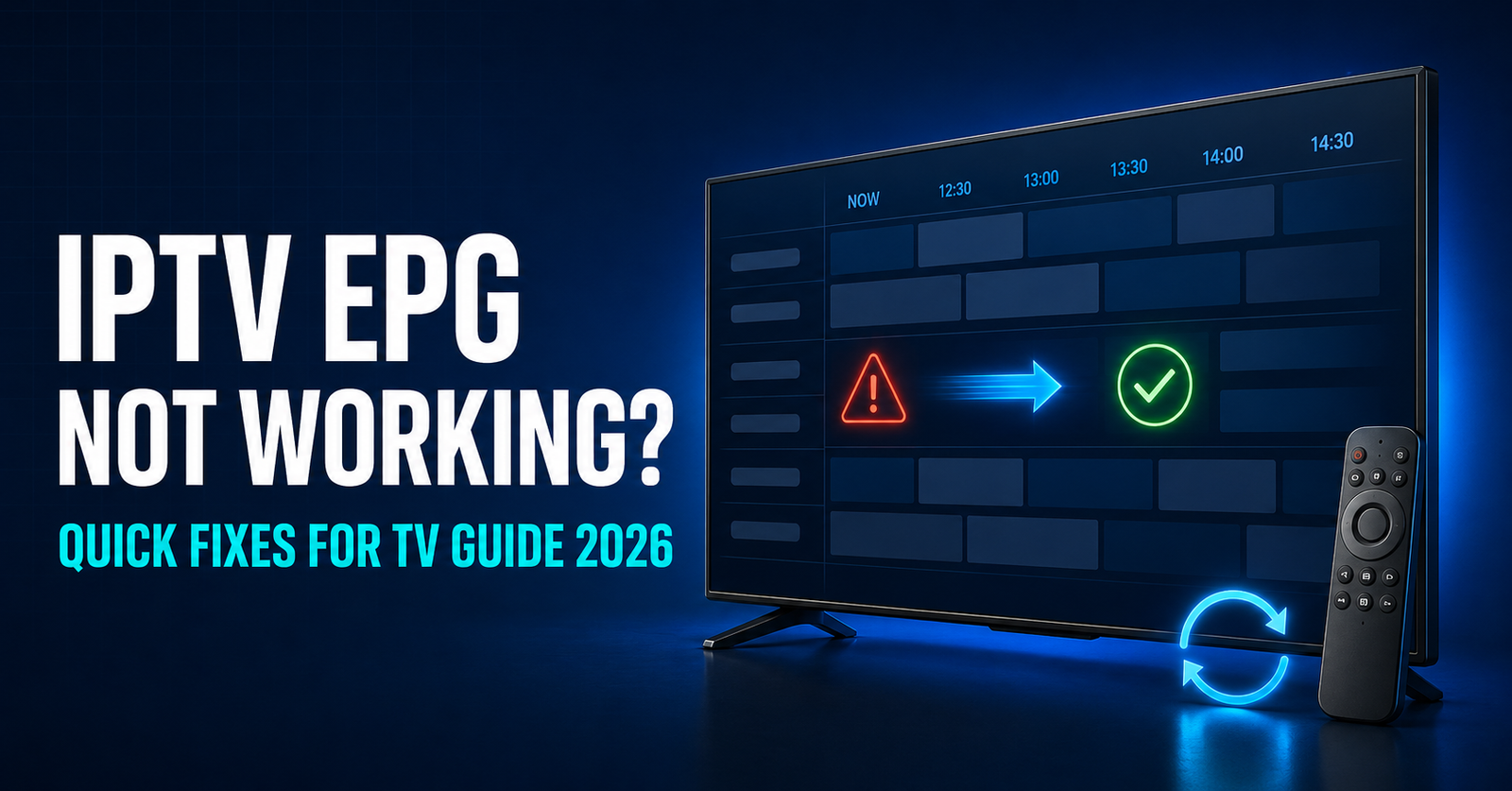

IPTV EPG Not Working is almost always down to one of three things: a missing programme data feed, a channel ID mismatch between the playlist and the guide source, or a caching fault inside the player app itself. It rarely means the whole service has broken. Live channels usually keep streaming perfectly fine while the guide sits blank, frozen on yesterday’s schedule, or showing times that don’t line up with what’s actually airing.
Understanding which of those three it is saves a lot of wasted troubleshooting time, because the fix for each looks completely different.
What “No EPG” Actually Looks Like on Screen
Before jumping into fixes, it helps to be precise about what’s actually happening, because “EPG not working” covers several different symptoms and each one points somewhere different.
A completely blank guide, with no programme titles at all, usually means the app never received guide data in the first place. A guide that shows old information from days ago points to a stuck cache rather than a missing feed. Programme titles appearing but sitting one or two hours off the real schedule is almost always a timezone offset, not a data problem. And guide entries that show for some channels but not others usually mean a handful of channel IDs in the playlist don’t match anything in the guide source, so those specific channels simply have nothing to display.
Separating these cases matters because clearing an app’s cache does nothing for a timezone offset, and adjusting a timezone setting does nothing for a channel that was never mapped to guide data to begin with.
Where the Programme Guide Data Actually Comes From
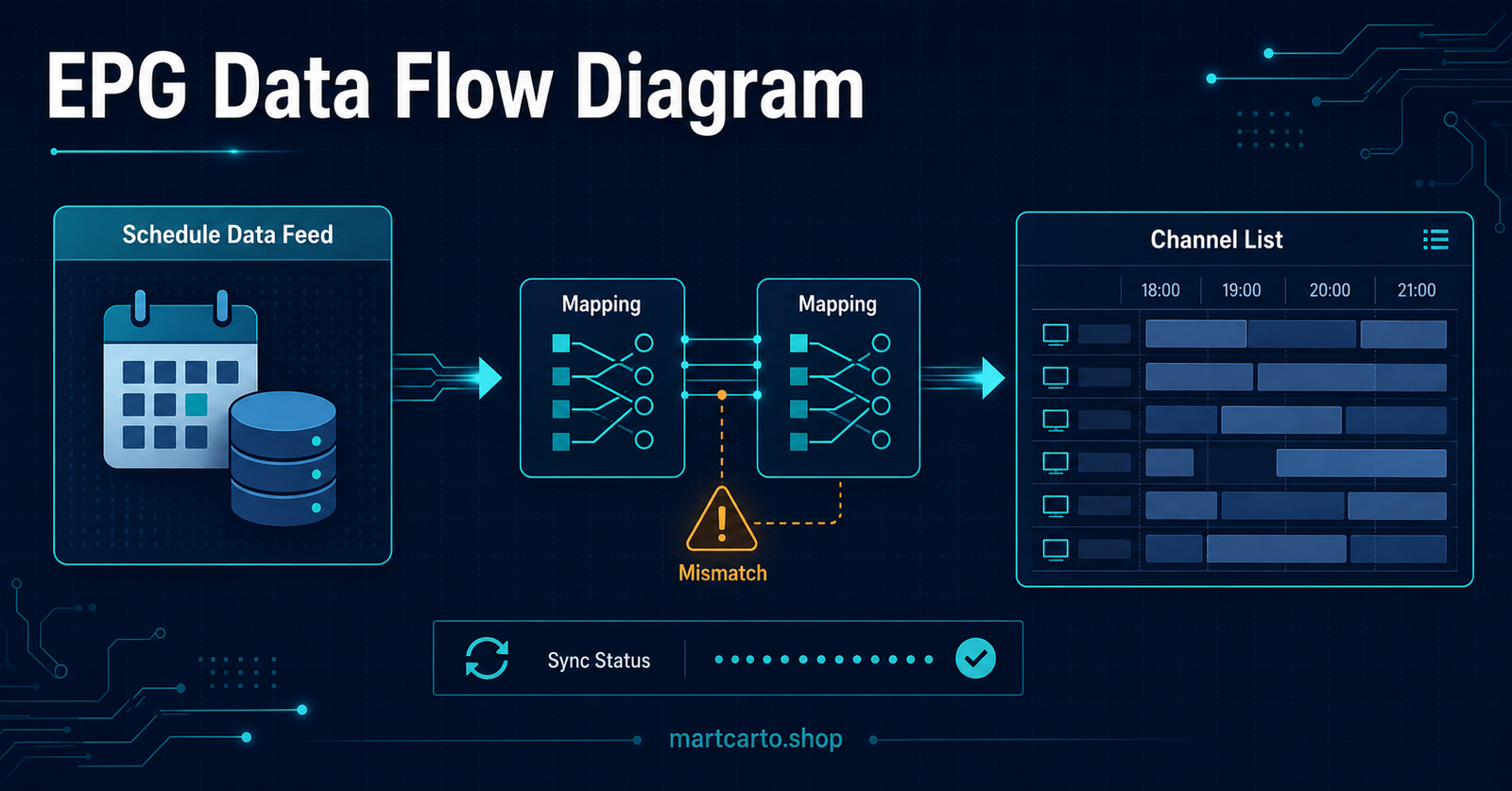
The guide displayed inside a player app doesn’t come from the same place as the video stream. Live channels are delivered through the M3U playlist or Xtream Codes connection, but the schedule information sits in a separate file, usually an XMLTV feed, that gets pulled in and matched against each channel by an internal ID.
That matching step is where most guide problems start. Every channel entry in the playlist carries a tvg-id value, and the XMLTV feed needs a channel listed under that exact same ID for anything to display. If a channel gets renamed, renumbered, or added without an updated ID, the stream keeps working but the guide for that one channel goes blank, while everything around it looks fine. Our breakdown of M3U and Xtream Codes formats covers how these playlist structures are put together if the ID mapping is unfamiliar territory.
Quick EPG Troubleshooting Checklist
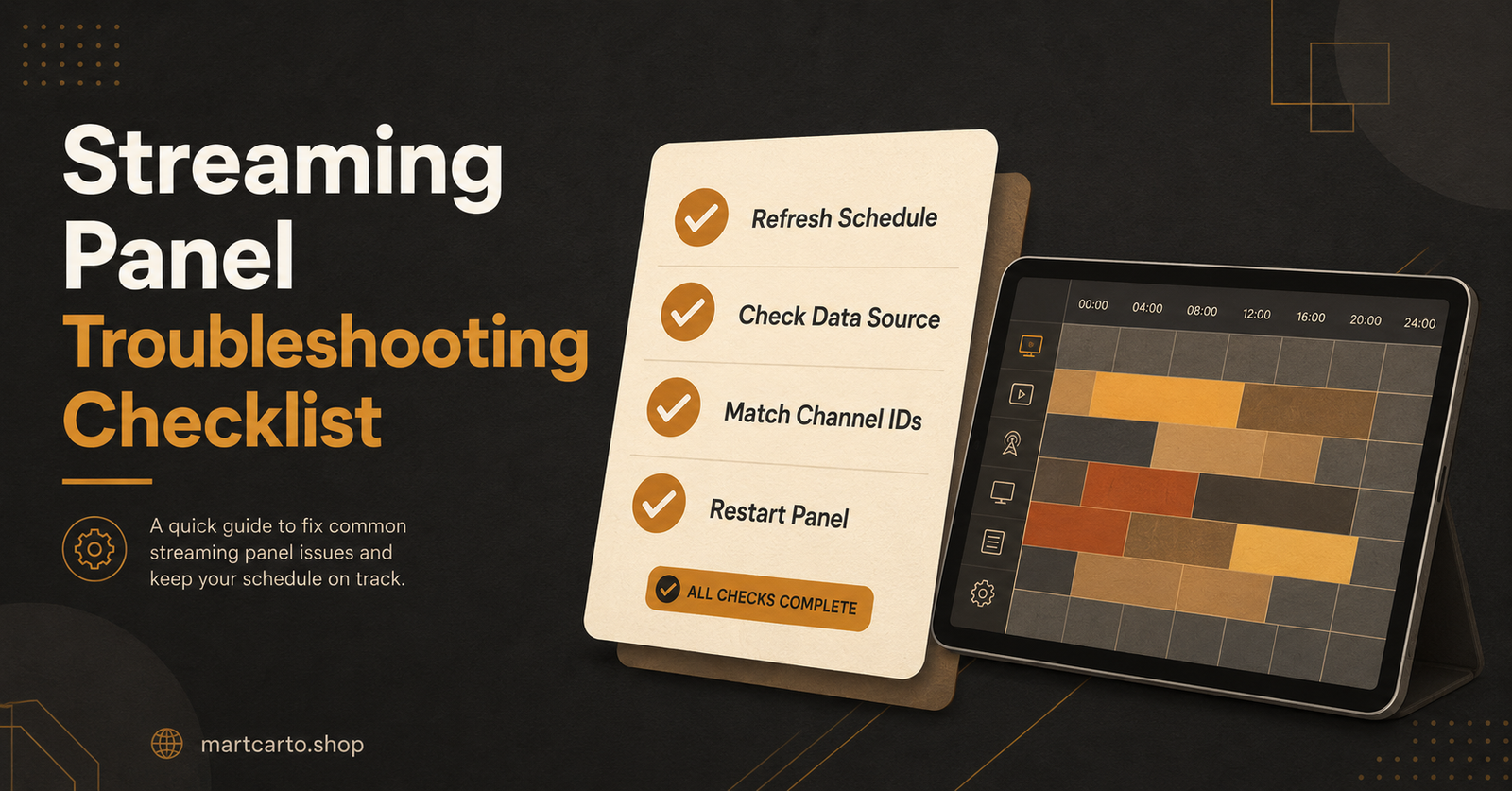
- Confirm the live stream itself plays normally before assuming the guide fault is service-wide
- Check whether the blank guide affects every channel or only specific ones
- Force-close and reopen the player app rather than just backgrounding it
- Clear the app’s cache from device settings, not just the app’s internal refresh button
- Check the device’s date, time and timezone settings against the actual local time
- Confirm the app has a working internet connection strong enough to pull the guide file, not just the stream
Most single-channel guide gaps and delayed-schedule symptoms clear up somewhere in that list before any deeper digging is needed.
Pro tip: If only one player app shows the fault, reinstall that app before assuming the account itself has a guide problem. A corrupted local database inside a single app is far more common than a genuine account-side fault.
Why IPTV EPG Not Working Happens Most Often
Set against everything above, three causes account for most real-world cases.
The first is provider-side gaps. Not every channel a panel carries necessarily has a matching guide feed behind it, particularly smaller regional or niche channels added later to a bouquet. The stream works because the source is live, but nobody’s supplied schedule metadata for it, so the guide has nothing to show. This isn’t something a customer or IPTV Panel reseller can fix locally; it needs the provider to supply or correct the XMLTV mapping.
The second is app-side caching. Most player apps store a local copy of the guide to avoid re-downloading it every time the app opens. That’s normally fine, but if the download gets interrupted partway or the app crashes mid-refresh, the cache can get stuck holding partial or outdated data indefinitely until it’s manually cleared. This explains why restarting the device sometimes fixes it and sometimes doesn’t; a soft restart doesn’t always clear stored app data the way a full cache wipe does.
The third is device clock drift, which sounds trivial but causes a disproportionate number of support messages. Android boxes and older Smart TV units are notorious for losing accurate time sync, especially after a power cut or long standby period. The guide data itself is correct; the device is just reading it against the wrong local time.
Pro tip: Before troubleshooting anything else, check the device’s date and time settings are set to automatic network time rather than manually entered. A surprising number of persistent “wrong time” guide complaints trace back to this single setting.
What This Looks Like From the Reseller Side
For anyone running a UK IPTV reseller platform rather than just watching as a subscriber, EPG complaints tend to arrive in a specific pattern worth recognising early. A single customer reporting a blank guide on one device is usually local to that device or app. Several customers reporting the same missing channels within a short window points to a provider-side feed gap that needs escalating rather than repeating the same cache-clearing advice to each one individually.
Keeping a short internal note of which channels have had recurring guide gaps makes it much faster to recognise a repeat pattern instead of treating every ticket as a fresh mystery. Our guide to reliable streaming panels goes into what separates a panel that handles this kind of feed maintenance properly from one that doesn’t. And if the underlying workflow of creating lines, assigning bouquets and managing customer accounts is still unfamiliar, the full panel walkthrough explains where guide settings sit inside the dashboard.
Pro tip: Ask affected customers for a screenshot of the guide screen rather than a text description. “EPG not working” can mean a blank screen, a frozen schedule, or wrong times, and a screenshot removes the guesswork in seconds.
Frequently Asked Questions
Why does the live stream work but the guide doesn’t?
The stream and the guide are delivered separately. A live channel only needs a valid stream URL to play, while the guide needs a correctly matched XMLTV entry. One can fail without affecting the other.
Will restarting the device fix a broken EPG?
Sometimes, but not always. A restart can clear a stuck app process, but it doesn’t always wipe stored app data. If a restart doesn’t help, clearing the app’s cache specifically, or reinstalling it, is the more reliable next step.
Why does the guide show the wrong day or time?
This is almost always a device timezone or clock setting rather than a fault with the guide data itself. Setting the device to automatic network time usually resolves it.
Does every channel come with EPG data?
Not necessarily. Smaller or recently added channels sometimes lack a matching guide feed even while the live stream itself works fine. This needs correcting at the provider level, not on the customer’s device.
How long should a guide refresh take?
This varies by app and connection speed, but a full refresh typically completes within a few minutes. If it’s been significantly longer with no data appearing, the feed itself likely isn’t loading rather than simply being slow.
Conclusion
IPTV EPG Not Working is rarely a sign that the whole service has failed. In most cases the stream itself is fine, and the fault sits in one of three places: a provider-side gap in the schedule feed, a stuck cache inside the player app, or a device clock that’s drifted out of sync. Working through symptoms in that order, rather than guessing, gets to the actual cause far faster than repeating the same fix regardless of what’s actually on screen. When the pattern points to a genuine feed gap affecting several customers or IPTV channels at once, that’s the point to raise it with the panel or provider rather than continuing to troubleshoot individual devices.
Quick Recovery Checklist
- Check whether the live stream plays normally before assuming a service-wide fault
- Note whether the guide gap affects one channel, several, or all of them
- Clear the player app’s cache and storage, not just its in-app refresh
- Verify the device clock is set to automatic network time
- Reinstall the player app if only one app shows the fault
- Escalate to provider or panel support if multiple customers report the same missing channels