
The Problem With Watching Multiple Games on Standard IPTV
Football Saturday. Three simultaneous kickoffs. Your client wants to watch all of them.
Standard IPTV setups allow one stream per connection. If your client has a single-line account, they’re picking one game and missing the others. For casual viewers that’s fine. For sports fans, particularly those following multiple leagues or betting markets, it’s a dealbreaker.
Multi-screen IPTV is the solution, but it requires specific configuration on both the account side and the client’s hardware. Getting one of these wrong means the feature either doesn’t work or degrades the streams running simultaneously.
This guide covers the actual setup process from inside a reseller dashboard, hardware requirements, common configuration mistakes, and what the experience actually looks like in practice.
What “Multi-Screen” Actually Means at the Account Level
Before touching any settings, it helps to understand what you’re actually configuring.
A multi-screen setup requires a multi-connection account. Each simultaneous stream counts as one active connection. A client watching three games at once is using three concurrent connections, if their account only allows one, the second and third stream attempts will fail or kick out the first.
This is purely a subscription configuration decision made in your IPTV reseller panel. The streaming infrastructure doesn’t care how many screens a client uses, your panel limits (or enables) simultaneous connections per account. Set it correctly and the rest follows.
Step-by-Step: Configuring a Multi-Screen Account
This walkthrough is based on navigating a standard reseller panel. The process takes about 5 minutes per account.
Step 1: Log into your reseller dashboard
Open the User Management tab. If you’re setting this up for a new client, click Add New User. For existing clients, find their account in the list and open their account detail view.
Step 2: Locate the connection limit setting
Look for “Max Connections,” “Simultaneous Streams,” or “Multi-Screen” in the account settings. On the panel I use, this sits in the Subscription Settings section, slightly below the plan selection dropdown. It’s easy to miss on first use because it defaults to 1 and doesn’t draw attention to itself.
Set this to the number of simultaneous streams your client needs. For sports multi-screen use, 4 is the most common configuration. If they want to run a split-screen setup across a large TV plus a second screen, 2 connections is usually sufficient.
Step 3: Confirm the subscription plan supports it
Not all plans allow multi-connection accounts. Check that the plan assigned to this client isn’t capped below the connection count you’re trying to set. Some basic plans lock connections at 1 regardless of what you set in the account settings, the plan restriction overrides the account setting.
If you’re running into this, you’ll need to upgrade the client’s plan before the multi-connection setting takes effect.
Step 4: Deduct credits and save
Multi-connection accounts typically cost more credits than single-connection accounts. Confirm the credit deduction before saving. The system usually shows you the cost differential when you change connection limits, take 30 seconds to verify before confirming.
Step 5: Generate credentials and send to client
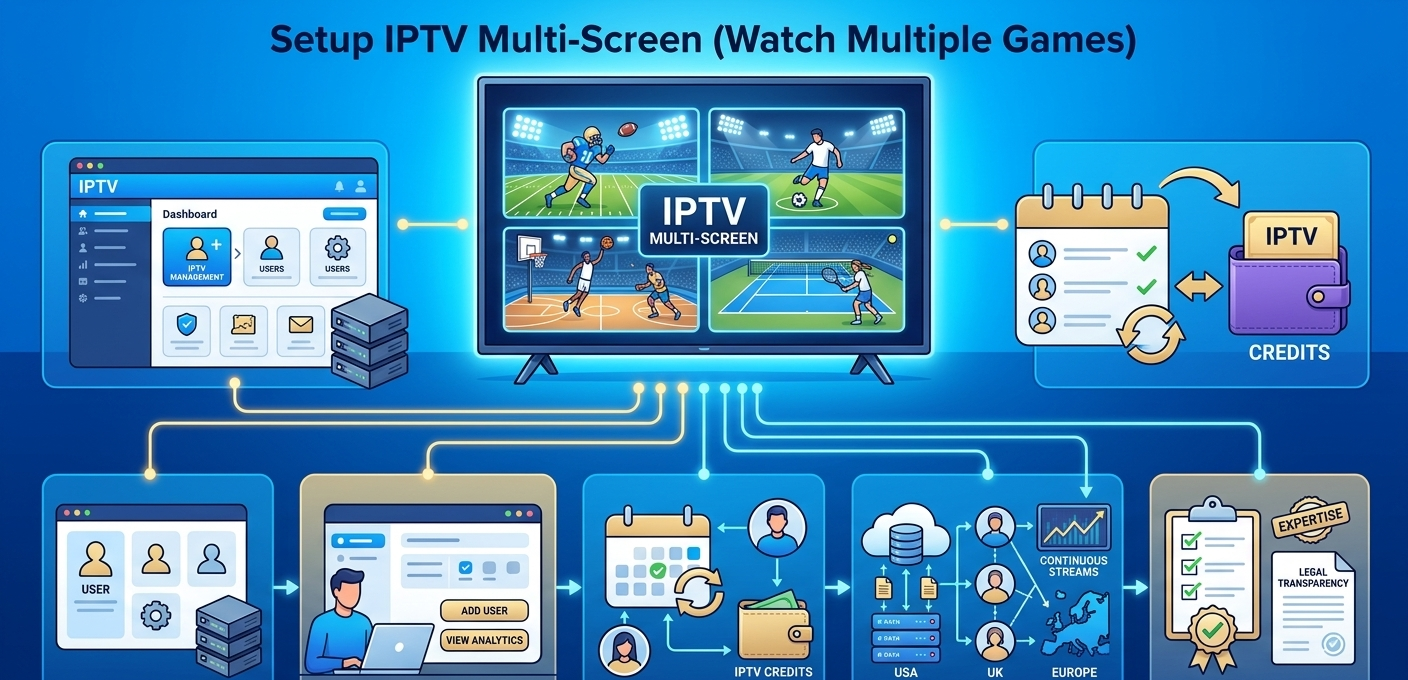
The stream URL and credentials work the same way as a standard account. What changes is that the same credentials can now be used simultaneously from multiple devices or apps without the second connection being rejected. Here’s the full workflow from login to handoff:
| Step | Action | Where | Result |
|---|---|---|---|
| 1 | Log into panel | Main login screen | Full dashboard access |
| 2 | Open User Manager | User Management tab | Client list visible |
| 3 | Create or select account | Account detail view | Settings accessible |
| 4 | Select plan supporting multi-stream | Plan dropdown | Multi-connection enabled |
| 5 | Set connection limit | Subscription Settings section | Simultaneous streams configured |
| 6 | Deduct credits | Credit system | Account activated |
| 7 | Generate credentials | Cloud system | M3U URL created |
| 8 | Send credentials + setup guide | Your communication method | Client ready to configure |
Hardware: What Actually Works for Multi-Screen Viewing
The account configuration is your side of the setup. What happens on the client’s end depends entirely on their hardware and how their app handles multiple streams.
Android TV boxes (Nvidia Shield, high-end Xiaomi boxes): best option for multi-screen. Can run multiple IPTV app instances or use apps with native picture-in-picture support. Nvidia Shield handles 4 simultaneous HD streams without thermal issues.
Amazon Fire Stick (4K Max): workable for 2 streams, but running more than 2 simultaneous streams on a Fire Stick causes frame drops and buffering because the hardware doesn’t have enough processing headroom. For 4-game setups, this isn’t the right device.
Smart TVs with built-in IPTV apps: most smart TVs don’t support split-screen for IPTV apps natively. The exception is some Samsung and LG models with multi-view features, but app compatibility is inconsistent. Generally, a dedicated Android box connected to the TV is more reliable.
Tablets and phones as secondary screens: practical and underused. If a client wants to watch 3 games, the main event goes on the living room TV and two secondary matches run on a tablet and phone simultaneously. Same credentials, same multi-connection account, completely different devices.
PC/laptop with multiple browser tabs or VLC instances: works cleanly for IPTV setups using M3U URLs. Opening VLC twice with different channel URLs from the same multi-connection account runs both streams simultaneously without issues.
Setting Up Split-Screen Inside the App
The IPTV reseller panel controls the account permissions. The split-screen display itself is handled by the client’s IPTV app.
Not all IPTV apps support split-screen natively. Here’s what actually works:
TiviMate (Android): has a native picture-in-picture mode. You can pin one channel in a small overlay window while browsing or watching another. Not a true 4-way split, but functional for watching two streams.
IPTV Smarters Pro: supports multi-screen mode on tablets and Android TV. Go to Settings > Multi-Screen and enable it. You’ll see a grid layout option, select 2×2 for a four-stream view. Each tile connects to a separate channel independently.
Kodi with IPTV Simple Client: you can run multiple Kodi windows on a PC/Mac. It’s not elegant but it works. Open a second Kodi instance, load the same M3U playlist, select a different channel. Both streams run independently using the same multi-connection account.
GSE Smart IPTV: has a basic split-screen option in its settings menu. Works on iPad particularly well, the larger screen makes split-screen genuinely useful rather than just technically possible.
The thing worth telling clients upfront: split-screen on a single device means splitting the screen resolution between streams. Four HD streams on a 55″ TV each get roughly 27″ of diagonal space at lower effective resolution. For big games they care about, full-screen on the main TV is still better. Multi-screen works best when combining one main game full-screen with secondary matches on separate devices.
Mistakes I’ve Actually Made Setting This Up
Mistake 1: Setting 4 connections without checking the plan cap
Configured a client for 4 simultaneous connections. They reported that the third stream kept getting rejected. Spent 20 minutes troubleshooting their app before checking the plan, it was capped at 2 connections regardless of the account-level setting. Upgraded their plan, problem solved immediately.
Mistake 2: Not warning clients about bandwidth requirements
A client set up 4 simultaneous streams on their home WiFi. Each HD stream needs roughly 10 Mbps. Four streams at once means 40 Mbps sustained bandwidth minimum. Their 50 Mbps connection with WiFi overhead wasn’t enough, everything buffered simultaneously. The fix was moving their Android box to a wired ethernet connection.
Mistake 3: Recommending split-screen on a Fire Stick
Told a client their Fire Stick 4K could handle a 4-game split-screen view. It couldn’t. The device overheated within 15 minutes and throttled performance until streams were unwatchable. Fire Sticks are fine for single-stream use, not for simultaneous multi-stream loads.
Mistake 4: Forgetting that each stream counts against connection limits
A client had a 2-connection account and was using split-screen for 2 games on their TV while their partner tried to watch a different channel on a tablet. Three simultaneous connections, two allowed, the tablet kept getting rejected. The client thought the app was broken. Added a third connection to their account, everything worked.
Mistake 5: Not testing the app’s split-screen mode before recommending it
Recommended IPTV Smarters Pro’s multi-screen mode to a client without testing it on their device first. Their older Android TV box didn’t render the 2×2 grid correctly, the layout was broken. Had to walk them through switching to TiviMate instead. Test on the actual device before recommending.
The Multi-Screen Realities Most Guides Leave Out
The viewing experience is often worse than expected. Four streams on one screen sounds great in theory. In practice, you’re watching each game at roughly quarter-screen size with no audio focus, you can’t hear all four simultaneously. Most people end up using it for glancing at scores rather than actually watching games. Manage client expectations accordingly.
Bandwidth requirements scale linearly. This seems obvious but clients underestimate it constantly. Two 1080p streams require double the bandwidth of one. Four require quadruple. On a 100 Mbps connection with typical household WiFi overhead, four simultaneous HD streams is workable on ethernet but risky on WiFi.
Some providers count connections differently. Most providers count each active stream as one connection. A small number count per-device rather than per-stream. Know which model your provider uses before promising clients specific connection counts, the difference matters for multi-screen configurations.
The credits cost more than clients expect. Multi-connection plans cost significantly more than single-connection plans. A client expecting to add multi-screen access for a small fee can be surprised by the actual credit cost. Be upfront about pricing before configuring.
Peak times stress this more than off-peak. Four simultaneous streams during a major matchday, when thousands of other users are doing the same thing, puts more strain on server infrastructure than the same four streams at 2am. If a client reports multi-screen buffering that only happens on weekends, it’s often server load rather than their connection.
When Multi-Screen Isn’t the Right Sell
Multi-screen IPTV makes sense for specific types of clients. It’s worth being honest about who it doesn’t suit.
Casual viewers who occasionally want to check another game don’t need a 4-connection multi-screen account. A second single-connection account for a family member is often a better and cheaper solution.
Clients on budget hardware, Fire Sticks, entry-level Android boxes, older smart TVs, won’t get a good multi-screen experience. The hardware can’t sustain it. Sell them on this only if they have capable devices.
Clients with slower internet connections below 30 Mbps shouldn’t attempt more than 2 simultaneous streams, and even that requires a wired connection. Overselling multi-screen to someone on a 20 Mbps DSL connection will result in constant support calls.
Clients who primarily watch one thing at a time are better served by a single high-quality connection than multiple streams they’ll rarely use simultaneously. Don’t upsell for the sake of it.
Feature Comparison: Basic vs. Advanced Panel for Multi-Screen Management
The tooling gap between panel tiers looks like this:
| Feature | Basic panel | Advanced panel |
|---|---|---|
| Multi-connection account support | Limited (max 2) | Yes (configurable) |
| Per-account connection limit control | No | Yes |
| Active connection monitoring | No | Real-time |
| Bandwidth usage per account | No | Yes |
| Split-screen mode configuration | No | Yes |
| Simultaneous stream analytics | No | Yes |
| Bulk multi-connection plan assignment | No | Yes |
Reseller Model vs. Building Your Own Infrastructure
For multi-screen specifically, the IPTV reseller model has one meaningful limitation, you don’t control the server infrastructure that handles simultaneous connections. If your provider’s servers are overloaded during peak times, your clients’ multi-screen experience degrades and you can’t fix it directly. Here’s how the two paths compare specifically for multi-screen management:
| Reseller model | Own server | |
|---|---|---|
| Multi-connection control | Account-level only | Full stack |
| Peak load management | Provider-dependent | Configurable |
| Setup cost | Low | High |
| Technical complexity | Low | Very high |
| Time to launch | Days | Months |
| Ongoing maintenance | Minimal | Constant |
The trade-off is real but the reseller model is still the practical starting point. If you build a client base around sports multi-screen and peak-time reliability becomes a consistent problem, that’s the point to consider provider alternatives or eventually infrastructure ownership, not before.
Best Practices for Sports-Focused Clients
Recommend wired connections. For any client running 2+ simultaneous streams, ethernet is essential. WiFi introduces latency variability that compounds across multiple streams.
Set up during off-peak hours. When configuring multi-screen for a client, test it when servers aren’t under maximum load. A test at 2pm Tuesday doesn’t tell you how it’ll perform at 3pm Saturday.
Offer a pre-match check. For clients paying premium for multi-screen plans, offering a quick check before major events (World Cup fixtures, Super Bowl, etc.) builds significant loyalty. It takes 2 minutes to confirm their connections are working.
Keep a troubleshooting script ready. The most common multi-screen issues are: connection limit reached (check account settings), insufficient bandwidth (check ethernet/speed), app configuration (check split-screen settings), and server load (check provider status). Having these in order saves time on support calls.
FAQ
How many simultaneous streams can one account support?
This depends on the plan you assign. Most advanced reseller plans allow you to configure anywhere from 1 to unlimited simultaneous connections per account. The most common configurations for sports multi-screen clients are 2 or 4 connections. Confirm what your specific plan tier allows before promising clients a number.
Can two people in the same household use the same account on different TVs simultaneously?
Yes, if the account has 2 or more connections configured. Each device using the same credentials counts as one active connection. A 2-connection account allows two separate devices to stream different channels at the same time from the same account.
Why does the second stream work but the third one keeps getting rejected?
Your account’s connection limit is set to 2. The third connection attempt gets rejected by the system because the limit has been reached. Go into the account settings in your IPTV panel, find the concurrent connection limit, and increase it. Also verify the assigned plan tier allows more than 2 connections.
What internet speed does a client need for multi-screen to work properly?
A rough guide: each HD (1080p) stream needs about 10 Mbps of sustained bandwidth. Two streams need 20 Mbps, four streams need 40 Mbps. Add 20 to 30% overhead for network variability. A 4-screen setup realistically needs a 60 Mbps connection minimum, on ethernet. WiFi adds instability that makes lower speeds even less reliable.
Does the app need to support multi-screen or does the panel handle it?
Both need to work correctly. Your panel controls how many simultaneous connections the account permits. The client’s app controls how multiple streams are displayed simultaneously (split-screen, picture-in-picture, etc.). The panel can’t force an app to display split-screen, it only permits multiple connections. App capability varies, check that the app your client uses actually supports split-screen before recommending it.
Can I monitor how many connections a client is actively using?
On advanced panels, yes. The Active Connections or Live Monitor section in your dashboard shows real-time connection counts per account. This is useful for troubleshooting (“you’re showing 4 active connections but only 2 streams working”) and for catching account sharing you weren’t paid for.
Is there an additional cost to enable multi-screen for existing clients?
Yes. Multi-connection accounts use more credits than single-connection accounts. The exact amount depends on your plan pricing. When you change an existing account’s connection limit, the system will show the credit difference, review it before confirming. Factor this cost into what you charge clients for multi-screen plans.
Multi-screen IPTV is a genuinely useful feature for the right clients, mainly sports fans who follow multiple leagues or want to monitor several games simultaneously. The setup is straightforward once you understand that it’s a combination of account configuration in your panel and app-level display settings on the client’s device.
Get both right, set realistic expectations about hardware requirements, and it’s a strong upsell that clients actually value and keep paying for.