
Why Your Default Player Is Probably Hurting Your Streams
Most IPTV apps have a built-in player. Most of them are mediocre.
The default player that comes bundled with your IPTV app is built for compatibility, not performance. It has to work across hundreds of device types without breaking. That means it makes conservative decisions about hardware usage, codec support, and buffering logic, decisions that directly affect picture quality and stream stability.
If your clients complain about blurry images, audio sync issues, or buffering that doesn’t make sense given their connection speed, the player is usually the first thing worth investigating. Not the stream. Not the server. The player.
This guide covers how external players work, which ones are worth using, how to configure them properly, and what actually goes wrong when you set this up for clients.
How External Players Actually Work
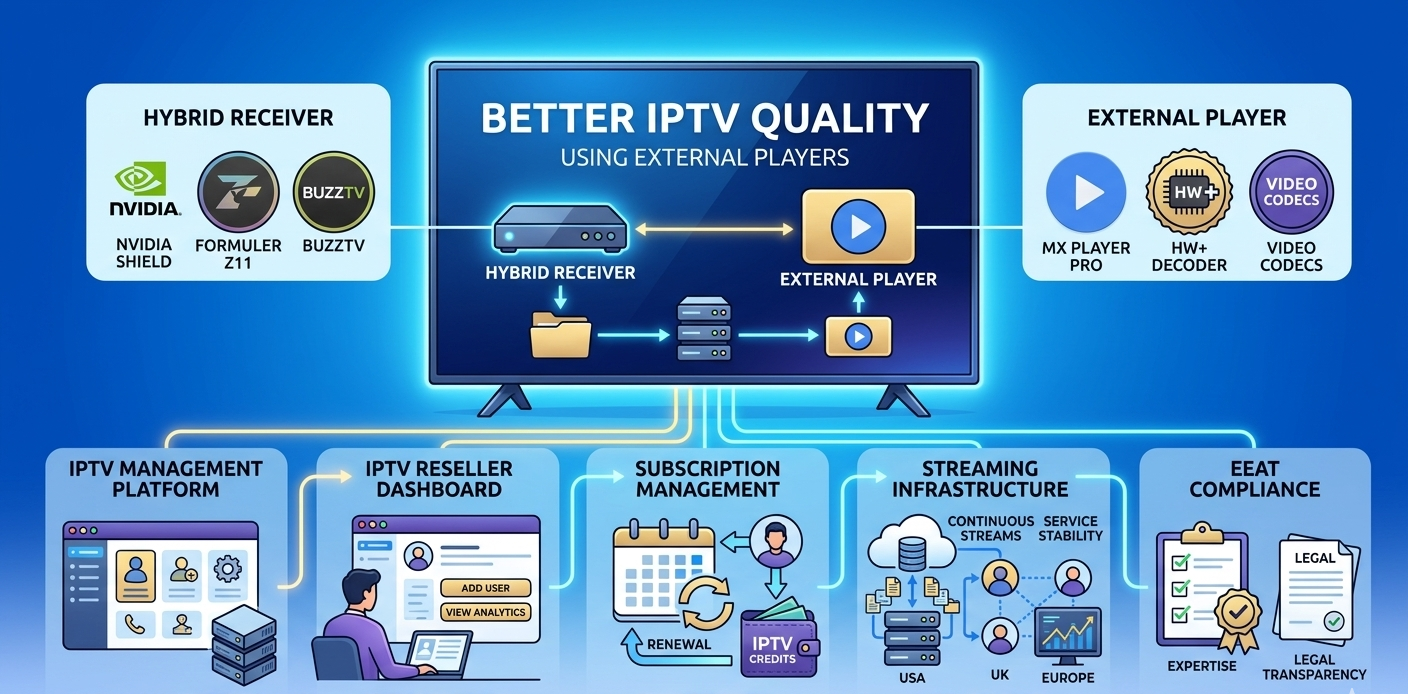
When an IPTV app opens a stream in an external player, it hands off the stream URL to a separate application. That application handles all decoding, rendering, and playback independently.
The critical difference is hardware access. A well-configured external player can directly access your device’s hardware decoder, the dedicated chip built specifically for video processing. The internal players of most IPTV apps don’t do this efficiently, or do it inconsistently.
The result is that hardware-assisted playback through a capable external player produces:
- Smoother frame rates, especially on 1080p and 4K streams
- Lower device temperature during extended viewing
- Less battery drain on mobile devices
- Better handling of high-bitrate streams that would stutter otherwise
HW+ Decoder: What It Is and When It Actually Matters
HW+ (Hardware Plus) decoding is an enhanced mode of hardware-accelerated video processing. Standard HW decoding offloads basic video rendering to the hardware chip. HW+ goes further, it handles more complex processing tasks at the hardware level, including certain post-processing steps that would otherwise fall back to software.
In practical terms: on a mid-range Android device, switching from software decoding to HW+ on a 1080p stream can reduce CPU load from around 60-70% down to 20-30%. The stream plays smoother. The device runs cooler. The difference is noticeable.
When HW+ makes a real difference:
- Devices with limited processing power (budget Android boxes, older Fire Sticks)
- High-bitrate streams above 8 Mbps
- 4K content or 1080p at high frame rates
- Extended viewing sessions where thermal throttling becomes a factor
When HW+ doesn’t help much:
- High-end devices with powerful processors that handle software decoding easily
- Low-bitrate streams where CPU load is minimal anyway
- Certain codec types (HEVC/H.265 on older chips that don’t support hardware HEVC decoding)
Configuring MX Player Pro So It Actually Performs
MX Player Pro is the most widely recommended external player for IPTV, and for good reason, but only when configured correctly. Out of the box, it’s not optimized for streaming. It defaults to software decoding for compatibility reasons.
Here’s the configuration I use after installing:
Step 1: Set decoder mode
Go to Settings > Decoder. Switch from SW (software) to HW+ (hardware plus). If HW+ causes issues on a specific stream, try HW before falling back to SW.
The first time I changed this setting, the difference on a 1080p sports stream was immediate, frame drops disappeared and the image sharpened noticeably.
Step 2: Configure network buffering
Settings > Player > Network > increase the buffer size. The default is conservative. For IPTV streams, a buffer of 512KB to 1MB works well for most connections. If your client has a slower connection, increasing this reduces interruptions but adds a small delay at startup.
Step 3: Set audio output
If your client is using a soundbar or AV receiver, enable passthrough audio under Settings > Decoder > Audio. This passes the raw audio stream to the receiver for processing rather than decoding it on the device.
Step 4: Disable subtitles and unnecessary overlays
This sounds trivial but it reduces rendering overhead. If your client isn’t using subtitles, turn them off entirely rather than leaving them in auto-detect mode.
Where External Player Settings Live Inside Your Reseller Panel
This is where most UK IPTV reseller guides stop short. Setting up external players isn’t just a client-side config, it involves settings within your reseller dashboard.
Open your dashboard and navigate to the User Management tab. Find the client account. Look for Device Settings or Player Configuration within the account detail view. Some panels label this section “App Settings” or “Client Preferences.”
Here you can specify which external player the system recommends or automatically opens when a client clicks a stream link. Setting MX Player Pro as the default external player for a client takes about 90 seconds once you know where the setting is.
Not all panels expose this. Basic-tier panels often don’t have per-account player configuration at all, stream links just open in whatever the client’s device defaults to. Advanced panels let you set preferred players and even push configuration updates to client accounts.
Real Mistakes I Made Configuring External Players
Mistake 1: Recommending HW+ for every device without checking codec support
HW+ decoding only works if the hardware chip supports the codec being decoded. Recommending HW+ to a client using an older device with no HEVC hardware support resulted in corrupted playback, green frames, scrambled image. The fix was switching them to HW mode instead of HW+. Took 3 messages with the client to diagnose.
Mistake 2: Ignoring audio passthrough on TV-connected setups
A client complained that audio sounded “flat” compared to regular TV. They had a 5.1 soundbar. MX Player was decoding the audio on the Fire Stick and sending stereo output to the soundbar. Enabling audio passthrough solved it immediately. This is an easy thing to miss if you’re testing on headphones.
Mistake 3: Not testing after a player app update
MX Player Pro released an update that changed the default decoder back to SW for certain stream types. Clients who had been running fine for weeks suddenly reported buffering. Player app updates can silently reset your configured settings. Worth noting in your client communications when major updates drop.
Mistake 4: Setting external player without checking if the client’s device supports it
Pushed MX Player Pro as the default for all clients on one account batch. Two of them were using iOS devices, MX Player Pro on iOS has significantly fewer configuration options than Android. The setup instructions I’d sent were wrong for their devices.
What Most Guides Don’t Tell You About External Players
A few things that rarely appear in external player articles:
Not every stream benefits from external players. Low-bitrate SD streams play fine in most built-in players. The improvement from external players is most visible on HD and 4K content. Don’t oversell this to clients with basic plans on SD streams, they won’t notice much difference.
External player configuration adds a support burden. When you recommend clients use an external player, you’re adding another variable to troubleshoot. If a client’s MX Player updates and resets their settings, that becomes a support ticket. Built-in players that just work require less hand-holding even if they’re slightly lower quality.
Some IPTV apps don’t support external player handoff cleanly. The app needs to be configured to pass the stream URL to the external player rather than play it internally. Not all apps do this well. Some pass the URL incorrectly, causing the external player to fail with an error, which confuses clients who then assume the stream is broken.
VLC is overrated for IPTV on Android. It’s the first suggestion most people make. VLC is excellent for local file playback but its network buffering for IPTV streams is inconsistent in my experience. MX Player Pro handles IPTV streams more reliably on Android. For iOS, Infuse or nPlayer are better choices than VLC.
Who Should NOT Bother With External Players
This is worth being direct about.
Clients on basic SD plans watching casual content on standard TVs don’t need external player setup. The built-in player is fine. You’re adding complexity without meaningful benefit.
Clients who aren’t technically comfortable will struggle with external player configuration. Every additional app is another support touchpoint. For non-technical clients, the best experience is the simplest one that works.
iOS users have limited options. App store restrictions mean the level of hardware access that makes external players powerful on Android simply isn’t available on iOS. The improvement from external players is modest on Apple devices.
Clients using Nvidia Shield or Apple TV 4K, these devices have powerful enough processors that the difference between built-in and external player is minimal on most streams. Their hardware handles almost everything natively at high quality.
Feature Comparison: Basic vs. Advanced Reseller Panel for Player Management
The tooling gap looks like this:
| Feature | Basic panel | Advanced panel |
|---|---|---|
| External player recommendation | No | Yes |
| Per-account player config | No | Yes |
| Device type detection | No | Yes |
| Stream analytics by player type | No | Yes |
| Codec preference settings | No | Yes |
| Push configuration updates | No | Yes |
Account Creation Workflow (With Player Setup Included)
Here’s the full account setup flow with player configuration folded in:
| Step | Action | Where | Result |
|---|---|---|---|
| 1 | Log in to dashboard | Main login | Panel access |
| 2 | Open User Manager | User Management tab | Client list visible |
| 3 | Create or select account | Account detail view | Settings accessible |
| 4 | Choose subscription plan | Plan dropdown | Duration and features set |
| 5 | Configure device/player settings | Device Settings section | External player assigned |
| 6 | Deduct credits | Credit system | Account activated |
| 7 | Generate stream credentials | Cloud system | M3U URL created |
| 8 | Send credentials + setup guide | Your communication method | Client ready to configure |
Reseller Model vs. Building Your Own Infrastructure
People occasionally ask whether running your own server gives you more control over playback quality. The answer is yes, but the cost and complexity rarely justify it for most operators. Here’s how that trade-off breaks down specifically for playback control:
| Reseller model | Own server | |
|---|---|---|
| Setup time | Days | Months |
| Hardware cost | None | Significant |
| Playback control | Client-side only | Full stack |
| Maintenance burden | Provider-managed | Daily |
| Scalability | Immediate | Requires planning |
| Technical skill needed | Low-moderate | High |
External player optimization is entirely client-side work regardless of whether you’re a reseller or running your own infrastructure. The server delivers the stream, how it gets decoded on the receiving end is always the client device’s responsibility.
Video Codec Basics Worth Understanding
You don’t need to be a video engineer, but knowing the basic codec landscape helps when clients ask why something doesn’t play right.
H.264 (AVC): the most widely supported codec. Every device handles it. Lower compression efficiency than newer codecs, so file sizes and bitrates are higher for the same quality.
H.265 (HEVC): better compression, same visual quality at roughly half the bitrate of H.264. But hardware decoding support varies significantly by device age. Older hardware without HEVC decoding chips will struggle or fail entirely.
AV1: the newest widely-deployed codec. Excellent compression but heavy to decode. Even some newer devices can’t handle it in hardware. Avoid for client recommendations until hardware support matures.
When a client says “streams look pixelated,” check whether their device supports hardware decoding for the codec the stream is using. Forcing software decode on an underpowered device almost always produces poor picture quality.
Solo Operators vs Small Agencies: What Actually Scales
Solo operators handling 10 to 50 clients can manage external player setup individually. A one-page setup guide tailored to the three or four most common devices your clients use covers most situations. Personalized support is your competitive advantage at this scale.
Small agencies with larger client bases need a standardized approach. Develop device-specific setup guides, add player configuration to your onboarding checklist, and decide early which player you’re recommending and supporting. Chasing multiple external players across your client base creates a support nightmare.
What’s Coming in Player Technology
Hardware decoding support is expanding with each device generation. The gap between built-in and external players is narrowing on high-end hardware, the differentiation increasingly comes from software features rather than raw decoding performance.
AI-assisted upscaling is appearing in some premium apps and devices. Content encoded at 720p can be upscaled in real-time to fill a 4K screen with reasonable results, though this is currently a feature of high-end dedicated media players and will likely reach mainstream IPTV apps within a year or two.
Frame interpolation, smoothing motion by generating intermediate frames, is another feature trickling down from high-end players. For sports content, this can significantly improve the viewing experience. Not universally appreciated (the “soap opera effect” is a real complaint), but it’s becoming configurable rather than all-or-nothing.
FAQ
Can I recommend external players to clients without them needing technical knowledge?
It depends on the client. A short, device-specific setup guide with screenshots covers most cases. The configuration steps in MX Player Pro are straightforward once you’ve written them out clearly. The friction point is usually clients who skip steps or don’t save settings after configuring them.
Does using an external player affect my reseller account or credits?
No. External player configuration is entirely client-side. Your IPTV reseller account and credit system are unaffected by which player your clients use. The stream URL is the same regardless of what plays it.
MX Player Pro or VLC, which is better for IPTV?
For Android devices, MX Player Pro handles IPTV streams more reliably in practical use. VLC is excellent for local file playback but its IPTV buffering behavior is less predictable. For desktop (Windows/Mac), VLC is the better choice. For iOS, nPlayer or Infuse outperform both.
Why does HW+ mode cause green frames on some devices?
HW+ relies on the device’s hardware chip to handle specific codec processing. If the chip doesn’t support a particular codec or encoding profile in hardware mode, it fails to decode those frames correctly, resulting in the green or corrupted output you see. Switch to standard HW mode or SW mode for that device.
My client’s streams buffer in external players but not in the built-in player, why?
Built-in players often have larger default buffers and different network handling than external players. Check the network buffer settings in your external player, increase the buffer size. Also verify the external player is using the stream URL correctly and not reformatting it in a way that affects stream delivery.
Can I set a default external player for all my clients at once?
This depends on your panel. Advanced panels with bulk account management tools may allow this. Basic panels typically require per-account changes. Check your User Manager for any bulk action or template features before doing it one account at a time.
Does audio passthrough work with all soundbars and receivers?
Hardware passthrough requires both the source device and the receiver to support the same audio format (Dolby Digital, DTS, etc.). If your client’s receiver is older, it may not support newer formats being passed through. In those cases, standard decoded audio output from the player works better than a passthrough that the receiver can’t handle.
External IPTV players are a legitimate performance improvement for the right clients and the right devices. The key is knowing when the improvement is worth the setup complexity, and being honest with clients when the built-in player is simply the better choice for their situation.
The goal is a smooth viewing experience. Sometimes that’s an HW+ configured MX Player Pro. Sometimes it’s just leaving the default player alone.