
What Is an M3U Playlist and Why Does It Get Messy?
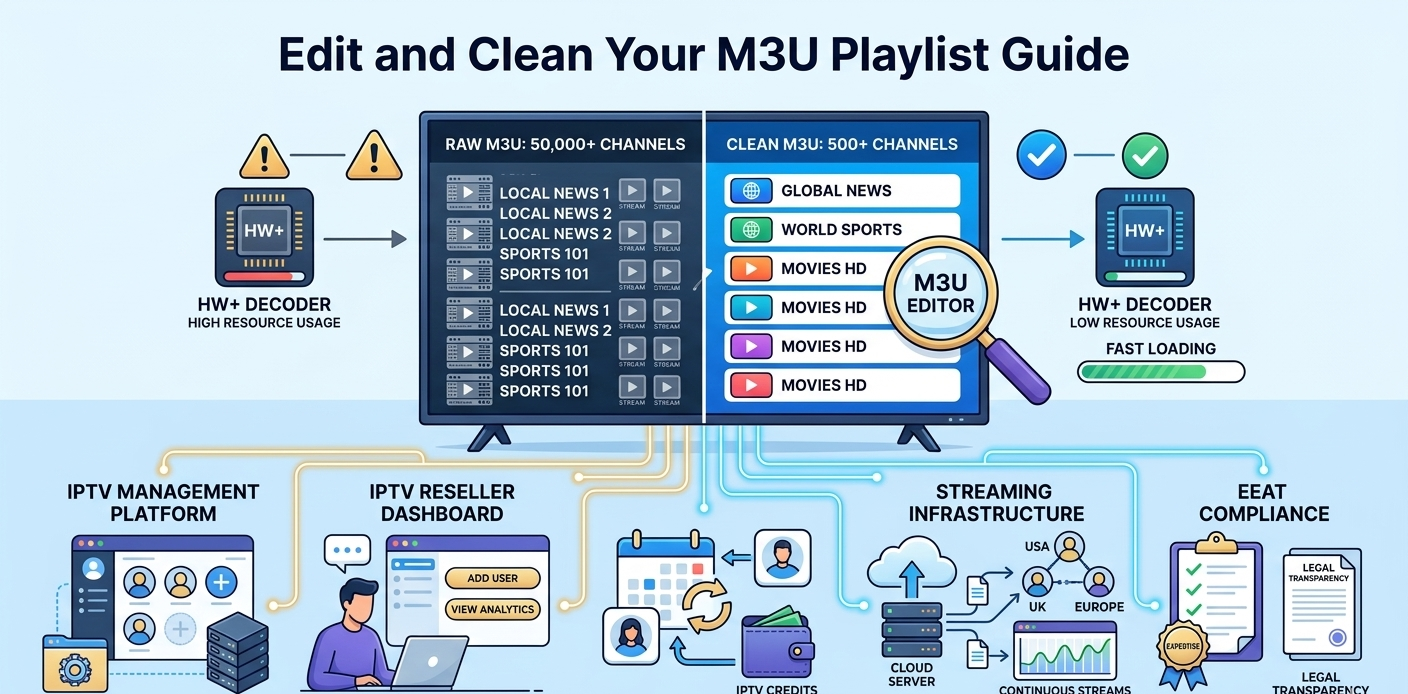
If you’ve been running an UK IPTV reseller setup for any length of time, your M3U files probably look like a disaster right now. Dead channels, duplicate entries, categories nobody uses, it adds up fast.
An M3U file is just a plain text list. Each entry points to a stream URL and carries a label. Simple in theory. But once you’re managing playlists for dozens of clients, or you’ve imported a bulk list from a provider with 10,000+ channels, cleaning that file becomes genuinely important work, not optional housekeeping.
Slow channel switching? That’s often a bloated playlist. App crashes on load? Same cause. Clients complaining streams “don’t work” when the issue is actually a dead URL buried in line 4,847? Yep, that too.
The File Structure Nobody Explains Properly
Before you start editing, you need to understand what you’re looking at.
Open any M3U file in a text editor and you’ll see something like this pattern repeating:
#EXTINF:-1 tvg-id="..." tvg-name="..." tvg-logo="..." group-title="Sports",Channel Namehttp://yourstream.server:port/live/username/password/12345Two lines per channel. The first carries all the metadata. The second is the actual stream URL.
Most beginner mistakes happen here, people delete one line without the other, which corrupts the whole file structure below it. If your playlist editor is throwing parse errors, this is usually why.
Choosing the Right M3U Editor (What I Actually Use)
There are three main options depending on your workflow:
- Desktop editors (IPTV Editor, M3U Editor Pro). Best for bulk edits. You can drag entire groups, sort alphabetically, remove dead links in batches. The interface takes about 10 minutes to learn, nothing complicated.
- Browser-based editors. Good for quick fixes when you’re on a client call and need to sort something fast. Upload the file, make the change, download it. No installation required.
- Your reseller dashboard’s built-in playlist manager. If your panel has one, use it. Changes apply directly to the client’s account without you downloading, editing, and re-uploading manually. Saves a significant amount of time.
[![Reseller dashboard main screen with sidebar tabs visible]](https://martcarto.shop/wp-content/uploads/2026/03/zain-8.png) ]
]
Step-by-Step: Editing an M3U Playlist From the Dashboard
This is the flow I actually use when cleaning up a client playlist from inside an IPTV reseller panel.
Step 1: Log into your reseller dashboard
Navigate to the User Management tab. Find the client account you want to work on. Click their username to open the account detail view.
Step 2: Open their playlist settings
Look for the Stream Configuration or Playlist Settings option within the account. Some panels label this differently, “Bouquet Editor” is common on older systems.
This took me about 2 minutes the first time I found it. The panel I use loads this section slightly slow on first click, probably pulling live data from the server.
Step 3: Review active channel groups
You’ll see a list of bouquets or categories assigned to that user. Sports, News, Movies, Kids, whatever their plan includes. This is where you start cutting.
Disable entire categories the client doesn’t need. One client I manage had 40 adult channels in their list they’d never asked for, came bundled with the provider package. Removing that group alone reduced their playlist load time noticeably.
Step 4: Remove or hide individual dead channels
If your dashboard has a “check stream” or ping function, use it on anything that hasn’t been watched in 30+ days. Dead streams waste load time even if the client never clicks them.
Step 5: Rename channels for clarity
Provider names are often awful. “SKY SP HD 1 [BACKUP]” means nothing to a client. Rename it “Sky Sports 1.” Takes 30 seconds per channel, but clients notice and appreciate it.
Step 6: Save and push the updated playlist
Hit save. The system regenerates the M3U file on the server side. If you’re using a panel with instant cloud sync, the client’s app will pick up the changes on their next restart or refresh.
Mistakes I’ve Made Cleaning Playlists (So You Don’t Have To)
Mistake 1: Editing the file directly without a backup
I did this once. Deleted a line, corrupted the structure below it, and had a client’s entire playlist go blank. Always export a copy before making manual edits to a raw M3U file.
Mistake 2: Forgetting to enable buffer control
Some panels have a Buffer Control setting in the stream configuration. If you leave it off and a client has a slow connection, streams will freeze constantly, even if the stream URL itself is fine. Took me three support tickets on one account to figure this out.
Mistake 3: Uploading an M3U file without checking encoding
M3U files should be UTF-8 encoded. If a client sends you a file they edited in Windows Notepad, it might be saved in Windows-1252. Special characters in channel names (Arabic, Cyrillic, accented European) break completely. Always check encoding before upload.
The upload process itself took about 12 seconds for a 3MB file on the panel I use. If it’s taking longer than 30 seconds, something is wrong with the file format.
Mistake 4: Giving a client their raw M3U URL on a shared server
If your provider doesn’t isolate client streams properly, one person’s URL can sometimes load another client’s playlist. I’ve seen this on cheaper panel setups. Verify your panel uses unique credential-based generation, not a shared flat URL.
Who This Is NOT For
This guide assumes you’re running a legitimate software management operation. If you’re looking for help sourcing content, finding provider streams, or setting up unlicensed channel distribution, that’s not what this covers and not something we assist with.
Also, if you’re managing fewer than 10 clients, honestly, manual M3U editing is probably fine. You don’t need a full dashboard system yet. A desktop editor and organized folder system will serve you until you scale past that point.
The reseller platform model makes sense when you’re juggling 50+ accounts and can’t afford to manually update each one individually. Here’s how a basic panel stacks up against an advanced one:
| Feature | Basic panel | Advanced panel |
|---|---|---|
| Max users | Up to 500 | Unlimited |
| Playlist editor | Limited | Full bouquet control |
| Support | Email only | Priority chat |
| Custom branding | No | Yes |
| Real-time analytics | No | Yes |
| Sub-reseller accounts | No | Yes |
| API access | No | Yes |
| Stream health monitor | Basic | Live diagnostics |
Here’s the typical workflow from login to client activation:
| Step | Action | Where | Result |
|---|---|---|---|
| 1 | Log into panel | Main dashboard | Access confirmed |
| 2 | Go to User Manager | User Management tab | Client list opens |
| 3 | Click Add New User | Top right button | Creation form loads |
| 4 | Enter credentials | Data input fields | Username/password set |
| 5 | Select subscription plan | Plan dropdown | Duration defined |
| 6 | Deduct credits | Credit system | Payment processed |
| 7 | Generate playlist link | Cloud system | M3U URL created |
| 8 | Send details to client | Your preferred method | Client activates service |
Reseller Model vs. Building Your Own Server
People ask about this regularly. Here’s the honest answer.
Building your own streaming server means handling hardware, network bandwidth, redundancy planning, content sourcing, encoding, and constant maintenance. The upfront cost runs into hundreds of dollars monthly before you’ve signed a single client. It’s genuinely complex infrastructure work.
The reseller model is operationally simpler. You buy credits, you manage accounts, you handle customer relationships. The technical infrastructure is someone else’s problem. Here’s how the two paths compare side by side:
| Factor | Reseller model | Own server |
|---|---|---|
| Startup cost | Low | Very high |
| Technical complexity | Low | Extremely high |
| Scalability | Easy | Requires ongoing investment |
| Control over content | Limited | Full |
| Maintenance burden | Minimal | Constant |
| Time to launch | Days | Months |
For most people starting out in streaming management, the IPTV reseller Panel path is the practical choice. Building your own infrastructure makes sense only if you already have technical expertise and capital to invest.
Performance and Stability: What Actually Matters
The quality of your client experience depends on three things:
- The provider’s server infrastructure. You can’t fix this from your end. Choose a provider with redundant servers and check their uptime history before committing.
- The client’s local network. A 4K stream needs roughly 25 Mbps of stable bandwidth. Most buffering complaints I receive trace back to the client’s WiFi, not the stream itself. Getting clients onto wired connections or 5GHz WiFi resolves a huge percentage of issues.
- The playlist size. A 10,000-channel M3U file loaded into a slow device will always perform worse than a trimmed 500-channel list. This is why playlist management matters practically, not just for organization.