
How to Set Up IPTV on Samsung and LG Smart TVs in 2026
iptv smart tv’s setup trips up more UK IPTV reseller than any other device category. Not because it’s technically hard, but because Samsung and LG run completely different operating systems, the app stores are regional, and what works perfectly on one model can fail silently on another due to firmware differences.
If you’re already familiar with Fire Stick or Android box setup, set that knowledge aside for a moment. Smart TV IPTV works differently, and the mistakes that generate the most support tickets come from treating it like it doesn’t.
[ez-toc]
Why Smart TV Setup Is Different From Other Devices
Fire Stick and Android box setup is relatively forgiving. The app selection is better, installation is straightforward, and most apps have been tested extensively on Android-based hardware.
Smart TV setup is different. Samsung runs Tizen OS. LG runs webOS. Both are proprietary operating systems with limited app stores and apps built specifically for those environments. The selection of capable IPTV apps is narrower, the configuration interfaces are sometimes clunkier, and what works on one Samsung model may not work identically on another due to firmware variations.
This guide covers the actual setup process for both TV brands, app by app, step by step, along with the problems that come up and how to fix them.
Samsung Smart TV: What’s Available and What Actually Works
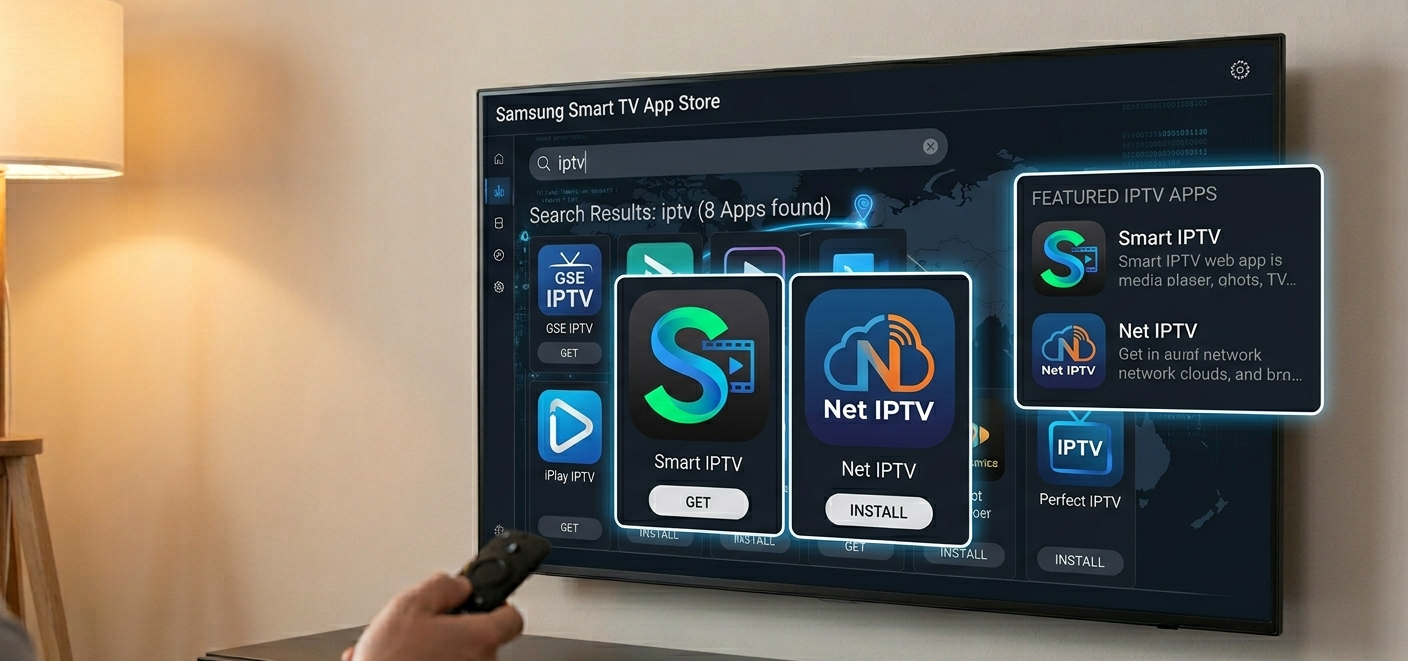
Samsung’s app ecosystem (Tizen OS) has a handful of IPTV-capable apps. The key ones to know:
Smart IPTV (SIPTV): the most established IPTV app for Samsung Tizen. Accepts M3U playlists via URL and has good EPG support. Works on most Samsung models from 2016 onwards. One-time payment of around €5.49 to unlock full functionality after a trial period.
Net IPTV: free to install, accepts M3U URLs, straightforward interface. Works well on recent Samsung models. Less configuration depth than Smart IPTV but simpler to set up, which suits less technical clients.
IPTV Smarters: available on some Samsung models via the App Store. Interface familiar to clients who’ve used it on other devices. Availability varies by region and model year.
SS IPTV: free, supports M3U playlists, has both live TV and VOD sections. Reliable on Samsung TVs and worth considering if Smart IPTV isn’t available in a client’s region.
Setting Up Smart IPTV on Samsung: Step by Step
Step 1: Install Smart IPTV from the Samsung App Store. Press the Home button on the remote. Navigate to Apps. Search for “Smart IPTV.” Install it. The app is about 30MB and downloads in under a minute on a standard broadband connection.
Step 2: Find your TV’s MAC address. Open Smart IPTV. The first screen displays your TV’s MAC address, a 12-character identifier that looks like A1:B2:C3:D4:E5:F6. Write this down exactly. You’ll need it for the next step.
This is the friction point most guides skip: the MAC address is specific to the TV, and you upload your playlist linked to that MAC address through a web browser on a different device. It’s a slightly unusual workflow if you’re used to entering credentials directly in the app.
Step 3: Upload your M3U playlist via the Smart IPTV website. On a phone or computer, go to siptv.eu. Find the “My list” upload section. Enter the TV’s MAC address, then enter your M3U URL from your IPTV subscription. Click Submit.
This process takes about 2 minutes the first time. The slight friction is switching between the TV to get the MAC address and a browser to enter it. Once done, it persists unless you change it.
Step 4: Refresh the playlist in the app. Back on the TV, in Smart IPTV settings, find the option to reload or refresh channels. The app connects to the siptv.eu server, downloads your playlist, and populates the channel list. On a 5,000-channel playlist this takes roughly 20 to 30 seconds.
Step 5: Configure EPG. Smart IPTV can pull EPG data from your M3U URL if it contains EPG data, or you can enter a separate XMLTV URL. The EPG configuration is in the app settings. If your channels show without programme guide data, this is the step to revisit.
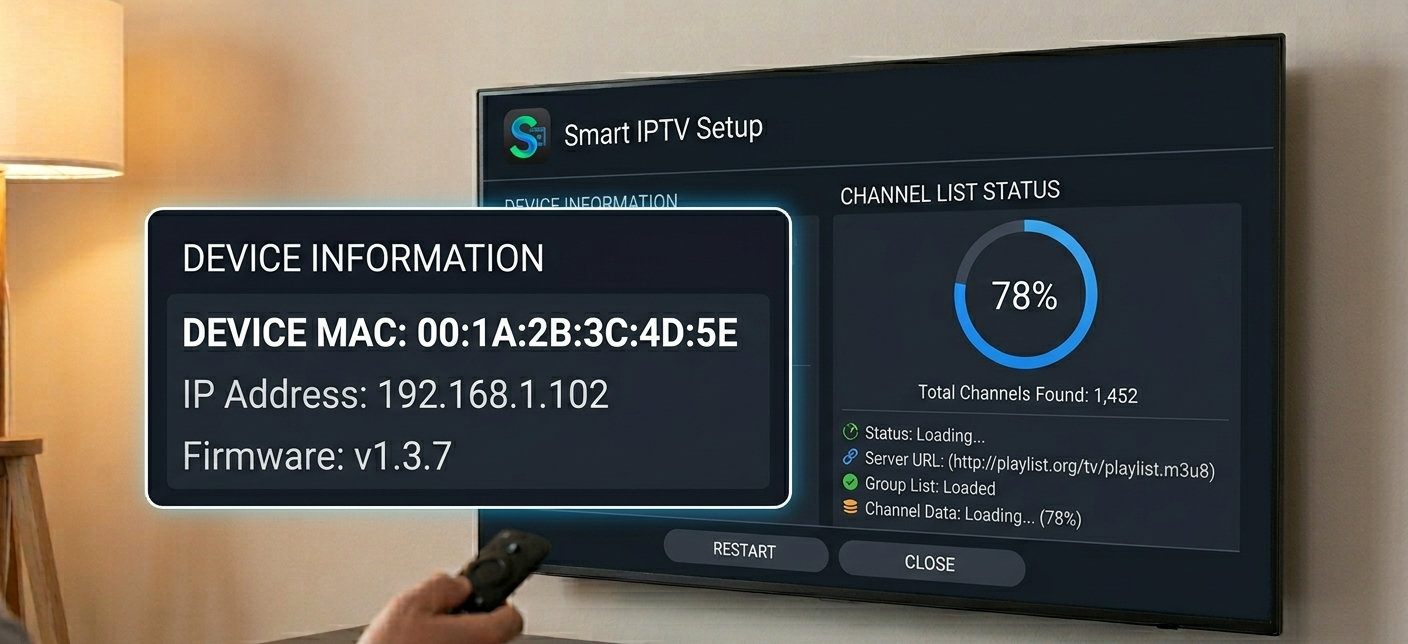
Smart IPTV setup screen showing MAC address display and channel list loading progress
Setting Up Net IPTV on Samsung: The Simpler Alternative
Net IPTV is marginally less configurable than Smart IPTV but significantly easier to set up. For less technical clients, this is often the better recommendation.
Installation: same process, Samsung App Store, search “Net IPTV,” install.
Configuration: open Net IPTV. Go to Settings. Enter your M3U URL directly in the app interface, no external website required. The app downloads the playlist and shows the channel list. The entire setup from opening the App Store to having a working channel list takes about 8 minutes including download time.
One note: Net IPTV’s EPG support is more limited than Smart IPTV. If your clients rely heavily on the programme guide to navigate content, Smart IPTV is worth the extra setup steps.
LG Smart TV: The App Landscape on webOS
LG’s webOS is a more capable platform than it gets credit for, and the IPTV app situation has improved considerably over the last two years.
IPTV Smarters Pro: available directly in the LG Content Store on recent webOS versions. If your client has a 2021 or newer LG TV, this is often the first thing to check. Interface is familiar and the Xtream codes setup is clean.
SS IPTV: available on LG webOS and works reliably. Free, accepts M3U URLs. Good starting point.
Smart IPTV: also has an LG version, with the same MAC-address-based setup process as Samsung. Works on LG TVs running webOS 3.0 and above.
TiviMate: not available for LG webOS. If a client specifically wants TiviMate (familiar from an Android device), they’ll need an external streaming device connected to the LG TV, not the TV’s built-in apps.
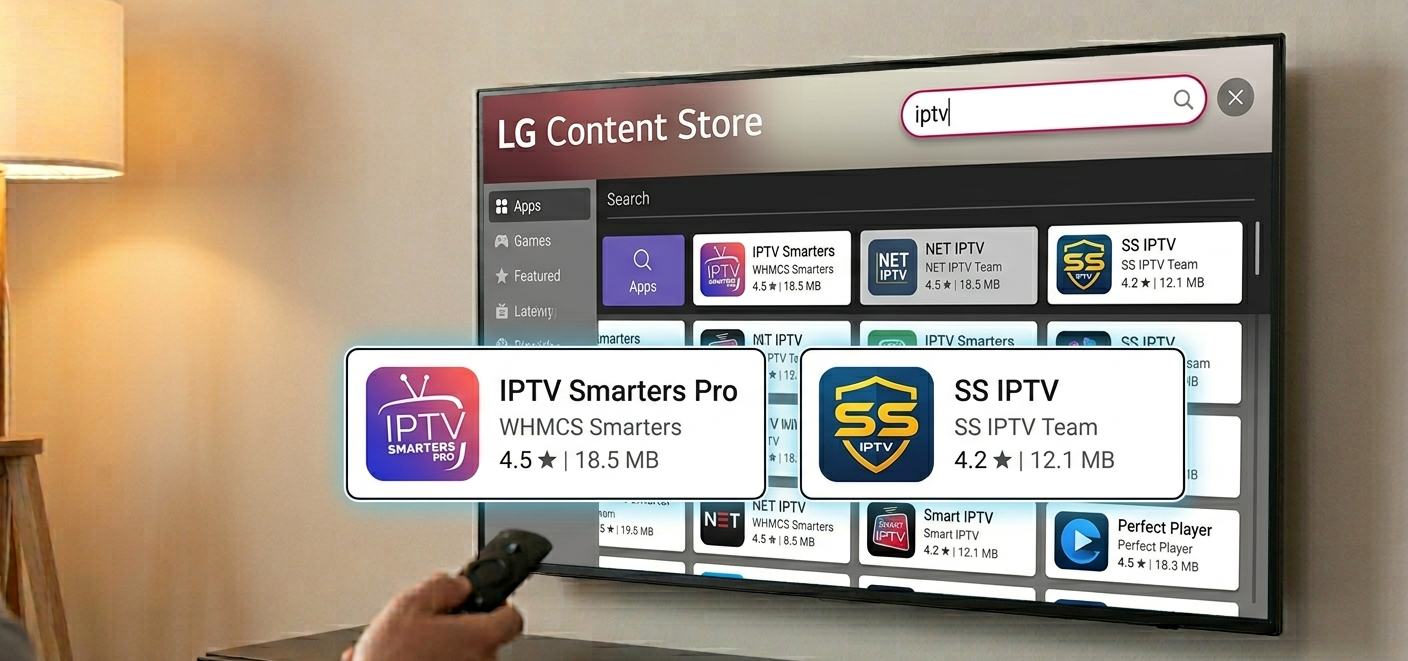
LG Smart TV Content Store showing IPTV Smarters Pro in search results alongside SS IPTV
Setting Up IPTV Smarters Pro on LG: Step by Step
Step 1: Install from LG Content Store. Press the Home button. Navigate to the LG Content Store (or App Store depending on webOS version). Search “IPTV Smarters Pro.” Install. If the search returns no results, the app may not be available in your region’s store. Try SS IPTV as an alternative, or use Smart IPTV via the webOS-compatible version.
Step 2: Open the app and select login method. IPTV Smarters supports two login methods: M3U URL, or Xtream Codes (server address + username + password). The Xtream Codes method is slightly more stable for the LG version. The M3U URL method occasionally has parsing issues on certain webOS firmware versions.
Step 3: Enter credentials. For Xtream Codes, enter the server URL, username, and password from your IPTV subscription credentials. The app verifies the credentials and loads the channel list in roughly 15 to 30 seconds. For M3U URL, enter the full M3U URL, click Load, and the channel list downloads and populates.
Step 4: Navigate and test. The interface on LG has the same structure as the Android version, Live TV, VOD, and Series tabs. Navigate to Live TV, find a channel, and test playback. First channel load takes 5 to 8 seconds. Subsequent channel switches are faster once the app has warmed up.
Real Setup Mistakes With Smart TV Clients
Mistake 1: Not checking the TV’s webOS version before recommending an app. Recommended Smart IPTV to a client with an LG TV. Turned out they had a 2016 LG running webOS 2.0. Smart IPTV’s current version requires webOS 3.0+. The app either wasn’t available or crashed on install. Now the TV model and year get confirmed before recommending specific apps.
Mistake 2: Forgetting the MAC address step for Smart IPTV. Sent a client to install Smart IPTV without explaining the MAC address upload process. They installed the app, saw a MAC address, and had no idea what to do with it. A single sentence in the setup guide explaining the siptv.eu step would have prevented the confusion entirely.
Mistake 3: Trying to force TiviMate onto LG TVs. Had a client who specifically wanted TiviMate because they used it on their Fire Stick. TiviMate doesn’t exist for webOS. Spent time trying to find workarounds before telling them clearly: plug in a Fire Stick or Android box if TiviMate is the requirement.
Mistake 4: Not testing EPG after initial setup. Set up Net IPTV for several Samsung clients. Streams worked, clients were happy initially. A few days later, multiple clients asked about the programme guide being empty. Net IPTV’s EPG requires separate configuration that had been skipped because streams were loading cleanly. Now EPG gets tested as part of standard post-setup verification.
Mistake 5: Giving clients the M3U URL method when Xtream codes would have been more stable. On LG’s IPTV Smarters, the M3U URL occasionally has parsing issues on specific firmware versions. The Xtream codes login method is consistently more reliable on LG. After seeing recurring issues, the default recommendation for LG clients switched to Xtream codes.
What Most Smart TV IPTV Guides Miss
App availability varies by region and TV model year. An app that’s in the Samsung App Store in the UK might not appear for a client in another country. When a client says they can’t find an app, the first question should be which country their TV’s region is set to, not whether they’re searching correctly.
Firmware version matters more than TV age. A 2020 Samsung running older firmware may have worse app compatibility than a 2018 Samsung that’s been kept updated. Smart TV app compatibility issues are often resolved by simply updating the TV’s firmware first.
Smart TV apps don’t update as frequently as phone apps. The IPTV Smarters Pro version on LG may be several versions behind the Android version. This means some features that work on Android might not be available on the LG version, and bug fixes take longer to arrive.
Native apps are genuinely inferior to a dedicated streaming device. A £50 Fire Stick 4K has more processing power dedicated to streaming than most smart TV app environments. If a client is having persistent issues with smart TV setup and owns a compatible TV with HDMI ports, a dedicated streaming device usually resolves the issues entirely.
Cache problems are more frequent on smart TV apps. Smart TV IPTV apps accumulate cache that causes channel list issues, freezing, and authentication failures more often than their Android counterparts. Clearing the app cache via TV Settings → Apps → IPTV app → Clear Cache is the first troubleshooting step for most smart TV IPTV issues.
Who Should NOT Use Smart TV Built-In Apps
Clients who specifically want TiviMate. TiviMate is Android-only. Smart TV built-in apps are not a workaround. Plug in an Android box or Fire Stick if TiviMate is the requirement.
Clients with older smart TVs (2015 or earlier). Older smart TV operating systems have limited app stores and many current IPTV apps won’t install or run correctly. A £35 Fire Stick is a better investment for these TVs.
Clients who want 4K HDR with reliable hardware decoding. For consistently high-quality 4K HDR with proper tone mapping, a dedicated device like an Nvidia Shield or Apple TV 4K is significantly more reliable than smart TV built-in apps.
Clients who are not comfortable with technology. The MAC address upload workflow for Smart IPTV, the regional app store variations, the firmware compatibility questions. These create more support overhead with less technical clients than a Fire Stick setup where everything is in one app store and the workflow is more linear.
Account Setup in the Dashboard for Smart TV Clients
From the reseller side, smart TV clients have the same account configuration as any other client. The difference is in the credentials format you send them.
Log into the User Management tab. Create or locate the client’s account. The key information you need to deliver:
For Xtream Codes setup (recommended for LG): server URL, username, and password. Three pieces of information, usually sent together.
For M3U URL setup (Samsung Smart IPTV via website): the full M3U URL. Confirm the M3U URL works by loading it in a browser first. If it returns channel list data, it’ll work in the app.
For Smart IPTV specifically, remind clients to go to siptv.eu with their MAC address before the M3U URL will work.
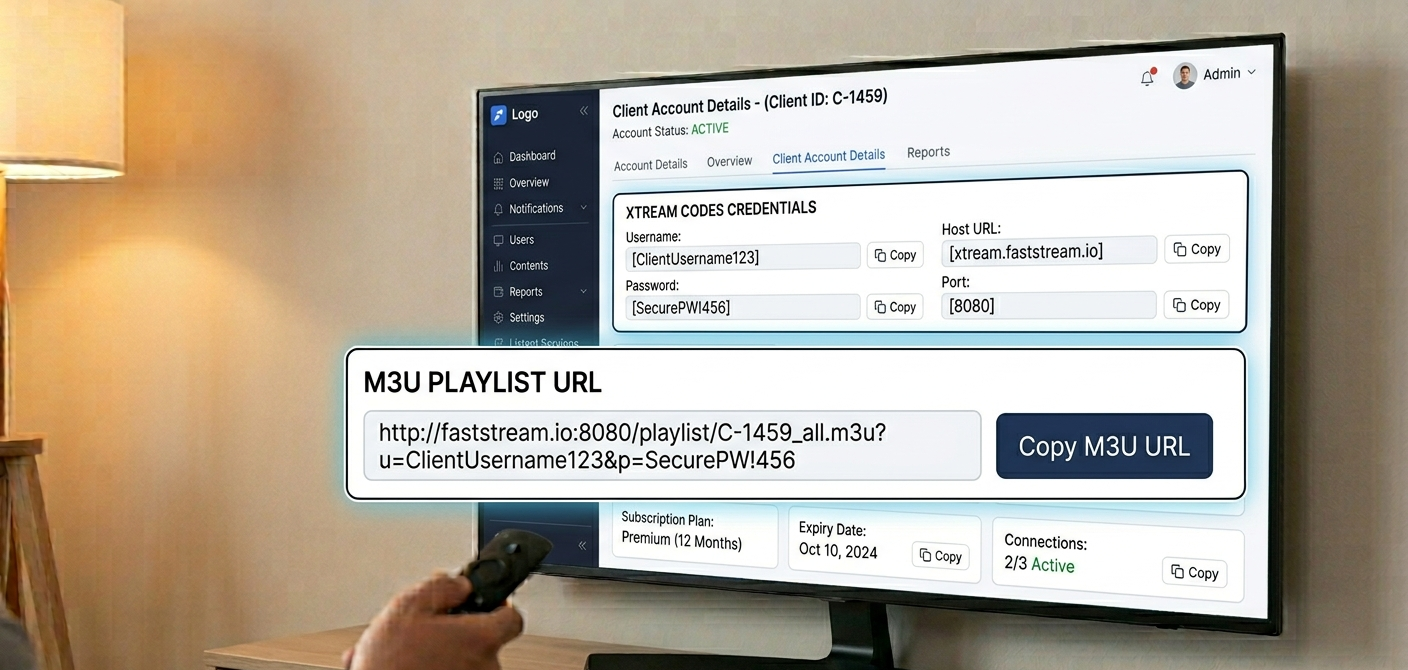
Reseller dashboard showing generated Xtream codes credentials and M3U URL for a client account
Feature Comparison: Basic vs. Advanced Panel for Smart TV Client Management
| Feature | Basic Panel | Advanced Panel |
|---|---|---|
| M3U URL generation | Yes | Yes |
| Xtream codes generation | Yes | Yes |
| Device type tracking | No | Yes |
| Connection monitoring | No | Real-time |
| Per-account credential format preference | No | Configurable |
| Client device notes | No | Yes |
| Sub-reseller management | No | Yes |
Account Creation Workflow
| Step | Action | Where | Smart TV Notes |
|---|---|---|---|
| 1 | Log into dashboard | Main login | Standard |
| 2 | Open User Manager | User Management tab | Standard |
| 3 | Create account | Add New User | Standard |
| 4 | Select plan | Plan dropdown | Standard |
| 5 | Deduct credits | Credit system | Standard |
| 6 | Generate credentials | Cloud system | Get both M3U URL and Xtream codes |
| 7 | Identify client’s TV brand and model | Pre-delivery check | Determines which app to recommend |
| 8 | Send device-specific guide | Encrypted message | Samsung vs LG guide differs |
Frequently Asked Questions
What’s the best IPTV app for Samsung Smart TVs in 2026?
Smart IPTV (SIPTV) is the most capable, good EPG support, reliable, and works on most Samsung models from 2016 onward. Net IPTV is the easier option if your client finds the Smart IPTV MAC address process confusing. SS IPTV is a solid free alternative. App availability varies by region, so if one isn’t found in the store, try the others.
What’s the best app for LG Smart TVs?
IPTV Smarters Pro is available on LG Content Store for 2021 and newer TVs and is a good starting point. SS IPTV works reliably on a wider range of LG models. Smart IPTV also has an LG version. Use Xtream codes login rather than M3U URL for IPTV Smarters on LG, it’s more stable.
Why can’t I find a specific app in my Samsung/LG App Store?
App store availability is regional. The app exists in some country stores but not others. Check whether your TV’s regional settings match the country where the app is available. For Samsung, you can sometimes change the region in General → System Manager → Region. Note that this may affect other regional content and services.
Smart IPTV is showing a MAC address but I don’t know what to do with it.
You need to register your M3U playlist to that MAC address via the Smart IPTV website. On a phone or computer, go to siptv.eu, find the playlist upload section, enter your TV’s MAC address exactly as shown, then enter your M3U URL. Submit it. Then refresh the channel list in the app on your TV. This is how Smart IPTV links your subscription to your specific TV.
My smart TV IPTV app was working but now shows no channels.
Most likely cause: the app’s cache has become corrupted, or your subscription has expired. First, check your subscription status with your IPTV Panel reseller. If that’s fine, go to TV Settings → Apps → the IPTV app → Clear Cache. Restart the app. For Smart IPTV, you may also need to re-upload your M3U URL at siptv.eu. For IPTV Smarters, re-enter your Xtream codes credentials.
Can I use TiviMate on my LG or Samsung Smart TV?
No. TiviMate is only available for Android-based devices. LG (webOS) and Samsung (Tizen) are separate operating systems and TiviMate doesn’t have versions for them. If you want TiviMate on an LG or Samsung TV, connect a Fire TV Stick or Android box via HDMI and use TiviMate on that device instead of the TV’s built-in apps.
Is a dedicated streaming device better than using smart TV built-in apps?
For most clients, yes. A Fire Stick 4K Max (£65) or Android box gives better app selection, more reliable performance, easier setup, and faster troubleshooting when things go wrong. Smart TV built-in apps are a reasonable secondary option or for clients who specifically don’t want extra devices, but the experience is more constrained. If a client is having persistent issues with smart TV app setup, recommending a dedicated device often resolves everything immediately.
Smart TV IPTV setup is manageable once you know the specific apps and workflows for each platform. The key is matching the right app to the right TV, understanding the platform-specific quirks (Smart IPTV’s MAC address process, Xtream codes being more reliable than M3U on LG), and having device-specific setup guides ready rather than generic instructions.
When smart TV setup creates too much friction for a particular client, be honest that a dedicated streaming device is the simpler path. It’s better to say that upfront than spend multiple support sessions troubleshooting built-in app limitations.