
Why 4K IPTV Is Different From Standard Streaming
Serving 4K content through IPTV isn’t just “same thing, higher resolution.” The bandwidth requirements, device compatibility issues, and provider infrastructure demands are genuinely different from HD streaming, and getting any one of these wrong produces a worse viewing experience than a well-configured 1080p setup.
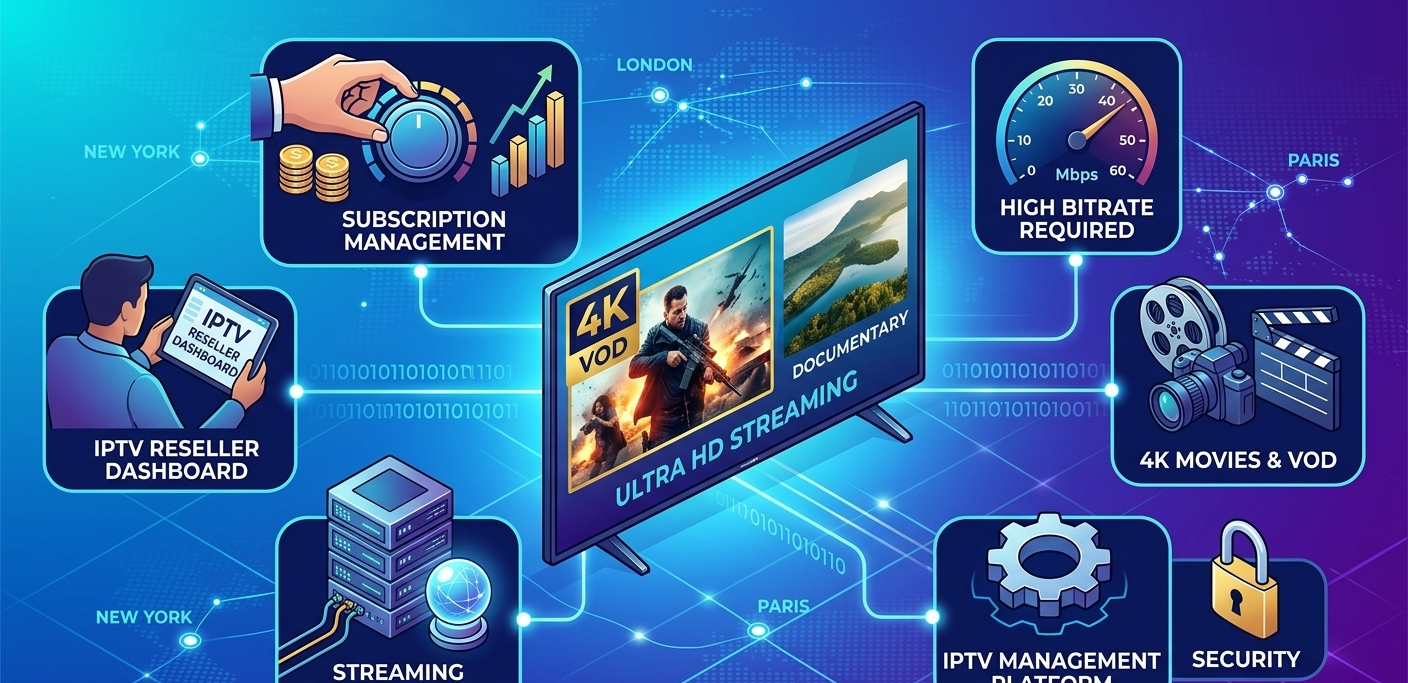
A 4K IPTV stream at high bitrate requires 25 to 50 Mbps of stable, sustained bandwidth. Standard HD runs on 8 to 15 Mbps. That’s not a minor difference, it affects which clients can realistically use 4K content, which providers can reliably deliver it, and how you configure accounts for households with multiple simultaneous streams.
Before recommending 4K to any client, you need to know their connection speed, their device, and whether your upstream provider’s 4K infrastructure is actually capable of sustaining those bitrates under load. Most 4K problems aren’t the stream, they’re one of those three things.
What “4K IPTV” Actually Means in Practice
The label gets used loosely. Here’s what actually matters.
True 4K (3840×2160) is four times the pixel count of 1080p. It requires significant bandwidth and hardware decoding support, and looks noticeably better on screens above 55 inches. On smaller screens, the difference from 1080p is minimal.
4K HDR (High Dynamic Range) adds expanded colour range and contrast to the 4K resolution. HDR10 and Dolby Vision are the main standards. It requires both a capable display and a device that passes HDR metadata correctly, without HDR-capable hardware in the chain, you lose the HDR benefit even if the stream carries it.
High bitrate vs. low bitrate 4K is where IPTV provider quality varies most. A 4K stream at 8 Mbps looks mediocre, compressed artefacts are visible especially in fast-motion content. A 4K stream at 25 to 40 Mbps looks genuinely excellent. The bitrate is what separates decent 4K providers from excellent ones.
HEVC/H.265 encoding is used by most 4K IPTV streams rather than H.264. H.265 achieves better quality at the same bitrate but requires hardware decoding support. Devices without H.265 hardware decoding will either refuse to play or use software decoding that taxes the CPU and causes frame drops.
![Stream quality comparison showing 4K HDR versus standard HD video on a large screen TV]](https://martcarto.shop/wp-content/uploads/2026/03/Gemini_Generated_Image_lv70iglv70iglv70.png)
Stream quality comparison showing 4K HDR versus standard HD video on a large screen TV
Hardware Requirements for a Working 4K Setup
This is where most 4K IPTV problems originate. The device chain needs to support 4K from end to end, any component that doesn’t breaks the chain.
Your TV or display must be 4K capable at minimum, and HDR capable for HDR content. A 4K TV without HDR support will display 4K resolution but strip the HDR, which removes some of what makes high-end content look good.
Your streaming device must support 4K playback and HEVC/H.265 hardware decoding. The main options include the Nvidia Shield TV Pro, which handles 4K HDR without issues and offers the best processing power available in this form factor. The Amazon Fire TV Stick 4K Max handles most 4K IPTV streams well, with occasional thermal throttling on extended sessions. Apple TV 4K offers excellent 4K HDR support, strong hardware decoding, and class-leading Dolby Vision support. The Formuler Z11 Pro is purpose-built for IPTV and handles 4K well for this specific use case.
What doesn’t work well for 4K includes budget no-brand Android boxes, older Fire Stick models (3rd gen and earlier), and Chromecast without Google TV.
Your HDMI cable must be HDMI 2.0 minimum for 4K/60fps, or HDMI 2.1 for 4K/120fps (relevant for gaming, less so for IPTV). Most cables sold in the last 5 years are fine; older 1.4 cables are not.
Your internet connection needs a minimum of 25 Mbps dedicated for one 4K stream, with 50+ Mbps recommended for comfortable 4K plus household internet use simultaneously. Ethernet is strongly preferred over WiFi, since 4K streams are less forgiving of the momentary drops that WiFi occasionally introduces.
![4K setup chain showing TV, streaming device, router, and broadband modem with connection types labelled]](https://martcarto.shop/wp-content/uploads/2026/03/Gemini_Generated_Image_mytnoqmytnoqmytn-1024x497.png)
4K setup chain showing TV, streaming device, router, and broadband modem with connection types labelled
What 4K VOD Actually Looks Like in IPTV Packages
VOD (Video on Demand) in IPTV context works differently from Netflix or Disney+. It’s not a curated library with browse-friendly menus and content recommendations, it’s a catalogue of stream URLs organised by category.
A typical IPTV VOD section might contain Hollywood films organised by genre, TV series seasons with individual episode URLs, 4K-specific sections with clearly labelled resolution, and sometimes documentary, anime, or children’s content.
The quality and maintenance of VOD libraries varies enormously between providers. A well-maintained VOD section has working links, accurate metadata, and content that’s actually the advertised resolution. A poorly maintained one has dead links (streams that no longer exist), incorrect metadata, and content labelled “4K” that’s actually upscaled 1080p.
To test a provider’s VOD quality, load 5 to 10 random 4K VOD titles from different categories. Check that they load within 10 seconds. Let each run for 2 to 3 minutes and verify the picture quality looks genuinely 4K rather than upscaled. Check whether the metadata (title, year, description) is accurate. Dead links and wrong metadata indicate the VOD library hasn’t been maintained recently.
Setting Up 4K Accounts in the Dashboard
Configuring accounts for 4K subscribers has a couple of differences from standard HD accounts.
Step one is logging into the dashboard. Navigate to the User Management tab. Standard access, no specific 4K configuration happens at the login level.
Step two is selecting a 4K-capable plan. If your upstream provider offers tiered plans by quality level, SD, HD, 4K, select the 4K tier. The plan determines which servers the client connects to and what content quality they can access. If your provider uses a single plan covering all quality levels, verify that 4K is included and working rather than assuming.
Step three is configuring the connection limit carefully. 4K streams use 3 to 4x the bandwidth of HD streams. A household running two simultaneous 4K streams needs roughly 50 to 80 Mbps just for IPTV. Advise clients accordingly, a family plan with 4 4K connections isn’t realistic on a 100 Mbps connection with other household devices also running. Practically speaking, 4K single-connection accounts are simple, while multi-connection 4K requires a conversation with the client about their actual broadband capacity.
Step four is verifying the M3U URL contains 4K streams. After generating credentials, test the M3U URL yourself in a media player before sending it to the client. Load a 4K VOD title and confirm it plays at genuine 4K quality. This takes 3 to 4 minutes and catches configuration issues before the client encounters them.
![Reseller dashboard showing plan selection with 4K tier highlighted and concurrent connection limit setting]](https://martcarto.shop/wp-content/uploads/2026/03/Gemini_Generated_Image_3vidp33vidp33vid.png)
Reseller dashboard showing plan selection with 4K tier highlighted and concurrent connection limit setting
Here’s the full account creation workflow laid out step by step:
| Step | Action | Where | 4K-specific notes |
|---|---|---|---|
| 1 | Log into dashboard | Main login | Standard |
| 2 | Open User Manager | User Management tab | Standard |
| 3 | Create account | Add New User | Standard |
| 4 | Select 4K plan | Plan dropdown | Confirm 4K tier, not HD |
| 5 | Set connection limit | Subscription Settings | 1-2 for 4K, bandwidth conversation needed for more |
| 6 | Deduct credits | Credit system | 4K plans may cost more credits |
| 7 | Generate credentials | Cloud system | Test M3U URL before delivery |
| 8 | Deliver with device guide | Encrypted message | Include device and speed requirements |
Real Mistakes Made With 4K IPTV Clients
One mistake was not telling clients about bandwidth requirements upfront. A 4K subscription was sold to a client who had 30 Mbps broadband on WiFi. They connected via WiFi with multiple other household devices also running. The 4K streams buffered constantly, and they assumed the service was poor quality. Asking about their setup revealed the WiFi and 30 Mbps connection issue, and switching them to HD resolved everything. Broadband speed and setup should be part of the sale conversation, not troubleshooting after the fact.
Another mistake was recommending 4K on a Fire Stick 4K Gen 2 without checking its age. A client had the original Fire Stick 4K, not the Max version. It doesn’t handle H.265 hardware decoding as well as the newer model. 4K streams played but frame drops were occasional during fast-motion scenes. They’d have been better served by a proper 4K streaming device. The “4K” in the device name doesn’t guarantee adequate 4K IPTV performance, the specific model needs checking.
A third mistake was not verifying VOD link quality before recommending a provider. A switch to a new upstream provider happened partly because their channel count looked excellent, without specifically testing their VOD section. The 4K VOD turned out to have roughly 40% dead links, content that was listed but didn’t load. Clients who subscribed specifically for 4K VOD content were frustrated when they couldn’t find working streams for specific films, requiring three weeks to migrate clients to a different provider. Now VOD gets tested specifically as part of provider evaluation.
A fourth mistake was assuming HDR would work automatically. A client was set up on a provider with advertised “4K HDR” content. The streams loaded in 4K but HDR wasn’t displaying on their TV. The issue was their streaming device (Fire Stick 4K) and TV combination requiring HDMI 2.0 passthrough settings to be enabled. It wasn’t a provider issue at all, it was a device settings issue. HDR passthrough settings on streaming devices and TVs are not always enabled by default and need to be checked and enabled in the display settings.
What Most 4K IPTV Guides Skip
“4K” labels on VOD don’t guarantee genuine 4K. Upscaled 1080p content is routinely labelled as 4K in IPTV VOD libraries. A genuine 4K film has a bitrate above 20 Mbps. A stream labelled 4K running at 6 Mbps is almost certainly upscaled. Test bitrate with a player that displays it (VLC shows bitrate in Tools → Media Information → Statistics) to verify.
VOD libraries go stale and nobody tells you. Unlike Netflix which removes and adds content on a managed schedule, IPTV VOD libraries often have content added infrequently and dead links accumulate over time. A provider’s VOD library that had 3,000 working films when first evaluated may have 2,200 working films six months later. Check VOD library health periodically, not just at initial provider evaluation.
Client device matters more for 4K than for any other stream quality. HD streams are relatively forgiving of device limitations. 4K with HDR is not. The combination of resolution, HDR metadata, and H.265 decoding creates a situation where the streaming device quality determines the experience in a way that’s highly visible to the client. This is the one quality tier where a device recommendation isn’t optional, it’s a necessary part of the service setup conversation.
Peak load affects 4K more than HD. A provider that handles 1080p streams cleanly during peak times might struggle with 4K during the same periods because the per-connection bandwidth is so much higher. Test specifically during peak viewing hours, not just when server load is low.
Who 4K IPTV Is NOT Right For
Clients with connections below 25 Mbps aren’t a good fit. 4K at high bitrate requires sustained 25 Mbps minimum. Below this threshold, HD is a better recommendation. Clients on 20 Mbps or less will have a worse experience with 4K than with a well-configured HD setup.
Clients on WiFi without a clear path to ethernet should also be steered elsewhere. WiFi introduces variability that 4K streams don’t tolerate as well as HD. A client who can’t or won’t run ethernet is a poor fit for 4K recommendations.
Clients with older streaming devices need caution too. If a client is using a 2018 Fire Stick or an older no-brand Android box, recommending 4K creates a support problem waiting to happen. Either recommend a device upgrade alongside the 4K subscription or recommend HD on their current device.
Clients watching primarily on screens under 43 inches don’t gain much either. The perceptual difference between 1080p and 4K on a 32-inch screen from normal viewing distance is minimal. The additional bandwidth requirement, device requirements, and cost premium aren’t justified by the visual improvement. Save 4K for clients with 50+ inch screens viewed from a normal couch distance.
Here’s a bandwidth reference for planning setups:
| Setup | Minimum speed | Recommended speed |
|---|---|---|
| 1x 4K stream | 25 Mbps | 40 Mbps |
| 2x 4K streams | 50 Mbps | 80 Mbps |
| 1x 4K + general household use | 50 Mbps | 75 Mbps |
| 2x 4K + general household use | 80 Mbps | 120 Mbps |
| 1x HD stream | 10 Mbps | 20 Mbps |
| 4x HD streams | 40 Mbps | 60 Mbps |
Ethernet connection for streaming devices is assumed in “recommended” figures. Add 20% to all figures for WiFi configurations.
Here’s how a basic panel compares to an advanced one for 4K management:
| Feature | Basic panel | Advanced panel |
|---|---|---|
| 4K plan tier selection | Yes | Yes |
| Per-account bitrate monitoring | No | Yes |
| Stream quality analytics (HD vs 4K) | No | Yes |
| VOD library management tools | No | Yes |
| Real-time connection diagnostics | No | Yes |
| Sub-reseller 4K quota management | No | Yes |
| API for automated plan upgrades | No | Yes |
FAQ
What internet speed do I actually need for 4K IPTV?
The practical answer is 40 Mbps on a wired connection for a comfortable single 4K stream with bandwidth headroom for other household devices. 25 Mbps is the technical minimum but leaves no margin. On WiFi, add 30 to 40% to those figures and accept that you’ll occasionally see buffering during network congestion. For two simultaneous 4K streams in the same household, 80 Mbps on ethernet is a reasonable target.
Why does my stream say “4K” but look the same as HD?
The most common cause is upscaled content, the stream is labelled 4K but was encoded from a 1080p source. Check the bitrate in your media player; genuine 4K at decent quality runs above 20 Mbps. The second common cause is display chain issues, your device isn’t outputting 4K to your TV, or HDMI settings aren’t configured correctly. Go into your streaming device’s display settings and confirm 4K output is enabled and selected.
Does HDR work automatically with 4K IPTV?
Not automatically. HDR requires that every component in the chain supports it: the stream carries HDR metadata, your streaming device passes it through correctly, and your TV/display is HDR capable and has HDR mode enabled. Check your streaming device’s display settings for HDR output options, and verify your TV’s picture settings show an HDR indicator when HDR content is playing. If the chain is set up correctly, most modern TVs display an HDR logo when receiving HDR signal.
Can I offer 4K to clients on the same plan as HD?
It depends on your upstream provider’s plan structure. Some UK IPTV providers include 4K in a single comprehensive plan. Others separate 4K into a premium tier with higher credit cost. Check your provider’s plan specifications. If 4K is in a premium tier, account for the credit cost difference when pricing your 4K offering to clients.
How do I know if my provider’s 4K content is genuine?
Test with a player that shows stream bitrate (VLC shows this in Statistics, TiviMate shows it in player info). Genuine high-quality 4K runs 20 to 40 Mbps. Load 5 to 10 different 4K VOD titles across different genres and confirm they all load at high bitrate. Also check for visual quality on fast-motion content, upscaled content and low-bitrate 4K show compression artefacts on action scenes that genuine high-bitrate 4K does not.
My client has a 4K TV but streams are still HD, what’s wrong?
Most likely their streaming device is outputting 1080p rather than 4K. Go into the streaming device’s display/video settings and manually set the output to 4K (3840×2160). On Fire Sticks, this is under Settings → Display & Sounds → Video Resolution. On Nvidia Shield, it’s under Settings → Device Preferences → Display. Also verify the HDMI cable is plugged into an HDMI 2.0 port on the TV (most modern TVs have all HDMI ports at 2.0, but some budget models have mixed port specs).
Is 8K IPTV coming and should I care about it yet?
8K content exists in very limited quantities and requires around 100 Mbps of sustained bandwidth for a high-quality stream. Consumer 8K TV penetration is still very low. For practical IPTV purposes in 2026, 4K is the relevant ceiling. 8K may become relevant for premium setups in 2 to 3 years, but planning for it now is premature given hardware adoption rates and content availability.
4K IPTV delivers a genuinely excellent viewing experience when the whole setup is right, capable device, fast wired connection, good upstream provider, and content that’s actually encoded at 4K rather than upscaled. When any part of that chain is weak, the results range from mediocre to unwatchable.
The providers that get 4K right are distinguished by bitrate, infrastructure capacity under peak load, and VOD library maintenance. The clients who have the best 4K experience are the ones who got honest advice about their hardware and connection before subscribing rather than after their first buffering complaint.