
IPTV Smarters Pro not working usually comes down to one of four things: an expired or mistyped login, a stale app cache, a device clock that’s drifted out of sync, or a server on the provider’s end that’s struggling under load. The fix depends entirely on which of those four you’re actually dealing with, and most people waste twenty minutes reinstalling the app when the real problem was a wrong character in the server URL.
What’s Actually Going Wrong Before You Start Fixing Anything
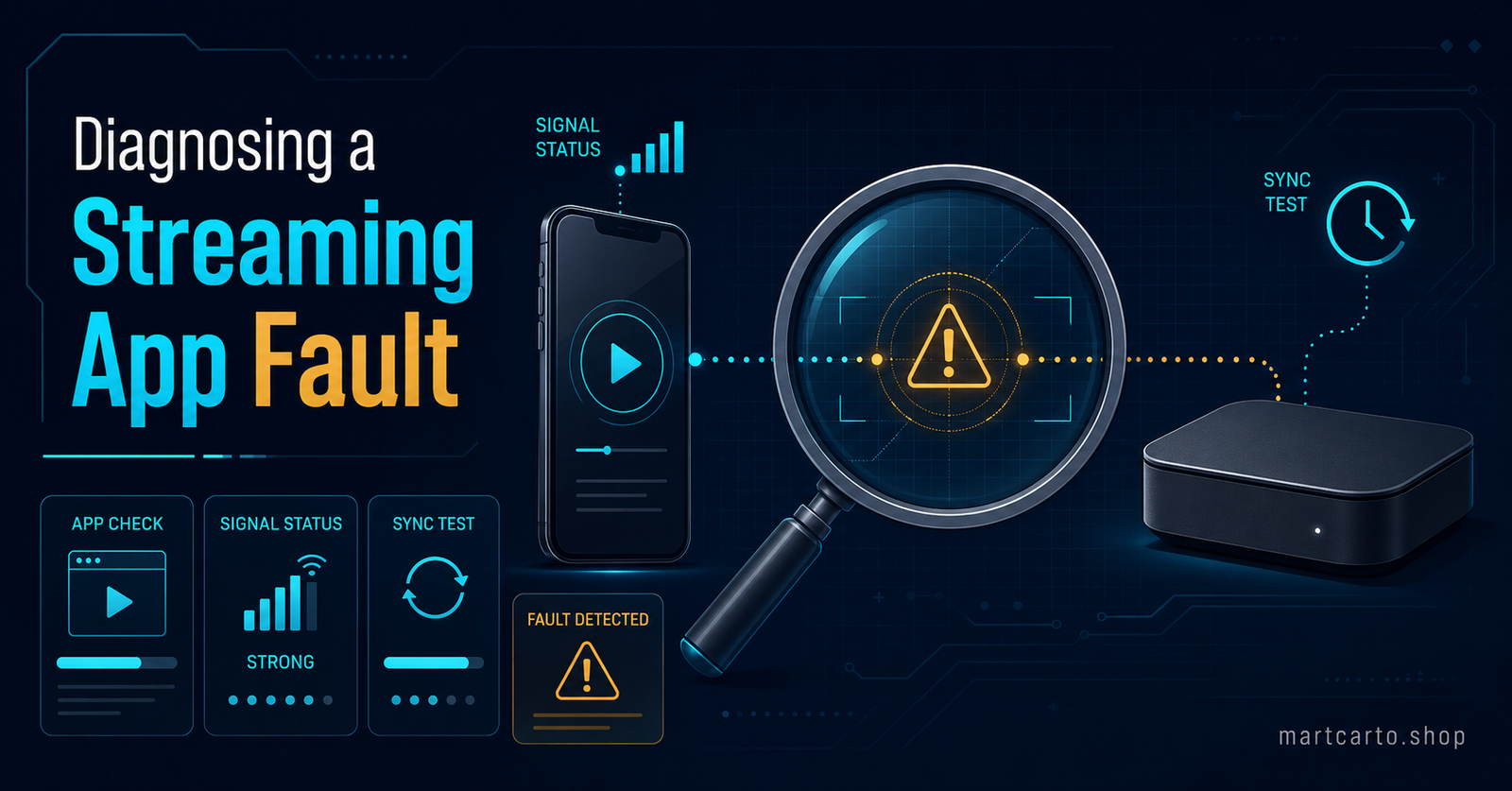
Smarters Pro itself is just a player. It has no channels of its own and no idea what “your subscription” means beyond the login details you gave it. That distinction matters because it splits every fault into two very different buckets: something the app is doing on your device, or something happening upstream on the server your login points to. Force-closing the app fixes the first bucket. It does nothing for the second, and a lot of people cycle through reinstalls for a problem that was never on their device to begin with.
Before touching any settings, work out which bucket you’re in. If every channel fails the same way at the same time, and other apps on the same connection work fine, the fault sits with the app or the login. If channels load fine for a while and then degrade, particularly in the evening, that pattern points toward the server path rather than anything on your end.
Fixing IPTV Smarters Pro Not Working Symptom by Symptom
The exact wording of the error tells you almost everything. Match your symptom below rather than working through every fix in order.
Login rejected or “invalid details”
This is nearly always one of two things: the IPTV subscription has genuinely lapsed, or a character in the username, password or server URL got mistyped during entry. Re-enter the details manually rather than trusting autofill, and check the server URL for a trailing slash or stray space, since both break the connection silently. If the login details are copied from a message, watch for line breaks that get pulled in as part of the password field.
App opens but the channel list is empty or won’t load
Open the connection type you’re using (Xtream Codes login is the standard method) and confirm the portal URL resolves in a browser before blaming the app. If the URL loads a blank page or times out, the server is down or your ISP is blocking that address, and no amount of reinstalling changes that. If the URL loads fine in a browser but the app still shows nothing, clear the app’s cache rather than the full data, since a corrupted local channel list is a common and easily fixed cause.
Buffering or freezing mid-stream
Pro tip: Run a quick speed test on the same device while the stream is buffering. Anything under roughly 15 to 20 Mbps for HD content is worth addressing before you look anywhere else, since no app setting fixes an insufficient connection.
If the connection checks out, the next suspect is peak-time congestion on the server path rather than the app. Streams that hold up fine at 3pm and fall apart at 8pm are describing a load problem, not a Smarters Pro bug.
App crashes on launch or freezes on the loading screen
An outdated app version is the most common cause here, particularly on older Fire Stick or Android TV hardware that hasn’t auto-updated in a while. Update through the official store first. If the app was sideloaded from outside an app store, that update path may not exist, and a fresh download from a trusted source is the more reliable fix than trying to patch around it.
EPG (programme guide) missing or blank
This one rarely means the streams themselves are broken. Check that an EPG URL has actually been entered in the app’s guide settings, since a missing entry produces exactly this symptom while channels play normally. If the URL is present, force a manual refresh rather than waiting for the automatic cycle.
When the Device Clock Is the Real Culprit
This one gets missed constantly. Xtream Codes connections rely on a secure handshake that checks the device’s date and time against the server. If a Fire Stick or Android box has drifted out of sync, usually after being unplugged for a while, the connection can fail with an error that looks exactly like a login problem. Setting the device’s date and time to automatic, rather than manual, resolves this in seconds and costs nothing to try before anything else on this list.
When It Isn’t the App at All
Pro tip: If a customer reports the same fault at the same time every evening, ask whether it happens on a second device on the same network. A single-device fault points at the app or its settings. A fault that follows the connection itself, no matter which device is used, points upstream.
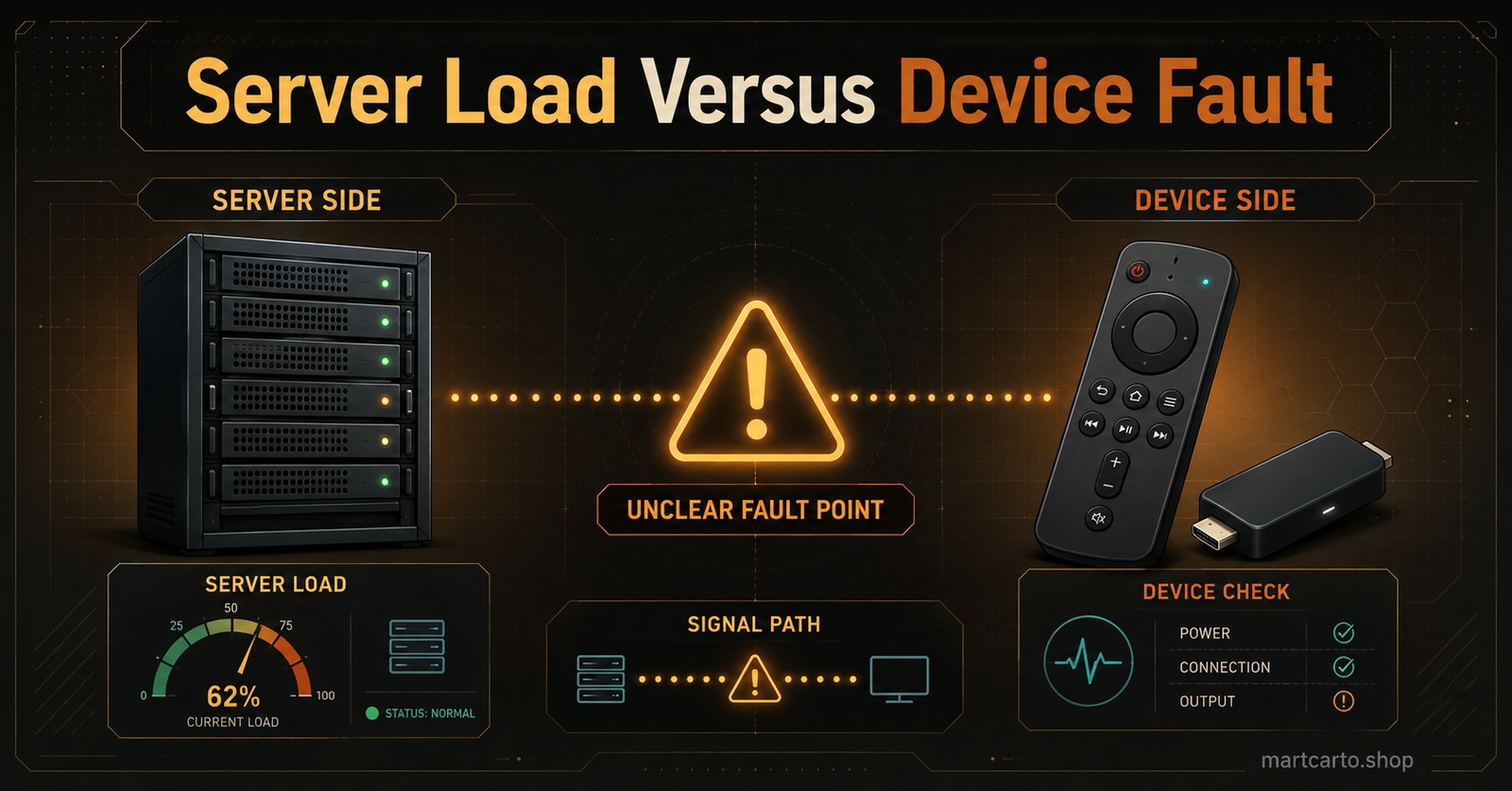
Server-side congestion, ISP throttling of streaming traffic, and expired provider accounts all produce symptoms that look identical to an app fault from the customer’s chair. This is why reliable reseller server checks matter more than app troubleshooting in a lot of support tickets. If switching to a different network (a mobile hotspot works for a quick test) clears the problem entirely, the fault was never inside Smarters Pro.
For Resellers Handling This as a Support Ticket
If you’re running customer lines rather than just watching them, the diagnostic order flips slightly. Start by checking whether the fault is isolated to one customer or showing up across several lines on the same server path at once. One customer with a broken login is almost always a credentials issue on their end. Several customers reporting buffering at the same hour is a server-side pattern worth escalating rather than troubleshooting one ticket at a time.
Getting the IPTV reseller panel setup right at the point of handover cuts a lot of this off before it becomes a ticket. Pointing customers toward Xtream Codes and M3U login formats that match their device, rather than letting them guess, avoids a fair share of the “not working” messages that turn out to be a mistyped server URL. An activity log that shows exactly when a line last connected also saves time, since it tells you within seconds whether the fault is genuinely new or has been building for days.
Frequently Asked Questions
Why does IPTV Smarters Pro keep saying my subscription is invalid when I know it’s active?
Check for extra spaces or a trailing slash in the server URL first. That single character breaks the connection while leaving everything else looking correct.
Does reinstalling the app fix buffering?
Rarely. Buffering that appears mid-stream is almost always a connection or server-load issue, and reinstalling only helps if the app itself has become corrupted.
Why does the app work on my phone but not on my Fire Stick?
Older Fire Stick hardware can fall behind on updates or drift out of date-and-time sync more easily than a phone does. Check both before assuming it’s a bigger problem.
Is it worth switching IPTV players if Smarters Pro keeps failing?
Only after you’ve confirmed the fault sits with the app rather than the server or your connection. Switching players won’t fix an expired subscription or a congested server path.
Quick Troubleshooting Checklist
- Confirm the UK IPTV subscription is genuinely active before touching any settings
- Re-enter login details manually rather than trusting autofill or copy-paste
- Set the device date and time to automatic
- Test the server URL directly in a browser
- Clear the app cache rather than reinstalling as a first step
- Run a speed test on the same device during the fault, not before or after
- Check whether the fault repeats on a second device or a different network
- Update the app through an official store rather than a sideloaded copy
Most of the time, IPTV Smarters Pro not working traces back to one of a handful of causes: an expired or mistyped login, a device clock out of sync, a stale cache, or a server path struggling under evening load. Work through the symptom that matches what you’re actually seeing rather than reinstalling first and asking questions later, and keep an eye on whether the fault follows the device or the connection, since that single check usually points straight at the fix.