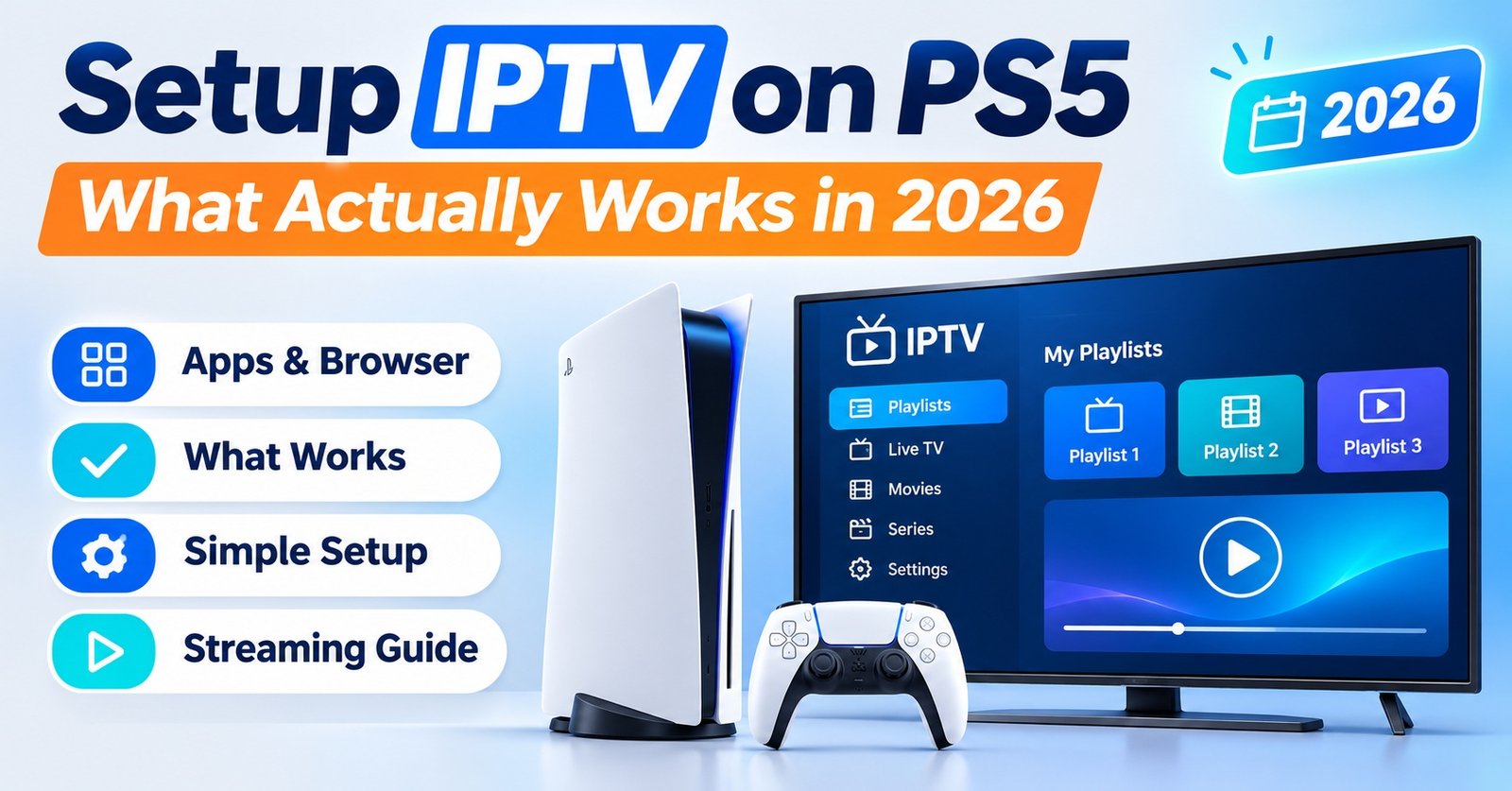

Setup IPTV on PS5 sounds like a five-minute job until you open the PlayStation Store and look for the player. There isn’t a dependable one. The console has no general-purpose playlist app, no browser you can open from the menu, and no built-in way to receive a cast from your phone. The arrangement that works reliably is to let a small streaming stick or your TV’s own app platform handle the subscription on a separate HDMI input, then switch between that and the PS5 with one remote.
What doesn’t change is the login itself. Whether your provider sends an M3U link or Xtream Codes details, those credentials go into a player app on the second device exactly as they would anywhere else. The console simply isn’t the part doing the work. That matters because many of the “PS5 methods” circulating online, such as copying a playlist to a USB drive or using Remote Play, fall apart once you compare them with what Sony’s own documentation says the console supports.
What the PS5 Will and Won’t Do With a Playlist
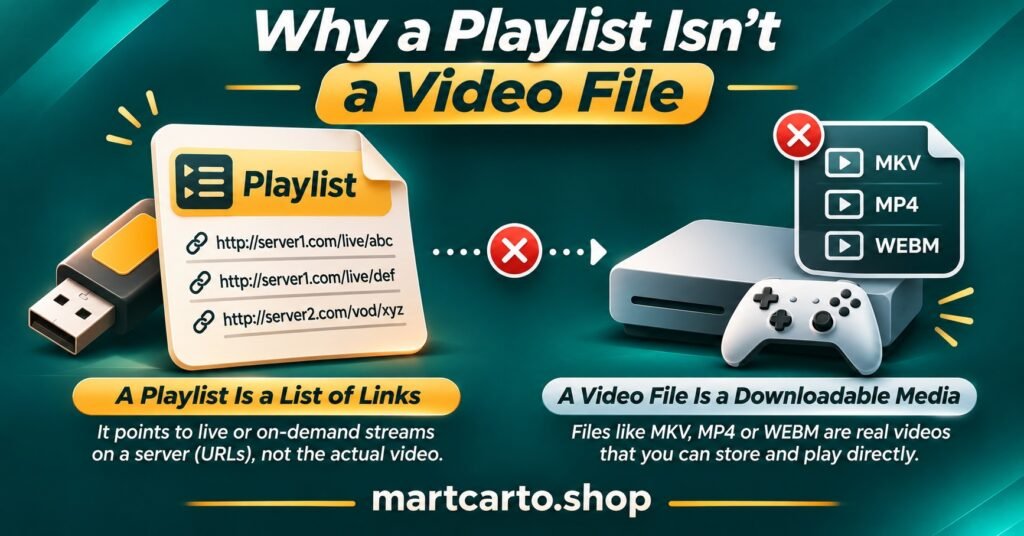
It helps to think of a subscription login as two things: the credentials, and the app that reads them. A playlist is a list of stream addresses. On its own it plays nothing, so the real question is which app on the console could open it.
Sony made a deliberate choice here. When the PS5 launched, a Sony hardware executive said the company had doubts a web browser was necessary for a game console as an app, and Sony’s FAQ confirmed there was no dedicated browser. That rules out the “open a web player in the browser” approach many older guides recommend.
| Route people try | Works on PS5? | What actually happens |
|---|---|---|
| Player app from the PlayStation Store | Not in practice | No general M3U or Xtream player of the kind found on Android or Windows stores |
| Web player in the console browser | No | There’s no browser app to open |
| M3U file on a USB drive | No | Media Gallery lists video files, not playlists of links |
| Casting from a phone | No | No native Chromecast, AirPlay or Miracast receiver |
| Remote Play | Wrong direction | It streams the console to your phone or PC, not the other way |
| Second device on another HDMI input | Yes | The TV switches sources; the PS5 is untouched |
Store listings do change, so a quick search on your own console costs thirty seconds and is worth doing. Just be sceptical of any app that asks you to upload a playlist through an unfamiliar website before it will play anything.
Workarounds That Don’t Survive a Closer Look
The USB method is the one that confuses people most, because it almost sounds right. You can plug a USB drive into the PS5 and play files from it through Media Gallery. But Sony’s official USB playback guidance lists the supported formats as MKV, MP4 and WEBM with specific video and audio codecs. Sony also notes that Media Gallery won’t play copyright-protected files. A playlist file is a short text document containing web addresses, so there’s nothing in it for Media Gallery to play.
Casting is the next dead end. There are reports online that the PS5 doesn’t natively support screen mirroring from phones through Miracast or Chromecast. Individual apps on the console can pair with their own phone counterparts, but that only works for the app in question. A player app on your phone has no partner on the PS5 to pair with.
DLNA is a slightly different story. The PS4’s Media Player could browse media servers on a home network, which is why that advice keeps resurfacing. The PS5 never offered the same general network browsing, so apps that “send to DLNA devices” won’t find it in the same way.
Then there’s Remote Play, which gets recommended with real confidence. It’s a useful tool, but it carries the console’s picture to a phone, tablet or computer. It doesn’t turn the PS5 into a screen for a computer, so running a player on your PC and “mirroring it to the PS5” isn’t something it does.
The hidden browser deserves a mention because it does exist. Reaching it involves following links buried in the settings or in other apps. It isn’t a supported feature, you can’t rely on it staying put after system updates, and navigating a live channel guide with it would be miserable even when it works.
A Working Way to Setup IPTV on PS5 Without Fighting the Console
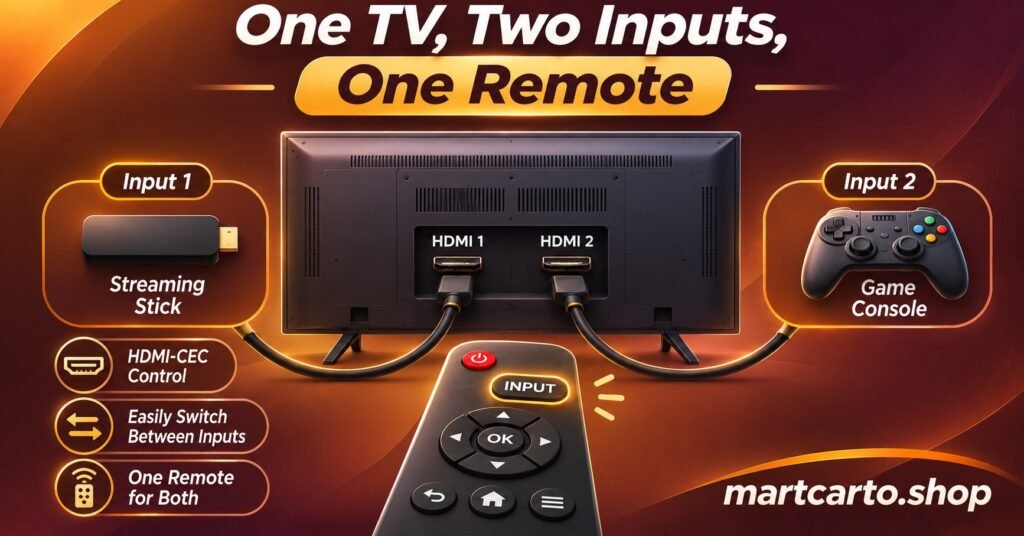
The approach is simple. Give the subscription its own small device, put both devices on the same TV, and make switching painless. Here’s how it comes together.
Pick the device that will run the player
You have two realistic choices. The first is your TV’s own app platform, if it’s reasonably modern and its store carries a capable player. The second is a separate streaming stick or Android TV box plugged into a spare HDMI port. A separate device tends to be the safer bet because player apps are better maintained on Android-based platforms, and the box can be replaced cheaply if it ages badly. Built-in TV apps on older sets can struggle to load very large playlists. Users often blame the IPTV reseller panel service for that slowness, when it’s really the app failing to read a long list.
Connect it sensibly
The PS5 benefits most from your TV’s best HDMI port, particularly if that port supports the higher refresh rates some games use. The stick doesn’t need that port. A standard HDMI input handles 4K at normal frame rates, which is all a subscription stream needs. Power the stick from its own mains adapter rather than the TV’s USB socket, as those sockets can be underpowered. That shows up as random restarts that look like streaming faults. If your router is nearby, a wired connection or an Ethernet adapter for the stick removes one common cause of buffering.
Enter the login in the player
Install a reputable player app on the new device, then add your account. If you’ve been given Xtream Codes details, that means a server address, username and password. Players that accept this format usually load channel groups and the programme guide automatically. An M3U link is a single long address, and the guide may need a separate link from your provider. If you’re unsure which you’ve got or which suits your app, Martcarto’s explainer on M3U and Xtream Codes login formats walks through the difference.
Pro tip: Treat the login like a password. Both formats contain your username and password in plain view, so avoid pasting them into public forums or screenshots when you ask for help.
Make switching feel like one system
HDMI-CEC is what stops this from feeling like two separate gadgets. With it enabled on the TV (manufacturers often give it their own name in the settings), the TV remote can usually control the stick, and the TV switches input when a device wakes. The PS5 has its own HDMI device link options in its system settings. If you find the TV jumping back to the console every time a controller is nudged, adjust those so the console only takes over when you turn it on deliberately.
Once that’s done, the routine is short: pick up the TV remote, change input, and watch. The PS5 stays a games console, which is what Sony built it to be.
The Home Server Route, for People Who Enjoy Tinkering
There is one way to get live channels showing inside an app on the PS5 itself, but it’s a project rather than a setup. Established media server apps are available for the console, and some can show live TV from a server running on a computer or network storage drive. Feeding a provider’s playlist into that server usually means running extra software that presents the playlist as if it were a TV tuner.
It can work, but it has costs. The computer needs to stay on whenever anyone watches. The live TV features in these apps may require a paid tier or particular hardware, so check the current requirements before you start. When something breaks, you have three layers to troubleshoot instead of one. For most households, a streaming stick is cheaper, quicker and easier to hand to the rest of the family.
Notes for Resellers Fielding PS5 Questions
If you sell subscriptions, “does it work on PS5?” will reach your inbox sooner or later, usually from someone who has just bought a console and wants to avoid buying another device. The honest answer protects you more than a vague yes does. Customers told “it works on PS5” who then find no app will blame you and the IPTV service, not Sony.
A short, ready-made reply saves a lot of back and forth. Explain that the console has no suitable player and recommend a streaming stick on a spare HDMI port. Then send Xtream Codes details, because those are the simplest to type with a remote in most popular players. It also helps to ask whether they’ll watch on a phone or tablet at the same time. A customer running the stick in the lounge and a phone in the kitchen needs a line with two connections. If you set the line to one, the second device gets cut off and the customer calls it a fault. If you’re still shaping how you handle these pre-sale conversations, the guide on how to sell IPTV subscriptions covers the customer side in more depth.
Trials are where this gets settled. Encourage the customer to install the player on the actual device they’ll use and test it during the trial window, not on a laptop. Device friction found during a trial costs you nothing. Found after a 12-month purchase, it turns into a refund request. Resellers planning line volumes around multi-device households can compare credit pack options on the reseller plans page, since longer terms and extra connections both draw on credits.
Check the Service, Not Just the Hardware
A tidy setup doesn’t say anything about where the channels come from. IPTV is a delivery method, the same technology licensed broadcasters use, and whether a particular subscription is lawful depends on whether the provider holds distribution rights in your country. A professional website, a card payment page or a polished reseller panel doesn’t confirm that on its own. Before committing, ask the provider what rights cover the programming they supply, and be wary of answers that dodge the question.
Questions People Ask After Moving the Player Off the Console
Can I plug a streaming stick into the PS5 instead of the TV?
No. The PS5’s HDMI port is an output, and the console has no HDMI input, so the stick has to go into the TV, a receiver or a soundbar with spare inputs.
Will running a stick alongside the PS5 slow down my games?
Not directly. They’re separate devices that share a screen. The one overlap is your home connection: a large game download running while someone streams can affect both, so pause downloads if live channels start to buffer.
My TV only has one free HDMI port and a soundbar takes another. What now?
An inexpensive HDMI switch can share one port between devices. Make sure it supports the resolution you want, or connect the stick through a spare input on the soundbar if it has one.
Is 4K possible this way?
It depends on three things lining up: the stick must output 4K, the player and stream must offer 4K, and the TV input must accept it. A 4K-capable stick on a 4K TV only helps if the channel itself is broadcast at that resolution.
Is the hidden browser good enough for a web player?
It isn’t a supported feature and isn’t built for daily use. It may stop working after a system update, so it’s not something to rely on or to recommend to customers.
Where This Leaves Your Console
If you came here to Setup IPTV on PS5, the practical answer is to stop asking the console to do something Sony never designed it for. Keep your login, put it into a proper player on a streaming stick or a capable TV platform, and let HDMI-CEC make the switch feel seamless. That way you get a better programme guide, easier updates and fewer mysterious failures than any workaround on the console itself. The PS5 stays the best part of the setup for what it was built for, which is gaming.