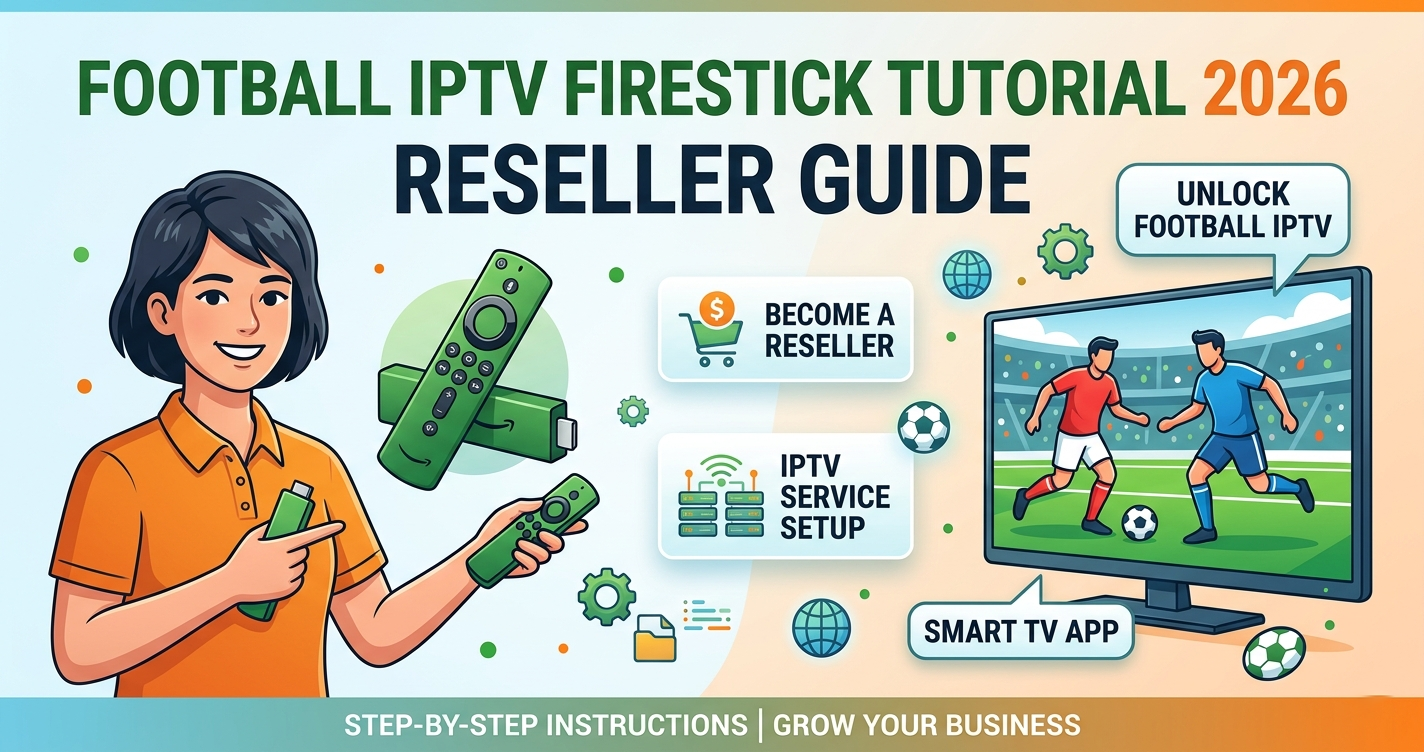

Every week, someone posts in a reseller forum asking why their Firestick streams keep buffering during a Premier League match. The answer is almost never the Firestick itself. After reviewing hundreds of support tickets across UK IPTV reseller panels, the pattern is consistent: the problem lives between the ISP, the DNS settings, and the way the streaming app was configured in the first place. This Football Streaming Firestick Tutorial exists because most guides skip the parts that actually matter.
Why Firestick Is Still the Dominant Streaming Device for Football in 2026
Amazon’s Firestick remains the most popular device in UK, US, and European streaming setups, not because it is the most powerful hardware, but because it is the most forgiving to configure and the easiest to hand to a customer who has never touched a streaming device. For football specifically, the Firestick 4K Max handles HLS streams at 1080p without frame drops when the upstream infrastructure is healthy.
What most Football Streaming Firestick Tutorial guides fail to mention is that the 2025 Firestick firmware updates introduced aggressive background app restrictions. Several resellers noticed a sharp spike in disconnection complaints after customers auto-updated their devices. The stream was fine. The app was being throttled by Fire OS itself.
Devices worth recommending to subscribers in 2026: the Firestick 4K Max, best balance of price and performance. The Firestick 4K (3rd Gen), solid for 1080p football streams. The Fire TV Cube, highest performance, suited for multi-room setups. The Firestick Lite, acceptable only for SD streams, not recommended for live sports.
The First Step Most Tutorials Skip: Sideloading Done Properly
Every Football Streaming Firestick Tutorial starts with “enable unknown sources.” That part is fine. What they skip is the difference between sideloading via Downloader and using a direct APK transfer over ADB. For most subscribers, Downloader is sufficient. For resellers managing bulk device setups, ADB sideloading via a local network is significantly faster and avoids the dependency on third-party hosting links going dead.
How to sideload correctly using Downloader: go to Settings, then My Fire TV, then Developer Options. Enable ADB Debugging and Apps from Unknown Sources. Install the Downloader app from the Amazon App Store. Enter the direct APK URL for your chosen streaming player. Run the install and grant storage permissions when prompted. Clear the Downloader cache after installation.
Pro Tip: Never store the APK URL in the Downloader history if you are managing customer devices. Customers clicking through history and self-installing unlicensed apps creates support headaches that are entirely avoidable.
Choosing the Right Streaming Player for Football
This is where most Football Streaming Firestick Tutorial guides lose credibility. They recommend whatever app paid for placement that month. The honest answer is that app performance depends heavily on how your provider delivers streams.
| Player | Protocol support | HLS performance | Firestick optimised |
|---|---|---|---|
| TiviMate | M3U, Xtream Codes | Excellent | Yes |
| GSE Smart IPTV | M3U, Xtream Codes | Good | Partial |
| IPTV Smarters Pro | Xtream Codes | Good | Yes |
| Perfect Player | M3U | Average | No |
| OTT Navigator | M3U, Xtream Codes | Excellent | Yes |
For football streams specifically, TiviMate and OTT Navigator consistently outperform the others during high-concurrent-load events. During the Champions League knockout stages, we observed resellers using GSE experiencing buffering complaints that disappeared entirely when customers switched to TiviMate on identical connections.
Getting TiviMate’s Settings Right for Live Football
Installing TiviMate is step one. Configuring it properly for live football is step two, and it is where most Football Streaming Firestick Tutorial content ends prematurely.
Critical TiviMate settings for live sports: set buffer size to 10-15 seconds for live sports, not the default 5. Enable hardware decoding for 4K and H.265 streams. Disable automatic EPG refresh during live matches, since it causes micro-stutters. Set reconnection attempts to 5 with a 3-second delay. Turn off automatic updates during scheduled match times.
Pro Tip: In TiviMate’s advanced settings, switch the video decoder from automatic to hardware-forced when using the Firestick 4K Max. Software decoding on a Firestick during a 1080p60 stream will produce visible frame drops within 20-30 minutes, even on a clean connection.
The DNS Setting Most Tutorials Never Mention
After reviewing hundreds of support tickets, DNS configuration is the single most overlooked variable in any Football Streaming Firestick Tutorial. Most subscribers are running their Firestick on whatever DNS their ISP assigns by default. In the UK, major ISPs actively use DNS poisoning to disrupt access to streaming infrastructure.
DNS poisoning works by returning false IP addresses when a device queries a streaming domain. The result looks like buffering or outright failure to load. The stream is not the problem. The DNS lookup is being intercepted before the device ever reaches the CDN.
Recommended DNS configurations for streaming on Firestick: Cloudflare DNS, 1.1.1.1 / 1.0.0.1, the fastest resolution times in UK and Europe. Google DNS, 8.8.8.8 / 8.8.4.4, a reliable fallback. Quad9, 9.9.9.9, which adds basic malware filtering with minimal latency penalty.
To set DNS on Firestick: Settings, then Network, select your WiFi, then Advanced, then change IP settings to Static and enter DNS manually.
One reseller lost a significant number of customers in a single weekend because their subscriber base was concentrated on a single UK ISP that had implemented DNS-level blocking of the CDN range their provider was using. Switching DNS resolved it immediately.
ISP Throttling During Football Matches: What Resellers Need to Know
ISP throttling is distinct from DNS interference. Throttling is bandwidth restriction applied to specific traffic types during peak hours. In the UK, several major ISPs have been documented applying traffic shaping to UDP and HLS streaming traffic between 7pm and 11pm, which happens to be exactly when football matches are broadcast.
This Football Streaming Firestick Tutorial addresses throttling because resellers who do not explain it to customers will receive complaint tickets every Saturday and Sunday evening that are impossible to resolve at the infrastructure level.
Throttling indicators vs genuine stream failure: throttling shows as consistent degradation from 7-11pm that resolves after midnight. A DNS attack shows as instant failure, often affecting multiple customers simultaneously. CDN overload shows as sporadic buffering affecting only specific channels or bouquets. A local network issue affects a single customer while neighbours stay unaffected.
For customers on throttled ISPs, a lightweight VPN tunnelled only to the streaming DNS endpoint, rather than routing all traffic, reduces the throttling impact without introducing the latency overhead of full-tunnel VPN on a Firestick.
How to Add Your Streaming Subscription on Firestick: Step-by-Step
This is the core practical section of any Football Streaming Firestick Tutorial, so it needs to be done properly.
Via Xtream Codes (recommended for most providers): open TiviMate, then Add Playlist, then Xtream Codes. Enter the server URL provided by your IPTV Panel reseller, no trailing slash. Enter your username and password exactly as provided. Set EPG refresh to once per day, at 4am. Allow the playlist to load, since large playlists can take 3-5 minutes. Navigate to Live TV, then Sports, to locate your football bouquet.
Via M3U URL: open TiviMate, then Add Playlist, then M3U URL. Paste your M3U link including any authentication tokens. Set refresh interval to 24 hours. Disable auto-refresh on launch, since it adds 30-60 seconds of loading time on every app open.
Pro Tip: If your provider offers both Xtream Codes and M3U, always use Xtream Codes. It supports catch-up, EPG data natively, and does not require re-downloading the entire playlist when the stream list updates.
What Serious Streaming Infrastructure Looks Like Behind the Scenes
Most subscribers never think about what sits between their Firestick and the football match. For resellers, understanding this infrastructure is essential to explaining outages and setting accurate expectations.
Properly built streaming infrastructure for football in 2026 includes CDN edge nodes placed in UK, EU, and North American locations to reduce hop count. Load balancers distributing concurrent viewers across multiple origin servers. Backup uplinks from at least two independent transit providers. HLS segmentation at 2-second intervals for live sports to reduce rebuffering. Failover DNS with TTLs under 60 seconds to enable fast switchover during origin failures.
During a major European football final, we observed a provider whose DNS TTL was set at 3,600 seconds, one full hour. When their primary CDN node failed, customers experienced an outage that lasted the entire match before DNS propagation completed. A 60-second TTL would have resolved the issue within two minutes.
UK streaming resellers evaluating providers should ask specifically about failover TTL and whether the panel supports automatic server switching. Resources like martcarto.shop provide reseller panel guidance that covers infrastructure questions worth raising before committing to a provider.
Managing Customer Expectations During Football Match Outages
One reseller shared a common scenario: a customer contacts support mid-match, furious about buffering during a penalty shootout. The reseller’s infrastructure is healthy. The problem is the customer’s ISP throttling UDP traffic. The reseller has no tool to fix that remotely, but how they respond determines whether that customer renews.
A practical outage response framework for resellers: acknowledge immediately, with response time under 5 minutes during live events. Ask three diagnostic questions: device, ISP name, connection type (WiFi or Ethernet). Send a pre-written DNS fix guide, since it covers 60% of cases. Escalate to the provider panel only if the DNS fix does not resolve within 10 minutes. Log the ticket with ISP name for pattern identification.
A mistake we repeatedly see is resellers responding with “working on our end” without providing actionable steps. That response closes no tickets and costs renewals.
Sub-Reseller Operations: Scaling Football Streaming During Peak Seasons
For sub-resellers managing their own customer bases under a main reseller panel, football season creates the highest concurrent load of the year. A Football Streaming Firestick Tutorial aimed only at subscribers misses the operational layer entirely.
During a migration project involving a sub-reseller moving 300 accounts between panels ahead of a Premier League weekend, the DNS propagation delay caused 48 hours of instability across the entire base. The lesson: never migrate panel infrastructure within 72 hours of a major scheduled football event.
Sub-reseller checklist for football season readiness: verify concurrent connection limits with main reseller before peak season. Confirm failover server is active, not just provisioned. Test the backup M3U URL independently, not just the Xtream Codes endpoint. Prepare pre-written customer guides for DNS configuration and app settings. Set a communications template for outage notifications.
Full Success Checklist
Subscribers:
- Enable Developer Options and sideload via Downloader
- Install TiviMate or OTT Navigator, not GSE for live sports
- Configure static DNS (1.1.1.1 / 8.8.8.8)
- Use Xtream Codes over M3U where available
- Set buffer to 10-15 seconds in player settings
- Disable EPG auto-refresh during match times
- Use Ethernet adapter if WiFi drops occur during matches
- Know your ISP name before contacting support
Buy IPTV Reseller UK Credits & Launch Your IPTV Business Easily
Frequently Asked Questions
What is the best streaming app for football on Firestick in 2026?
TiviMate remains the top choice for football streaming on Firestick in 2026. It supports Xtream Codes and M3U, handles HLS streams efficiently, and gives users granular buffer controls that matter during high-action live sports. OTT Navigator is a strong alternative, especially for users managing multiple playlists from different providers.
Why does my football stream keep buffering on Firestick?
Buffering during football streams on Firestick is most commonly caused by DNS poisoning from your ISP, incorrect buffer settings in your streaming player, or ISP throttling during peak hours (7-11pm). Setting your DNS to 1.1.1.1 and increasing your buffer to 10-15 seconds in TiviMate resolves the majority of cases without any changes to your subscription.
How do I set up football streaming on Firestick step by step?
Enable Developer Options, install Downloader, sideload TiviMate, add your subscription via Xtream Codes using the server URL, username, and password from your provider, configure DNS to 1.1.1.1, and set buffer size to 10 seconds. That sequence covers the full setup in under 15 minutes for most users.
Can my ISP block football streaming on Firestick?
Yes. UK ISPs in particular use both DNS poisoning and traffic throttling to disrupt streams. DNS poisoning redirects stream lookups to false addresses. Throttling reduces available bandwidth during peak hours. Both can be partially mitigated through static DNS configuration and, in persistent cases, a lightweight VPN configured at the DNS level only.
What format works best for football on Firestick, M3U or Xtream Codes?
Xtream Codes is superior for football streaming on Firestick. It supports native EPG data, catch-up functionality, and does not require re-downloading the full channel list on every update. M3U works as a backup but adds loading time and lacks catch-up support in most configurations.
What should I ask my streaming reseller before signing up for a football package?
Ask for the failover server address, the DNS TTL on their infrastructure, whether their panel supports automatic server switching, and how they communicate during planned maintenance. Any reseller unable to answer the first two questions is likely reselling capacity without understanding the infrastructure beneath it.
Is a Firestick Ethernet adapter worth it for football streaming?
For football specifically, yes. WiFi introduces variable latency that compounds with any upstream instability. During a Champions League final, several customers on 5GHz WiFi within 3 metres of their router were still experiencing frame drops that disappeared entirely when switched to Ethernet. The adapter costs under £15 and removes one variable entirely.
How does this tutorial apply to resellers, not just subscribers?
Resellers need to understand the full stack their customers are using. That means knowing Firestick firmware behaviour, app-level settings, DNS configuration, ISP-specific blocking patterns, and how to communicate during outages. A IPTV Panel reseller who can walk a customer through this setup on a call in under 10 minutes retains far more subscribers than one who simply sends a login credential and goes silent.
That covers everything from first sideload to reseller-level infrastructure awareness, because a football streaming setup guide that stops at “enable unknown sources” is not a tutorial, it is a starting pistol with no race attached.