
IPTV M3U Playlist Not Loading almost always comes down to one of three places: the playlist link itself, the app trying to read it, or the server behind it struggling under demand. Most of the time it’s not a mystery fault. It’s a link that’s expired, an app that’s choking on a large channel list, or a server path that’s overloaded at peak hours. Working through the checks in order below usually settles it within a few minutes.
What IPTV M3U Playlist Not Loading Actually Means
An M3U playlist is a plain text file that lists stream addresses in order. When a player app says the playlist “won’t load,” it’s telling you one of two things: it couldn’t reach the file at all, or it reached the file but couldn’t make sense of what was inside it. Those are different problems with different fixes, and mixing them up is why people end up reinstalling apps that were never the issue.
A link that’s gone dead returns a blank screen or a connection error almost instantly. A link that loads but then hangs, stutters, or only shows part of the channel list usually points to the app struggling with file size, or a server under heavy load during a busy viewing window.
Start With the Playlist Link, Not the App
Before touching any settings, confirm the link itself is still valid. Playlist URLs can be tied to an expiry date, a device limit, or a specific IP range depending on how the UK IPTV subscription was set up.
- Paste the M3U URL directly into a web browser. If it downloads a text file with channel entries, the link is live. If it returns an error page or nothing at all, the link itself is the problem, not the app.
- Check whether the subscription has actually expired. A playlist that worked yesterday and doesn’t today is often just a lapsed renewal rather than a technical fault.
- Confirm the device count hasn’t been exceeded. Many accounts cap simultaneous connections, and logging in from an extra device can silently block the others.
Pro tip: If the link loads fine in a browser but still won’t play in the app, the fault has moved from the link to the app or the device, so stop checking the subscription and move to the next section.
Then Look at the App and the Device
Once the link itself is confirmed live, the app handling it becomes the next suspect. Some player apps parse large playlists far better than others, and this is one of the most common causes of loading failures that get blamed on the provider.
Built-in smart TV apps are usually the weakest at this. Older Samsung and LG models in particular tend to time out or freeze when a playlist contains several thousand entries, because the native app wasn’t designed to parse lists that large. Dedicated players such as TiviMate or IPTV Smarters Pro generally handle the same file without issue, since parsing large M3U structures efficiently is their main job.
Cached data is another quiet culprit. Apps often store an old copy of the playlist and keep trying to load it even after the source has changed. Clearing the app’s cache, or fully removing and re-adding the playlist entry, forces a fresh pull from the server rather than a stale local copy.
| Symptom | Likely Cause | Next Action |
|---|
| Blank screen, instant error | Expired or invalid link | Test the URL in a browser, request a fresh link if it fails |
| Loads partially, then freezes | App can’t parse a large channel list | Switch to a dedicated player, clear the app cache |
| Works sometimes, fails at peak hours | Server load or a mismatched delivery path | Try again off-peak, ask the provider about the delivery path for your ISP |
When It’s Neither the Link Nor the App
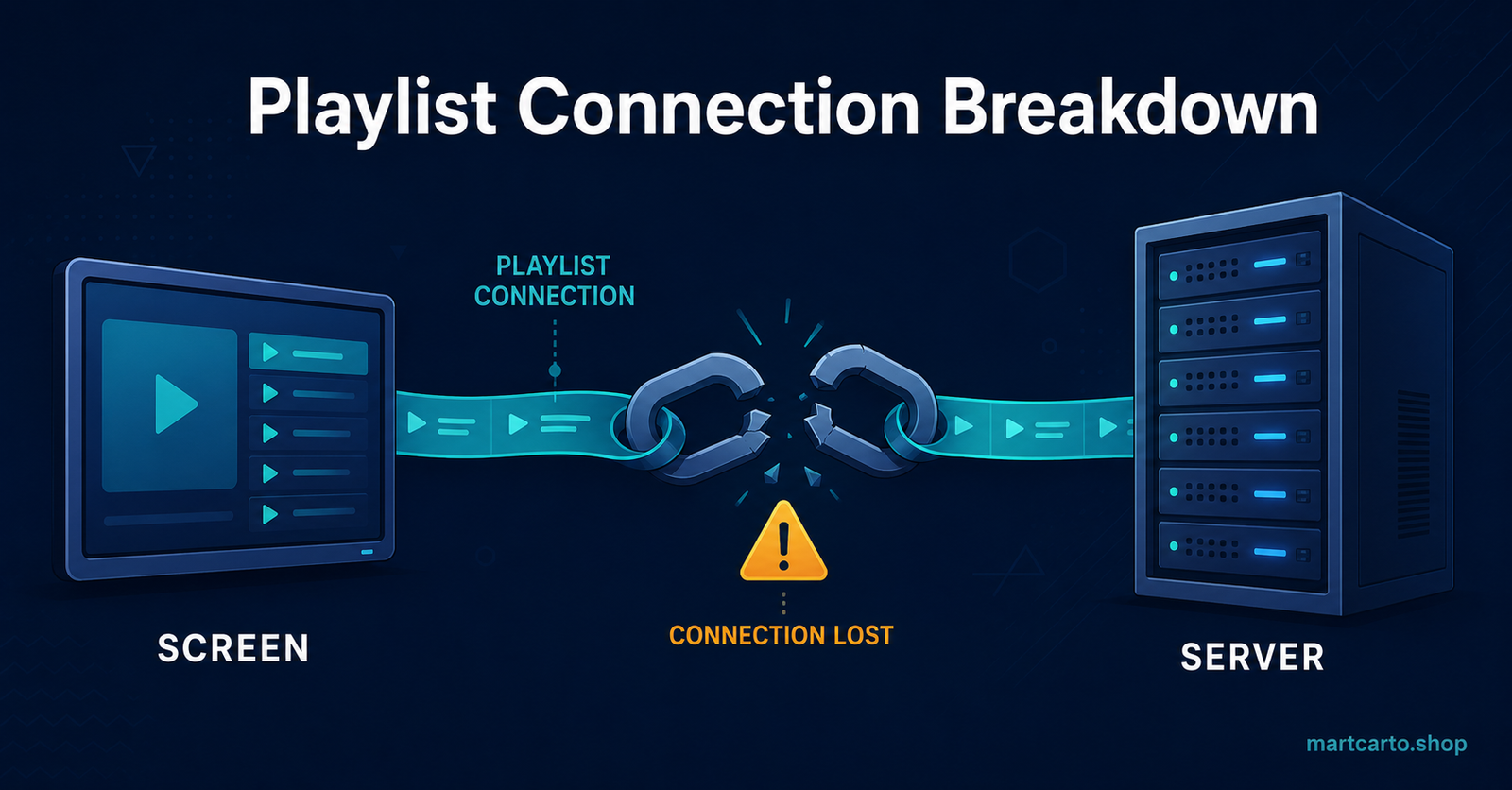
If the URL checks out and a proper player still won’t pull the list, the fault usually sits on the server or network side rather than anywhere the viewer can fix directly.
Streaming servers route customers through delivery paths matched to region and, in better setups, matched to the customer’s own ISP. A path built for one region can genuinely struggle for a customer on a different network, even though nothing about the account has changed. This is one reason the same playlist can behave perfectly for one household and constantly stall for another on the same subscription tier.
Peak-hour congestion causes something similar. A playlist that loads instantly at 3pm but hangs at 9pm on a Saturday isn’t broken, it’s competing with every other connection on the same node during the busiest viewing window of the week. That’s a load issue, not a fault with the file.
Pro tip: Note the exact time a failure happens before contacting support. “It won’t load” gets a generic reply. “It stopped loading at 9pm and worked again by 11” gives a technical team something they can actually check against server logs.
For Resellers Fielding This From a Customer
Anyone running a IPTV panel will recognize this complaint as one of the most common support tickets there is, and it’s rarely worth escalating before ruling out the basics above.
Check the customer’s connection limit before anything else. A shared login opened on a third device often produces exactly this symptom, and it reads as a technical fault when it’s actually an account-usage issue. The difference between M3U and Xtream Codes delivery matters here too, since Xtream Codes logins tend to survive app updates and device changes more cleanly than a raw M3U link, which makes them a steadier option for customers who switch devices often. Where server load is genuinely the cause rather than the account, matching the customer to the correct regional path, something covered in more detail when looking at what makes a panel reliable, fixes far more tickets than anything on the customer’s end ever does.
What to Try, in Order
- Test the raw M3U URL in a browser before assuming the app is broken.
- Confirm the IPTV subscription hasn’t expired and the device limit hasn’t been exceeded.
- Switch to a dedicated player if a smart TV’s built-in app is struggling with a large list.
- Clear the app’s cache or remove and re-add the playlist entry.
- Retry outside peak viewing hours to rule out server congestion.
- Contact support with the exact time the fault occurred, not just a description of the symptom.
Frequently Asked Questions
Does the player app really make that much difference?
Yes. A dedicated player built to handle IPTV-style playlists parses large channel lists far more reliably than a smart TV’s built-in app, which is often the actual cause of a list that loads partway then stalls.
Can a slow home connection cause the playlist to fail rather than just buffer?
It can, particularly if the connection struggles to complete the initial download of a large playlist file within the app’s timeout window, which looks identical to a broken link even though the file itself is fine.
Why does the same playlist work on one device but not another?
Different apps handle large files differently, and older smart TV software in particular tends to time out where a dedicated player wouldn’t, so the fault often sits with the app rather than the account.
Should I request a new link the first time it fails to load?
Not immediately. Test the URL in a browser first. If it loads there, the fault is with the app or the device, and a new link won’t change anything.
How often should a playlist link be refreshed to avoid this?
There’s no fixed schedule, but if a link has been in place for a long time without issue and then suddenly fails, checking expiry and device count first saves a wasted support ticket over something that turns out to be routine.
Getting a Playlist Loading Again
IPTV M3U Playlist Not Loading is rarely one single fault. It’s usually a process of elimination: confirm the link is live, rule out the app and device, then look at server load or delivery path if the first two check out clean. Working through the checks in that order, rather than jumping straight to reinstalling everything, is what actually gets a customer or a personal setup back online fastest. If the same fault keeps recurring on the same account, that’s worth raising with support directly, with the time and pattern of the failures noted, rather than repeating the same fixes each time.
Quick Troubleshooting Checklist
- Test the M3U URL directly in a browser before touching the app
- Confirm the subscription hasn’t expired
- Check the device or connection limit hasn’t been exceeded
- Switch to a dedicated player if using a smart TV’s built-in app
- Clear the app cache or re-add the playlist entry from scratch
- Retry during off-peak hours before assuming a fault
- Note the exact time of failure if contacting support