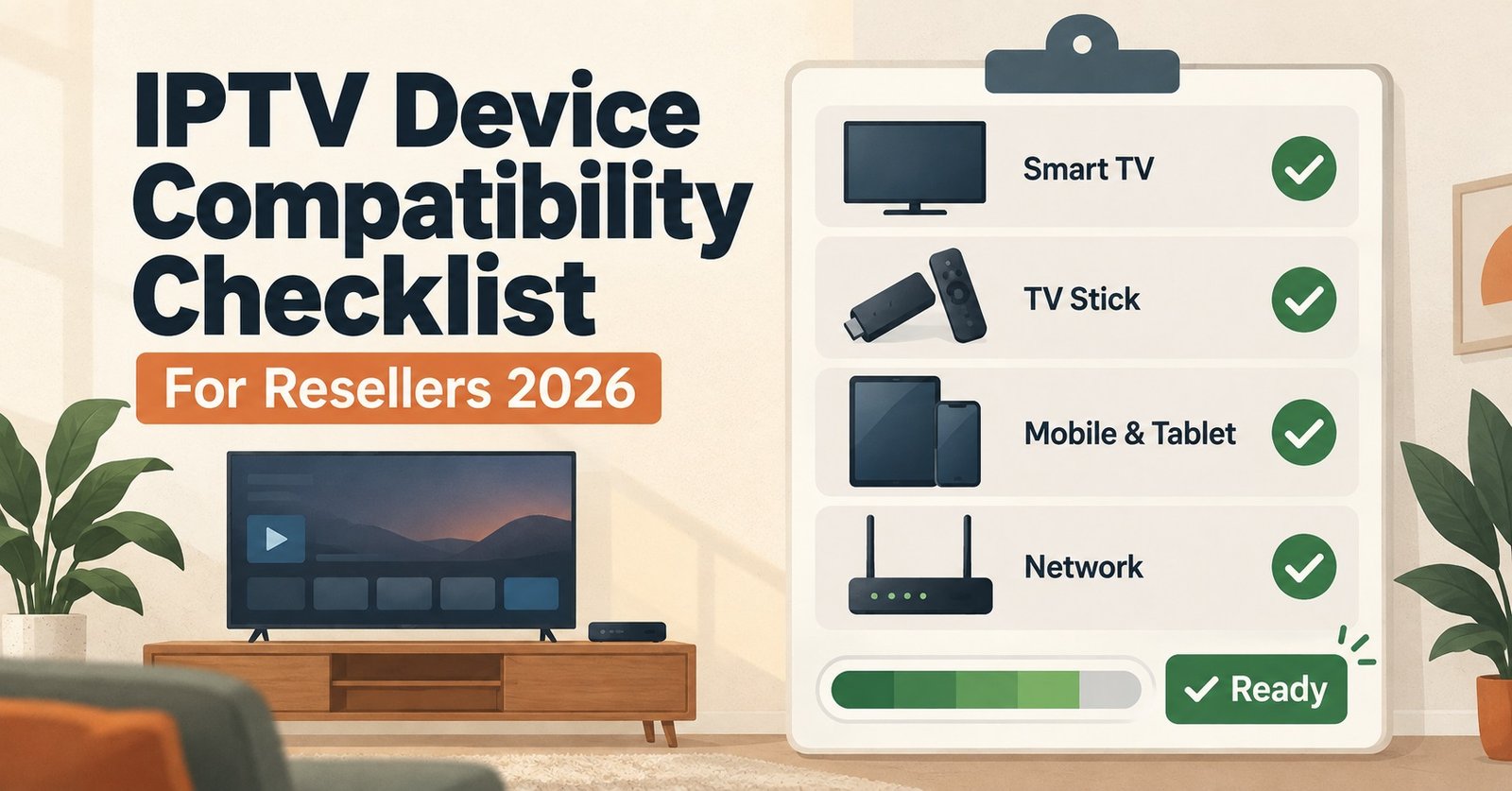

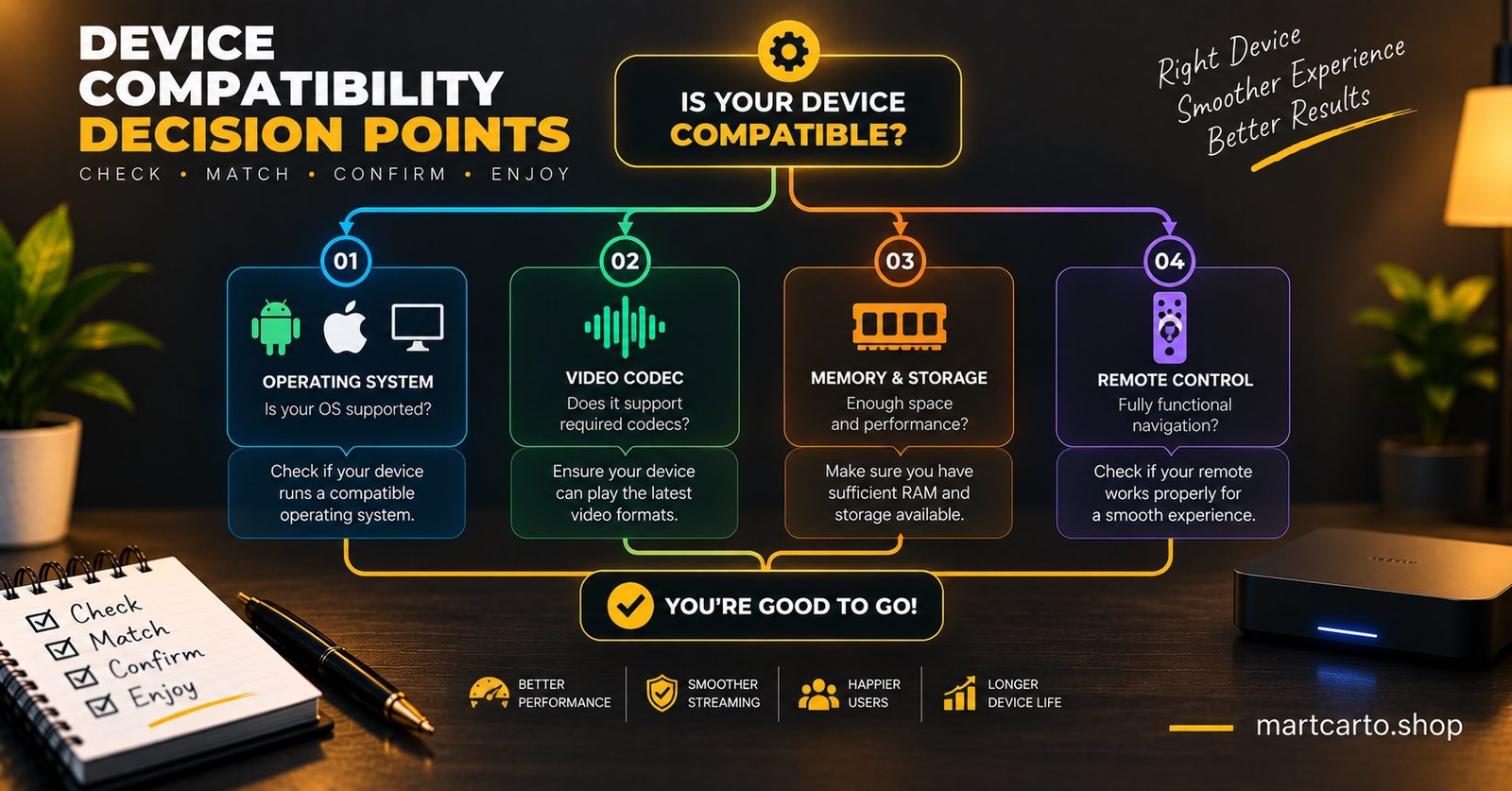
An IPTV Device Compatibility Checklist is what a IPTV panel reseller should run through before creating a customer line, not after the first “it’s not working” message arrives. Most compatibility problems trace back to one of five things: the device’s operating system, whether a proper app is even available for it, codec support, the RAM and storage sitting behind that app, and how usable the remote actually is once the customer is sat on their sofa trying to navigate. Catch those five before you generate credentials and you avoid a much larger conversation later.
Why Pre-Qualifying a Device Beats Fixing It After the Sale
A support ticket that starts with “the app keeps crashing” almost always ends the same way: the device was never going to run this smoothly in the first place. It’s not usually a server problem. It’s a five-year-old Smart TV trying to parse a 25,000-line channel list through an app that was never built for that volume, or an Android box with barely enough memory to hold the app open for more than ten minutes.
Asking two or three questions before you create the line takes maybe ninety seconds. Diagnosing the same issue after the customer is already frustrated, already suspicious that they’ve been sold something faulty, takes a lot longer and sometimes costs you the renewal. Pre-qualification isn’t extra admin. It’s the fastest route to a customer who actually stays past month one.
Running the IPTV Device Compatibility Checklist Before You Create a Line
Five checks decide most outcomes. Miss one and you’re the one fielding the fallout, even though the fault sits with the hardware, not your Iptv panel.
Operating System and Firmware Version
Ask what the device is and, where it matters, how old it is. An Android box running Android 7 or 8 behaves very differently from one on Android 11 or 12, even if both are technically “Android TV boxes.” Older firmware often can’t run current versions of the streaming apps customers want, and some manufacturers stopped pushing updates years ago. A device stuck on ancient firmware isn’t a compatibility risk, it’s close to a guaranteed one.
Smart TVs are trickier because the operating system is baked into the hardware and can’t be swapped. A Samsung Tizen set from 2019 and one from 2024 are not the same proposition, even though both say “Smart TV” on the box.
Does the Right App Already Exist for That OS
This is the question IPTV panel resellers skip most often, and it’s the one that causes the most first-week complaints. Not every operating system has a proper dedicated app. Some older Smart TV platforms only support their own limited built-in player, which chokes on large playlists and offers none of the features a customer expects. Fire TV, most Android boxes, and current-generation Smart TVs generally have solid app support. Older MAG or Stalker-style set-top boxes work differently again and need their own setup path.
If a customer’s device has no proper app available, the fix isn’t to force it through the built-in player and hope. It’s to recommend an actual streaming box, or point them toward a phone or tablet app while they sort out better hardware.
Codec Support: H.264, H.265/HEVC and What Breaks Without It
Codec support decides whether a stream plays cleanly or not at all. H.264 is the older, near-universal standard, almost everything supports it. H.265 (HEVC) is more efficient and increasingly common on higher-quality feeds, but not every device decodes it, particularly cheaper or older hardware without proper hardware acceleration for HEVC.
A device without HEVC support won’t necessarily throw an error. Sometimes it just stutters, drops frames, or overheats trying to software-decode something its chip was never designed for. If a customer reports “it plays but it’s choppy” on specific channels while others run fine, codec support is usually the first thing worth checking, not the connection.
RAM and Storage: Why a £30 Box Struggles Where a £60 One Doesn’t
App performance depends heavily on available memory, not just processor speed. A budget box with 1GB of RAM can genuinely struggle to keep a modern streaming app open alongside its own background processes, especially once that app has cached a large channel list and EPG data. Symptoms show up as slow app launches, the interface freezing when switching channels, or the app closing itself entirely after sitting idle.
Storage matters too, though less dramatically. Apps that cache EPG data and thumbnails need a bit of breathing room. A device that’s nearly full on internal storage will run everything on it more sluggishly, streaming app included.
Pro tip: If a customer describes a device as “a cheap box off a marketplace site” with no brand name they recognise, ask for the RAM figure specifically before you set anything up. It takes one message and saves a much longer one later.
Remote Usability: Can the Customer Actually Navigate the App
This one gets overlooked because it isn’t really a technical failure, it’s a usability one, and it still generates support tickets. Some devices pair a capable chip with a genuinely awkward remote, directional pads that don’t register presses reliably, or a layout that makes searching for a channel a frustrating multi-step process. A device can pass every technical check and still produce a customer who gives up within a week because using it is unpleasant.
Where possible, ask whether the customer already owns the device or is buying new. If they’re buying new specifically to use with your service, a box with a simple, well-reviewed remote and a clean app interface will generate far fewer “how do I find the channel” messages than the cheapest option available.
| Device Category | Typical Risk Level | What to Ask Before You Sell |
|---|---|---|
| Current-gen Android box or Fire TV Stick | Low | Confirm RAM (2GB or more preferred) and current firmware |
| Recent Smart TV (last 3 to 4 years) | Low to moderate | Confirm the platform has a proper app, not just the built-in player |
| Older Smart TV (5+ years) or budget no-name box | High | Confirm HEVC support and available RAM before creating the line |
| MAG or Stalker-style set-top box | Moderate | Confirm it’s configured through the correct portal method, not app-based setup |
| Phone or tablet | Low | Rarely an issue, though check available storage on older models |
Devices That Usually Need No Extra Questions, and Ones That Do
Recent Android TV boxes, current Fire TV devices, and phones or tablets from the last few years generally pass without much scrutiny. They have enough memory, current app support, and modern codec handling as standard.
The devices worth slowing down for are the ones customers already own and are attached to, rather than anything they’re about to buy. A five-year-old Smart TV that’s otherwise working perfectly for terrestrial viewing is often the device a customer is most reluctant to replace, and the one most likely to produce compatibility complaints. Being upfront about the limitation before the sale, rather than after, protects the relationship even when the answer is “this might not run smoothly on that specific TV.”
Pro tip: Keep a short, plain-English note ready that explains why an older Smart TV might struggle. Customers respond much better to “your model’s built-in app has trouble with large channel lists” than to a vague “it might not work,” and it heads off a lot of back-and-forth.
What to Ask a Customer Before You Create Their Line
A handful of direct questions, asked before setup rather than during a support ticket, cover almost every scenario above:
What’s the device, and roughly how old is it. What app were they planning to use, or do they need a recommendation. Is it connected over WiFi or ethernet, since a weak WiFi signal can mimic compatibility problems that have nothing to do with the hardware itself. And if it’s a Smart TV, is it running the manufacturer’s built-in player or a separately installed app.
None of this needs to feel like an interrogation. Two or three quick questions in the same message where you confirm their package is usually enough.
Pro tip: Save these questions as a template reply. Sending the same three questions every time takes seconds and means you’re not improvising a diagnostic conversation from scratch each time a new customer signs up.
Frequently Asked Questions
Does every Android box support IPTV apps straight out of the box?
Most current Android TV boxes do, since the major streaming apps are built for Android and widely available through their app stores or as sideloaded APKs. Very old or budget boxes running outdated Android versions can be the exception.
What actually happens if a device doesn’t support H.265/HEVC?
It usually won’t refuse to play outright. More often the stream stutters, drops frames, or the device overheats trying to decode something its hardware wasn’t built for. Switching that customer to an H.264 stream where available, or recommending better hardware, usually resolves it.
Can a Smart TV’s built-in player handle a large channel list?
Often not well. Many built-in players were designed for a handful of broadcast channels, not a list running into the thousands, and can slow down or crash when asked to load one. A dedicated app, where the platform supports installing one, performs far better.
How much RAM does a device realistically need for smooth streaming?
There’s no single universal figure, but devices with around 2GB of RAM or more tend to run modern streaming apps comfortably. Devices below that, particularly older budget boxes, are where performance complaints cluster.
Is a weak WiFi connection a device compatibility issue?
Not technically, but it produces symptoms that look identical to compatibility problems, buffering, freezing, dropped connections. It’s worth ruling out separately before assuming the device itself is at fault.
Should I turn away a customer whose device fails several checks?
Not necessarily. Being honest about the limitation and suggesting a low-cost, compatible alternative (a basic Android box, for instance) usually keeps the customer rather than losing them, and prevents a support relationship that starts on the back foot.
For the technical side of how credentials are delivered once a device has passed these checks, our guide on M3U and Xtream Codes formats covers the difference and when each is used. If you’re setting up your panel workflow from scratch, the full onboarding walkthrough runs through line creation and bouquet assignment step by step, and our notes on what actually makes a panel reliable cover the server side of the same conversation.
Running an IPTV Device Compatibility Checklist before you generate a single line is the difference between a customer who’s watching within five minutes and one who’s messaging you within the hour. The five checks, operating system, app availability, codec support, RAM and storage, and remote usability, take a couple of minutes to work through and catch almost every compatibility problem before it becomes a refund conversation. Where a device fails on one or two points, being upfront and suggesting a workable alternative protects the sale far better than letting the customer discover the limitation on their own.
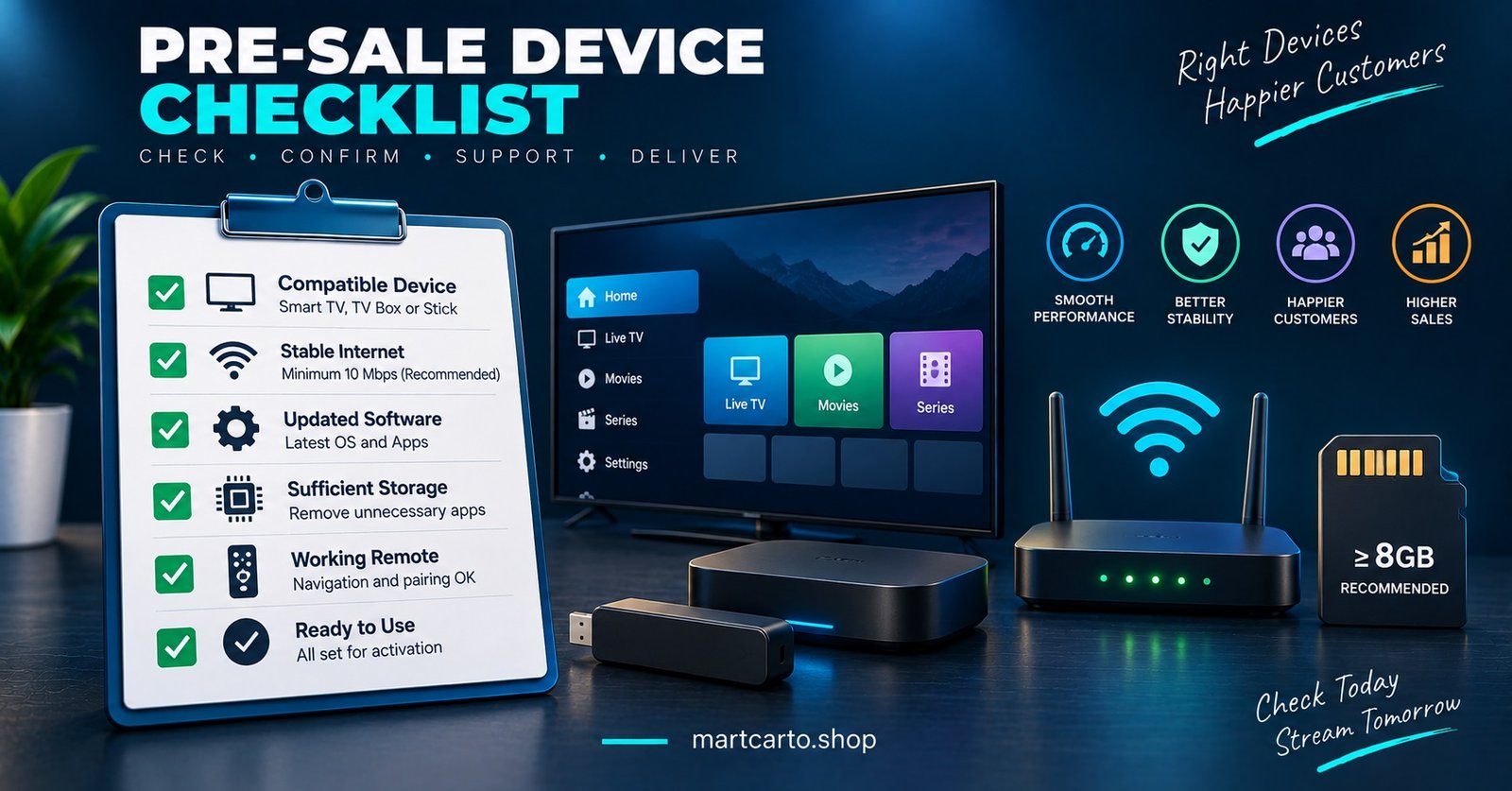
Pre-Sale Device Qualification Checklist
- Confirm the exact device and its approximate age or firmware version
- Check whether a proper dedicated app exists for that operating system
- Ask whether the customer has had codec-related playback issues before (choppy or freezing specific channels)
- Confirm approximate RAM if the device is an unfamiliar or budget brand
- Rule out a weak WiFi connection separately from device compatibility
- Test the app’s navigation briefly if the customer is unfamiliar with streaming apps generally
- Have a low-cost compatible device ready to suggest if the current one fails multiple checks