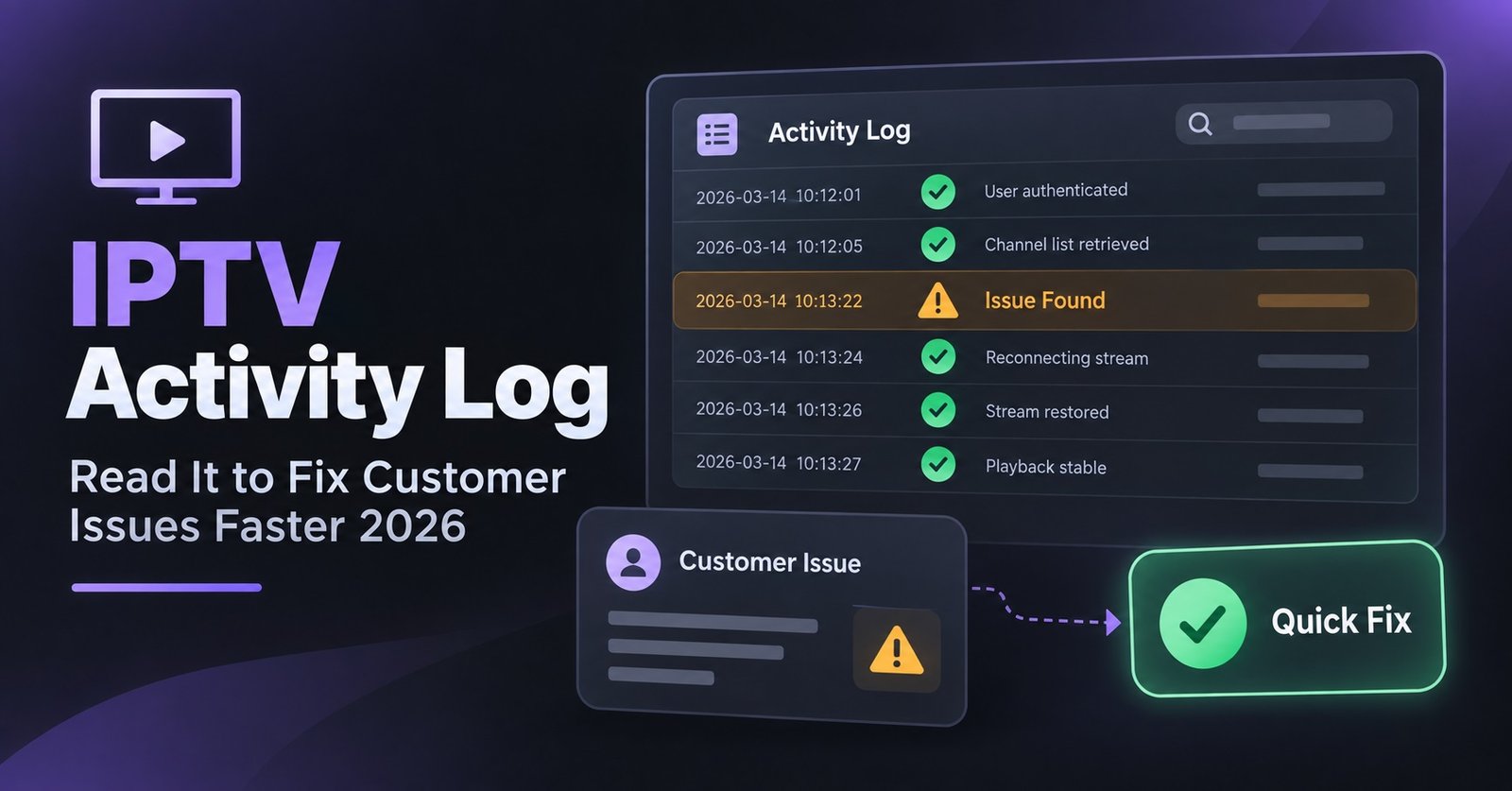

The IPTV Activity Log in your IPTV reseller panel is the fastest way to find out why a customer cannot watch, because it shows you what actually happened rather than what the customer thinks happened. A “nothing works” message from a customer might be a wrong password, an expired line, a third device pushing past the connection limit, or a single stream that went down for everyone. Each of those leaves a different trace. Learn to read the login entries, the connection entries and the action entries as three separate stories, and most tickets stop being guesswork.
Start With the Complaint, Then Pick the Right Log
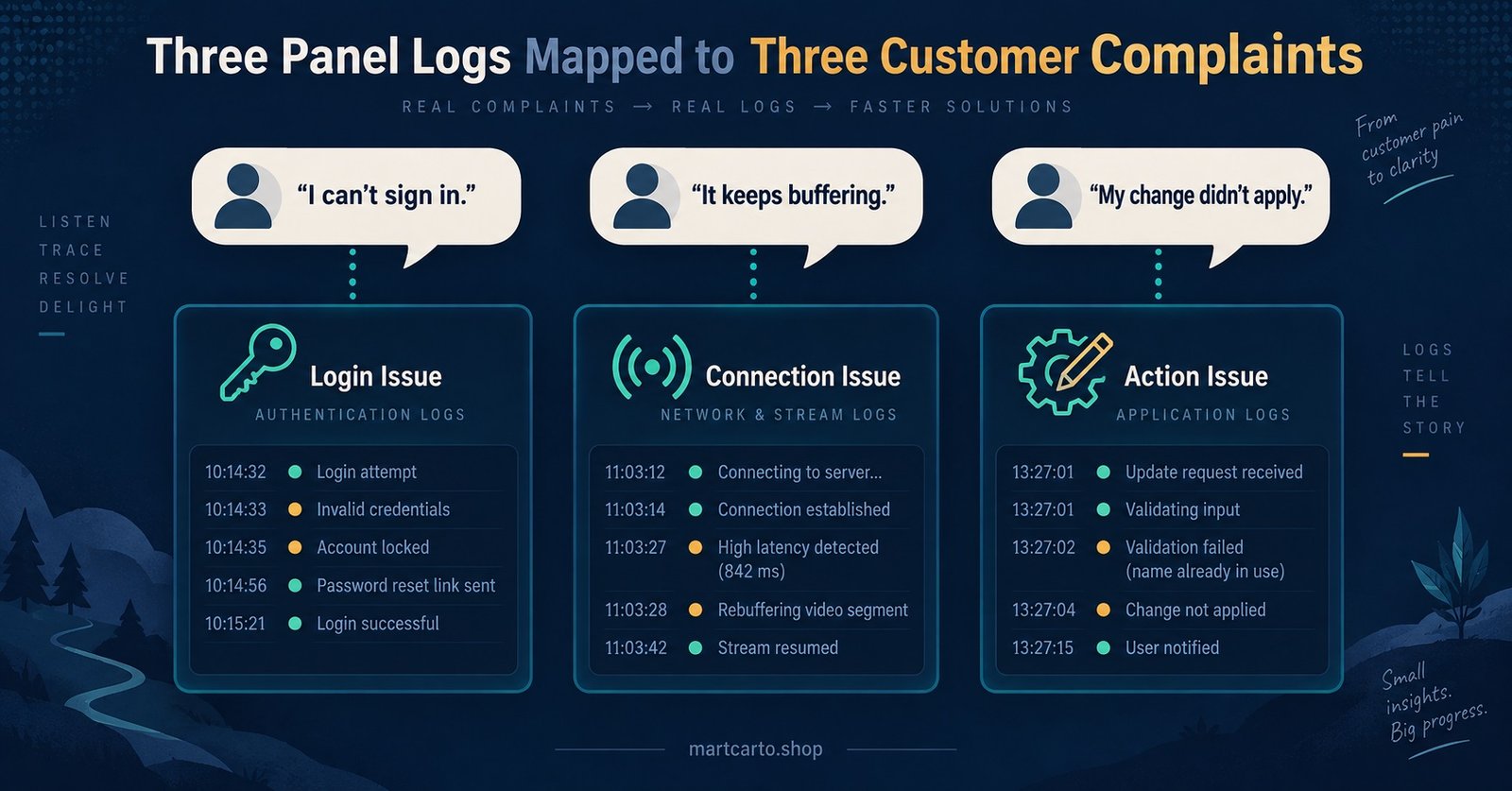
Panels vary, but almost every Xtream-style reseller dashboard keeps three kinds of record. Login records show authentication attempts. Connection records (often called stream or client logs) show what a line tried to play, from where, and for how long. Action records show what you, your sub-resellers or the parent admin did to the account.
The mistake most new resellers make is opening whichever log is nearest and scrolling until something looks odd. A better habit is to translate the complaint into a question, then open the log that answers it.
| Customer says | Question to answer | Log to open first |
|---|---|---|
| “It says invalid login” or the app rejects credentials | Did the server accept the username and password? | Login |
| “Channels load then stop” or “it buffers” | Did a stream start, and why did it end? | Connection |
| “My subscription vanished” or “the channels changed” | Was the line edited, suspended or reassigned? | Action |
If you cannot tell which category the complaint falls into, ask the customer one thing: does the app open the channel list at all? If it does, the login is fine and you can skip straight to connection records.
Reading Login Records Without Jumping to Conclusions
A login entry usually contains the username, a timestamp, the source IP, a result (success or failure) and often the user agent, which identifies the app or device that made the request. The result column is where people stop reading, and it is where most misdiagnoses begin.
A run of failed attempts followed by a success is normally a customer mistyping, then getting it right. A run of failures with no success at all deserves a closer look at the reason, if the panel records one. Wrong password, line expired, line disabled and line not found are different faults with different fixes, even though the customer sees the same generic error on their screen.
Pay attention to what is missing as well. If a customer says they cannot log in but the login log shows nothing for their username at all, the request never reached the server. That points to a wrong server URL or port in the app, a DNS path issue, or a device that is offline. No amount of resetting the password will help, because the password was never checked.
The user agent is worth a glance too. If a customer swears they are on a television app but the entries show a generic mobile browser string, they are probably testing on a phone and the television app may simply have stale details saved. Guidance on the common app-side login failures is in our guide to fixing login errors in a popular player app.
Pro tip: Sort the login log by IP rather than by time when a customer reports “random” login failures. Failures clustered on one IP that succeed from another usually mean a router, carrier-grade NAT or a home network setting is interfering, not the account.
What Connection Records Reveal About Playback
Connection records are the richest source of diagnostic information and the easiest to misread. A typical entry shows the line, the stream or channel identifier, a start time, an end time or a “still active” flag, the client IP, and frequently the ISP, country and a rough geographic location derived from the IP.
Three patterns cover most playback tickets.
Streams that start and stop within a few seconds, over and over, against many different channels, usually mean the player is struggling rather than the server. The customer opens a channel, it fails to buffer in time, the app moves on or the customer taps another one. If several unrelated customers show the same pattern on the same stream at the same time, the fault has moved to the source and you should escalate to your supplier rather than troubleshoot devices.
Long, healthy sessions that end abruptly at the same moment across a customer’s whole evening tend to be network drops at the customer’s end. The log will show a clean start and a sudden termination with no error from the server. Ask about their Wi-Fi before you touch anything in the panel.
Overlapping sessions are the third pattern, and the one with a commercial angle. When a line limited to one connection shows two active sessions from different IPs, the second attempt will be refused or the first will be kicked, depending on how the panel is configured. The customer experiences this as “it keeps logging me out”. The log shows exactly what is happening: the line is being used on more devices than it allows. You can offer a connection upgrade rather than repeatedly resetting something that is not broken.
Pro tip: Before assuming a bitrate problem, compare the ISP column across the sessions that failed and the sessions that worked. If every failed session sits on one provider, the fix is usually switching that customer’s delivery path in the panel, not changing their app.
Why the IPTV Activity Log Matters for Account Changes
Action records answer the question the other two logs cannot: who changed something. Every time a line is created, extended, suspended, deleted, reassigned to a different bouquet, or has its connection limit or expiry altered, the panel writes an entry with the acting account, the target line and the time. Credit deductions are normally recorded in the same place or in a linked credit history.
This matters more as your reseller operation grows. With sub-resellers or a shared support helper in the mix, a customer who suddenly loses a channel package may be the victim of an honest mistake made by someone else with panel access. Rather than assuming the supplier changed something, check the action history first. If a bouquet reassignment appears against your own account at 11pm and you were asleep, you also have an early warning that your panel credentials may have been shared or compromised.
The action log is equally useful for renewals. A customer insisting they paid for twelve months when the line shows six can be checked in seconds: the extension entry records how many months were added and when. That conversation becomes factual rather than a dispute.
A quick note on scope. Action records show panel-side changes only. They do not capture what a customer did inside their own app, so a customer who deleted a playlist on their device will not appear here. That is a device problem, not an account problem, and the absence of an entry is itself the clue.
A Repeatable Triage Sequence for Support Tickets
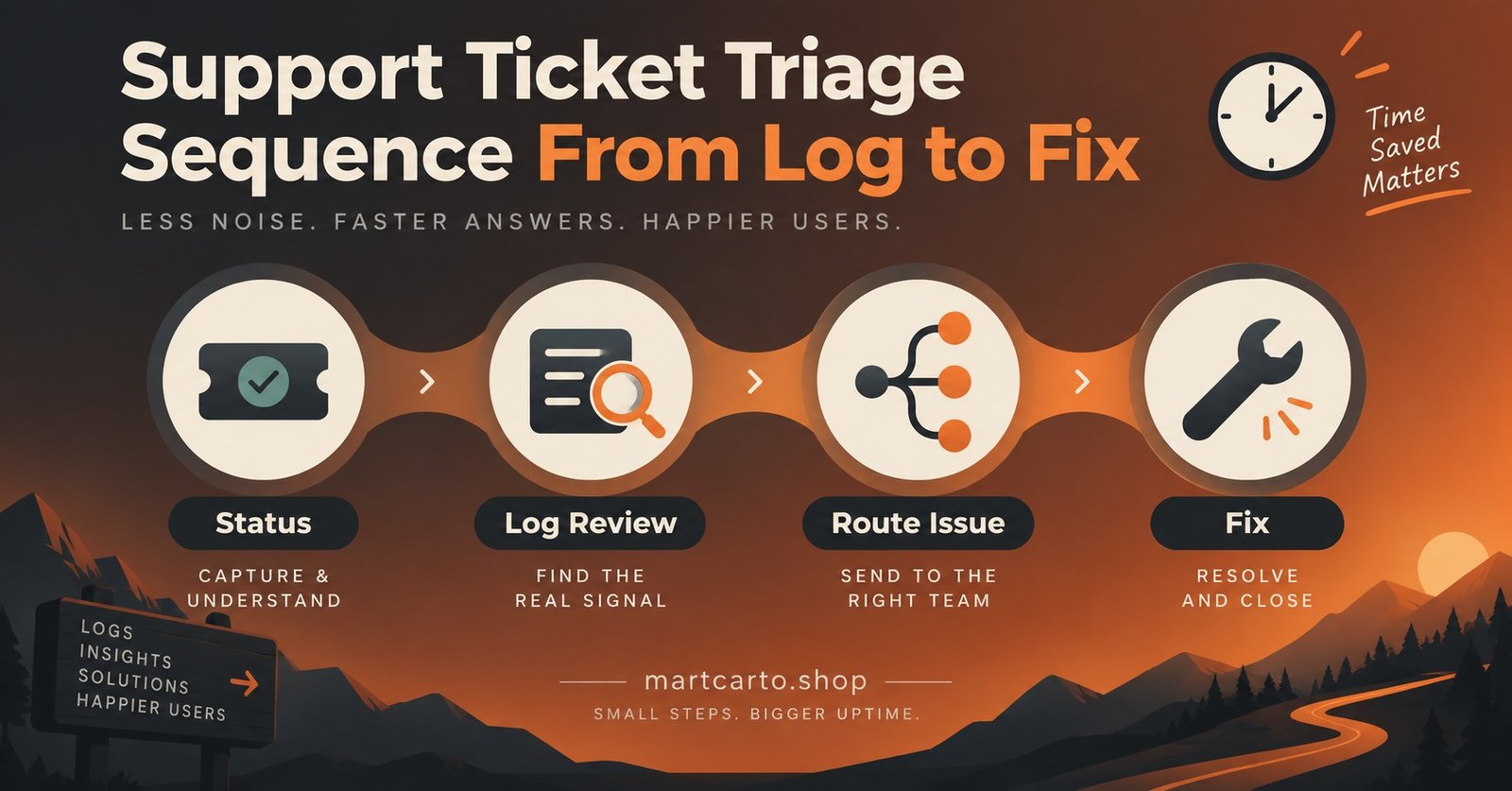
Once you know what each log holds, a fixed order of checks keeps tickets short.
Confirm the line status first: active, expired, disabled, and the connection limit. Half of the “not working” messages end here, particularly around expiry dates.
Open the login log for that username and check the last twenty-four hours. Success entries mean credentials and server address are fine. Failures with a reason tell you the fix. No entries mean the app is not reaching the server at all.
Move to connection records and look for the three patterns above: rapid restarts, clean drops, or overlapping sessions. Cross-check against other customers on the same stream if the pattern looks server-side.
Check the action log for any recent change to the line, especially if the complaint involves missing channels, a changed expiry, or a sudden suspension.
Only then touch the account. Resetting a password, extending a line or moving a delivery path before you have read the logs often masks the real cause, and the customer comes back a week later with the same problem.
Retention, Privacy and What the Logs Will Not Tell You
Log data is not kept forever. Most panels retain connection records for a limited window before they are rotated, and the window varies by supplier and by how busy the server is. If a customer reports a problem from three weeks ago, there may be nothing left to read. Encourage customers to report faults promptly, and check a line’s history the same day you receive the ticket.
Logs also contain personal data. IP addresses, approximate locations and device identifiers can identify an individual, so you have obligations under UK GDPR and, for EU customers, the GDPR itself, around how you store, share and delete that information. Do not paste raw log lines into public chat groups, do not screenshot another customer’s session when explaining a problem, and do not hold exported logs on personal devices longer than you need them. Your supplier’s terms of service will normally set out what the panel records and for how long, and it is worth reading that section before you promise any customer that their data has been removed.
Finally, remember that a log is evidence, not verdict. A stream that terminated with a server-side error may still have been triggered by a customer on a poor connection. A login failure attributed to a wrong password may be a caching problem in the app. Use the records to narrow the possibilities, then confirm with one targeted question to the customer.
Pro tip: When a fault recurs, save the relevant log lines (with the customer’s personal identifiers removed) in a private note against that customer. Patterns that are invisible in a single ticket become obvious across three.
Choosing a Panel With Usable Logging
Not every IPTV Panel reseller dashboard treats logging with the same care. Some show login and connection records on a single crowded page with no filter. Others let you search by username, IP, stream or date range, export to a spreadsheet, and view a per-line history in one click. The difference in support time is significant once you pass a few dozen customers.
When evaluating a supplier, ask whether the activity log can be filtered by line and by time, whether action records show the acting account, whether credit changes are itemised, and how long records are retained. If a demo panel cannot answer those questions, the supplier probably cannot either. Our note on what to check in a reliable UK IPTV reseller panel covers the wider evaluation, and the feature walkthrough of the Martcarto panel shows where logging sits within it.
Frequently Asked Questions
Does the activity log show which channel a customer was watching?
Connection records normally show a stream identifier and, in most panels, the stream name. This helps you tell whether a fault is isolated to one stream or spread across many. It is diagnostic information, not something to share back to customers or discuss publicly.
Why does a customer show logins from several countries?
Mobile connections, VPN use, and IP geolocation databases that lag behind carrier changes all produce this. A single line hopping between distant locations within minutes is more likely to indicate credential sharing than travel, but confirm with the customer before acting.
Can I see whether a sub-reseller changed a customer’s line?
If the panel writes the acting account into action records, yes. Check the action history for the line and look at who performed the edit. If your panel does not record the acting account, that is a limitation worth raising with your supplier.
How long should I keep exported log data?
Only as long as the ticket or dispute needs it. Log exports contain IP addresses and device details that count as personal data, so hold them briefly, store them securely and delete them once the issue is resolved.
The log is empty for a line that definitely tried to connect. What now?
Either the app is pointing at a wrong server address or port, the device cannot reach the server through its current network, or the panel’s log retention has already cleared the entries. Ask the customer to attempt a login while you watch the log live; if nothing appears, the request is not arriving.
Should I show customers their own log entries?
Rarely. A brief explanation such as “your line was active on two devices at the same time” is enough. Sharing raw records invites arguments over timestamps and locations and exposes data about the customer’s own household that they may not want written down in a chat.
Conclusion
Reading the IPTV Activity Log is a skill, and like any skill it rewards a method. Match the complaint to the right record type, read the login log for whether credentials reached the server, read the connection log for how playback behaved and from where, and read the action log for who changed what. The evidence will not always be conclusive, and retention windows mean it will not always be there, but in the majority of tickets it turns a vague complaint into a specific cause in a couple of minutes. The next time a message arrives saying nothing works, open the log before you open the customer’s account.
Reseller Log-Reading Checklist
- Confirm the line’s status, expiry and connection limit before opening any log
- Check the login log for the last twenty-four hours and note success, failure reason, or no entries at all
- Look at connection records for rapid restarts, clean drops or overlapping sessions
- Compare the failing stream against other customers on the same stream before blaming a device
- Compare ISP and delivery path across failed and successful sessions
- Review the action log for recent edits, suspensions or bouquet changes and note the acting account
- Ask the customer one targeted question to confirm what the log suggests
- Apply a single fix, then verify it by watching the next login and connection entries
- Strip personal identifiers before saving any log lines in notes
- Delete exported log data once the ticket is closed