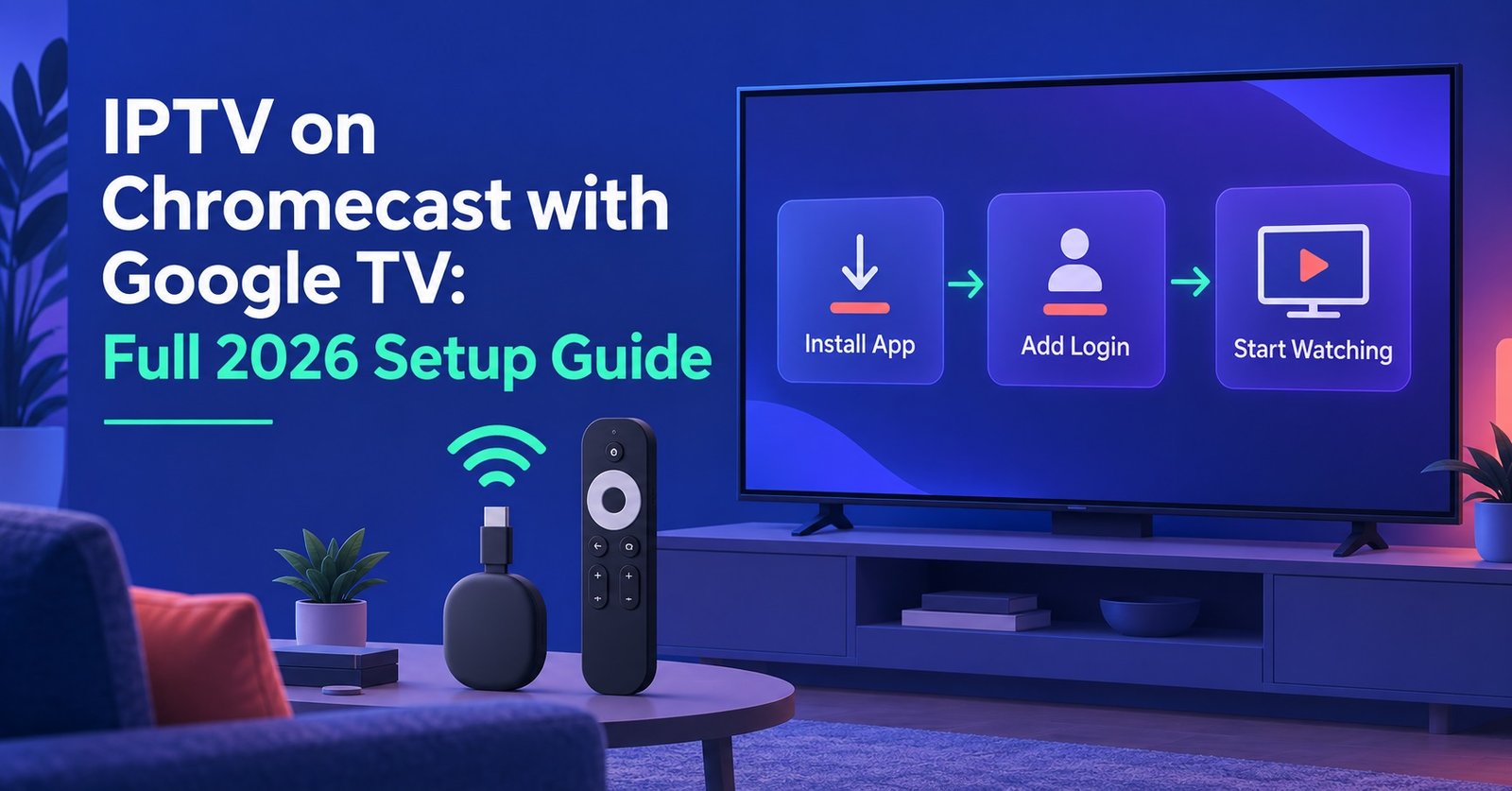

Setting up IPTV on Chromecast with Google TV takes roughly ten minutes: install a player app, type in your Xtream Codes or M3U details, wait for the channel list to build, and start watching. The dongle runs a full Google TV system, so the player lives on the device itself rather than being thrown across from a phone. That distinction trips up more people than any other part of the process, and it decides which setup route you follow.
Two Completely Different Setups Hide Behind the Word “Cast”
Ask ten people how they watch a subscription stream on a Google dongle and you will get two incompatible answers.
The first group casts. They open a player on an Android phone or an iPhone, press the cast icon, and push the picture to the television. The phone stays involved the whole time. If it rings, sleeps, or wanders out of Wi-Fi range, playback usually stumbles. Battery drains fast. Zapping between channels means picking up the phone every time.
The second group installs. Chromecast with Google TV is not the old plug-and-cast puck from a decade ago. It boots into Google TV, has its own Play Store, its own remote, and its own storage. You install a player directly on it, log in once, and the phone is never involved again.
For anything more than a quick five-minute look, installing wins. Casting is fine for showing someone a clip. It is a poor way to run a daily viewing setup, and if you are a IPTV panel reseller handing credentials to a customer, casting is the fastest route to a support message about stuttering that has nothing to do with your servers.
What the Hardware Gives You, and What It Quietly Withholds
Before touching any settings, it helps to know what you are working with, because two of the device’s limits shape everything that follows.
Storage is tight. The 4K model shipped with around 8GB on board, and the system claims a substantial slice of that before you install anything. Two players plus a couple of licensed streaming apps and you are already watching the free space counter. People who install four or five players “to test them all” tend to end up with a device that refuses updates and behaves oddly.
Memory is modest too. The 4K version carries 2GB of RAM, and the cheaper HD version has less. That number matters more than the processor for this particular job, because a playlist with tens of thousands of entries has to be parsed and held somewhere. On a phone with 8GB of RAM nobody notices. On this dongle, a bloated playlist is the single most common cause of the slow, laggy, apparently broken behaviour that gets blamed on the provider.
Both models are also older hardware now. Google stopped selling the line and moved on to the Google TV Streamer, and the 4K dongle sits on an Android TV OS release several versions behind current Google devices. There was a scare in May 2026 when a support page appeared to mark most Chromecast models as no longer receiving critical security updates; Google then said the page had been changed in error and that support was not ending. Around the same period, Gemini-based search and voice features started reaching 4K units. Treat the device as supported but ageing rather than actively developed.
Pro tip: Before you install anything, open Settings, System, About and run a system update. Configuring a player on out-of-date firmware and then updating afterwards is how you end up unable to tell which change broke playback.
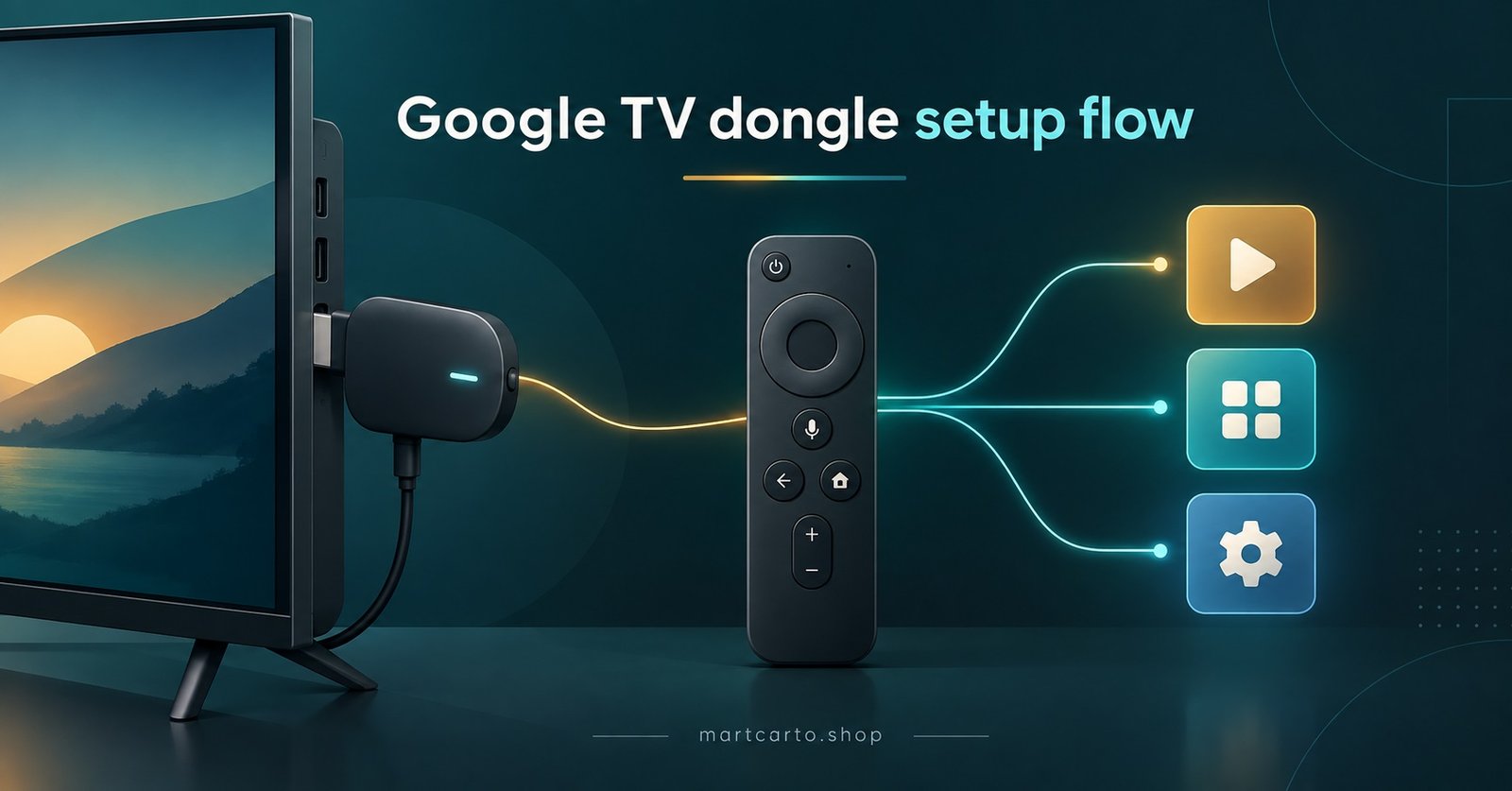
Setting Up IPTV on Chromecast with Google TV
Two routes exist. Try the first one before bothering with the second.
Route one: install a player from the Play Store
Open the Play Store from the Apps row on the home screen and search for the player your provider recommends. Several established players designed for television interfaces are listed there, and a store install is the cleanest option available: automatic updates, no security prompts, no permission juggling.
Install one player. Not three. If your provider has a preference, follow it, because their support team has seen every failure mode of that specific app and will diagnose your problem far faster.
Route two: sideloading, when the store does not have it
Not every player is listed for every region or every device. Sideloading is the fallback, and on Google TV it is a two-part process rather than a single switch.
First unlock developer options. Go to Settings, System, About, scroll to the Android TV OS build line, and press the select button on it repeatedly, usually seven times, until a message confirms you are now a developer.
Next install a downloader utility from the Play Store. Enter the direct APK address from the developer’s own website into it. When the file finishes and the security warning appears, choose Settings, then toggle that downloader to Allowed on the Install unknown apps screen. This permission is granted per app, not globally, so allowing the downloader does not allow your file manager or your browser.
Install the APK, then go back and delete the downloaded file. On a device this short on storage, leftover installer files are not harmless clutter.
One 2026 change worth knowing about: Google has been rolling out developer verification requirements for Android, described as an accountability layer, with the relevant stage landing around September 2026. Sideloading has not been switched off, and the original plan to block unverified apps outright was pulled back, but expect more warning screens and extra confirmation steps than you saw a year ago. Anything you sideload should come from the developer’s own download page, and Play Protect should stay enabled.
Entering your login details
Most providers issue either Xtream Codes credentials, which is a server address plus a username and password, or an M3U link that carries everything in one long URL. Players usually offer both as separate options on the add-playlist screen. Pick the format that matches what you were sent, rather than pasting an M3U link into an Xtream Codes field and wondering why nothing loads. If you are unsure which you have, the difference between the two formats and what each one is good for is covered in this guide to M3U and Xtream Codes account formats.
Typing a long URL with a remote control is miserable. Use the Google TV mobile app’s remote keyboard, or pair a Bluetooth keyboard for five minutes. One mistyped character produces exactly the same blank screen as an expired account, and people waste hours on that.
After the credentials go in, the player pulls down the full channel list. On a large playlist this genuinely can take a few minutes on this hardware. Let it finish. Force-closing halfway leaves a partial list that behaves strangely afterwards.
Prove It Works Before You Walk Away
A channel that plays for ten seconds proves almost nothing. Four quick checks catch most problems while you are still standing in front of the television.
Open a high-bitrate channel and leave it running for three or four minutes without touching the remote. Buffering that appears at the ninety-second mark is a different problem from buffering that appears immediately.
Switch channels five or six times in a row. Slow, sluggish switching on a fresh install usually points at playlist size rather than the connection.
Check that audio stays in sync after a channel change, and that the picture fills the screen properly rather than sitting in a letterboxed window.
Finally, hide the channel groups you will never watch. Most players let you deselect entire categories, and trimming a 25,000-entry list down to the few hundred channels someone actually uses is the single most effective performance fix on a 2GB device. It is also the step almost everyone skips.
Pro tip: Wired beats wireless on this dongle. If the television sits near a router, a USB-Ethernet adapter on the power cable end costs very little and removes Wi-Fi from the list of things you have to argue about later.
When Playback Goes Wrong
| Symptom | Most likely cause | What to try first |
|---|---|---|
| Buffering only at peak evening hours | Delivery path or ISP congestion, not the device | Ask your provider to switch your DNS or server path |
| App closes itself during playback | Memory pressure from an oversized playlist | Hide unused channel groups, reboot, reopen |
| Everything worked, now nothing loads | Expired subscription or a connection limit hit | Check expiry date, then check how many devices are logged in |
| Some channels play, others show a black screen | Individual source problem upstream | Report the specific channel names to your provider |
| Player will not install or update | Storage exhausted | Delete leftover APK files and any unused apps |
The pattern worth internalising: problems that affect every channel are usually account or device problems, and problems that affect a handful of channels are usually upstream. Sorting a complaint into one of those two buckets before doing anything else saves an enormous amount of guesswork. Panel-side reliability factors are worth understanding separately, and this breakdown of what makes a IPTV reseller panel reliable covers the supplier end of the same question.
Where This Device Runs Out of Road
Being honest about limits is more useful than pretending there are none.
The dongle will not comfortably run several heavy players at once, and it was never designed to. Recording features in some players write to internal storage by default, which fills the device quickly; external USB storage needs a powered hub because the single port is also the power input. Multi-screen and picture-in-picture arrangements that work on a full Android box will feel cramped here.
Longevity is the other consideration. Hardware sales have ended, the successor product exists, and while the software is still supported, this is not a device to buy new in 2026 if you want five more years out of it. For an existing dongle sitting in a drawer, it remains a perfectly capable player. As a deliberate purchase, newer Google TV hardware makes more sense.
What Resellers Should Say Before the Customer Plugs It In
Customers arriving with this dongle need three things said up front, and saying them early cuts your week-one support volume noticeably.
Tell them to install a player rather than cast from a phone, and name the specific player you support. Tell them the first channel list load takes a few minutes and is not a fault. Tell them to hide the channel groups they do not want, and explain that it makes the box faster rather than just tidier.
Then set the expectation on device age. If a customer buys a second-hand dongle expecting the same responsiveness as current hardware, the disappointment lands on you. Being straight about it before the sale is cheaper than defending it afterwards. The panel-side workflow for issuing and managing those lines is set out on the Martcarto iptv reseller panel walkthrough.
Pro tip: Keep a short written setup note you can paste into a message, with the exact player name, the credential format you issue, and the “hide unused groups” instruction. Sending it with the credentials rather than after the first complaint changes the whole tone of the relationship.
One neutral point on legality, since it comes up: the technology itself is simply a delivery method, no different in principle from any other streamed video. Whether a given service is lawful depends on the distribution rights held for the content it carries and the permissions in place in the viewer’s territory. That question sits with the service, not the dongle.
Frequently Asked Questions
Do I need to keep my phone connected once the player is installed?
No. A player installed on the device runs independently. Your phone is only needed if you are casting, which is the setup most people should move away from.
Why does my channel list take so long to appear the first time?
The player downloads and parses the entire playlist before showing anything. On hardware with 2GB of RAM and a very large list, several minutes is normal on first load. Later launches are faster because the list is cached.
Can I use one set of credentials on the dongle and a phone at the same time?
Only if your subscription allows more than one simultaneous connection. Single-connection accounts will disconnect one device when the other logs in, which is frequently mistaken for a server fault.
Is sideloading still possible in 2026?
Yes, though with more friction than before. Developer verification requirements introduced through 2026 add warning screens and confirmation steps, and Google stepped back from blocking unverified apps entirely. Install from the developer’s own site and leave Play Protect on.
Should I buy this dongle now or the newer Google TV hardware?
If you already own one, keep using it. If you are buying, the newer Google TV Streamer has more memory and more storage, and both of those directly affect how a player handles a big channel list.
Where Does That Leave You
Running IPTV on Chromecast with Google TV comes down to three decisions made in the right order: install a player natively instead of casting, keep only one player on a device this short on storage, and trim the channel list down to what you actually watch. Get those right and the dongle handles daily viewing without complaint. Get them wrong and you will spend weeks blaming a provider for a memory problem.
The honest caveat is hardware age. This is a competent player, not a future-proof one, and anyone buying fresh should look at current Google TV hardware instead. If your dongle is already sitting behind the television, work through the setup below and check the four verification points before you consider the job finished. Credit pack options and panel access are listed on the Martcarto IPTV Panel pricing page.
Device Setup Checklist
- Run a system update from Settings, System, About before installing anything
- Install one player only, from the Play Store where possible
- Unlock developer options and grant per-app install permission only if sideloading
- Delete any downloaded APK file straight after installation
- Confirm whether you hold Xtream Codes credentials or an M3U link, and use the matching entry screen
- Use a phone keyboard or Bluetooth keyboard to enter long URLs
- Let the first playlist load complete without interrupting it
- Hide every channel group you will not watch
- Play a high-bitrate channel for three minutes and switch channels several times
- Note your subscription expiry date and simultaneous connection limit somewhere you will find them